Tasks
What a single task holds. A task starts as a line of text and can become a small record of a piece of work: the dates that put it on a timeline, the status and progress that say how far it has got, a priority, a rule that brings it back, a reminder that fetches the user back to it, the files it needs, and — where the work is billed — what it was estimated to cost and what it actually cost.
Everyday task actions
Summary Creating a task, editing it, deleting it, and arranging the list so that the right things are at the top. The editor opens small, with a subject and a description, and keeps the rest of the record — dates, status, priority, participants and the detail fields — behind an Expand form link. The list itself is sorted and filtered without opening anything.
Why it matters A to-do list is only as good as the habit of writing things in it, and the habit survives only if adding a task costs seconds. Most tasks are a line of text, and a form that wants a due date, a status and a priority before it will save one is a form people stop opening. Starting with the subject and hiding the rest behind an expander lets a single list hold both the three-word reminder and the properly specified piece of work. Sorting and the done-tasks switch matter at the other end: a list that keeps everything ever finished in view stops being read.
Description
- Create task opens an editor with a subject and a description, with dates, status, priority, participants and the detail fields behind Expand form
- A task is edited in the same editor
- Deleting removes the selected tasks after a confirmation step
- The list sorts by urgency, status, due date, subject or priority, ascending or descending
- Show done tasks decides whether finished tasks are listed at all
- The list is drawn either with checkboxes or in a plain layout
Availability Since 7.10.6 or earlier. Which layout the list uses is remembered in io.ox/tasks//listViewLayout.
Give a task a start and due date
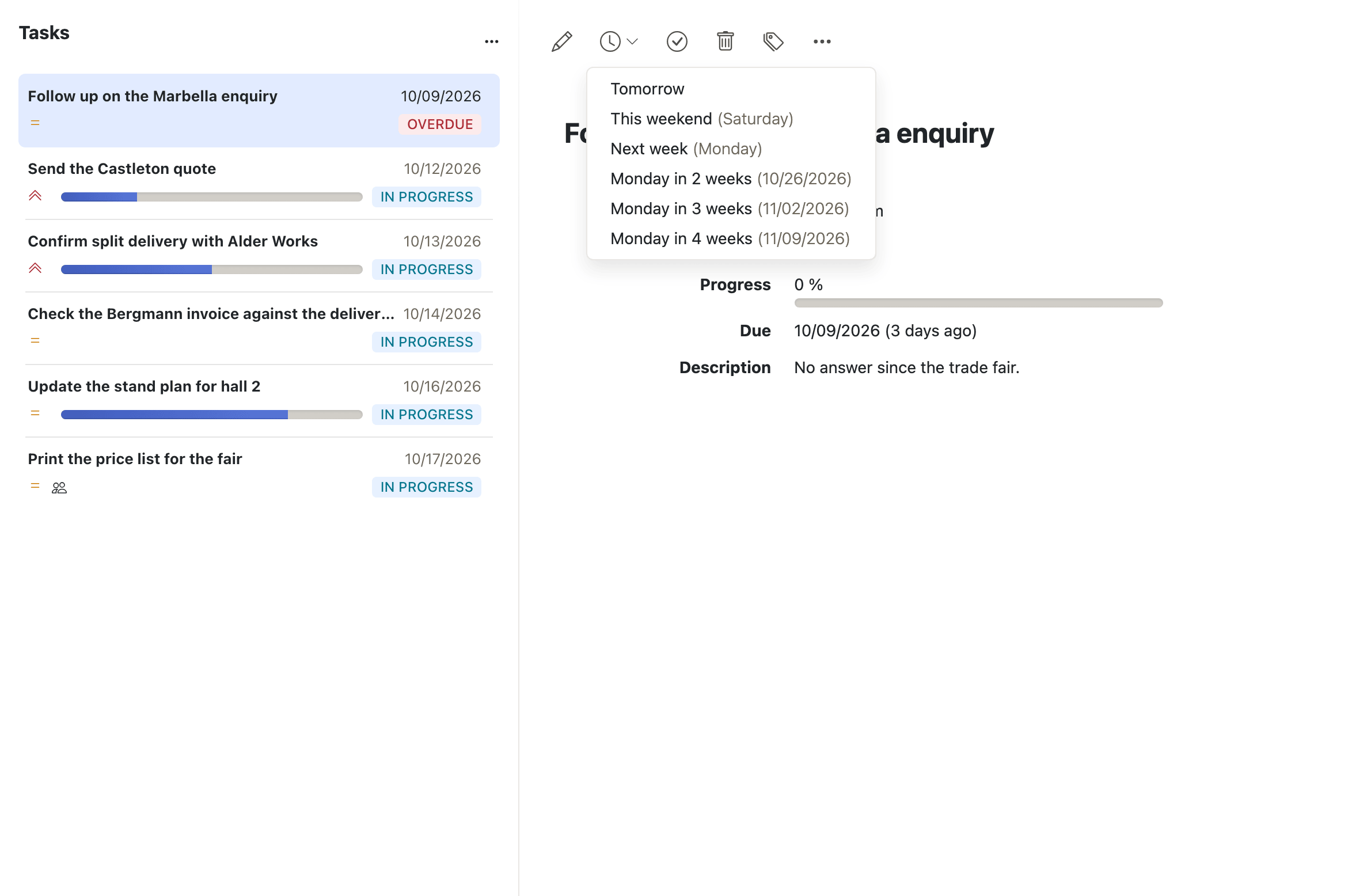
Summary A task can carry a start date and a due date, as times or as whole days. A Due dropdown in the toolbar moves the due date without opening the task at all, offering relative choices such as today, tomorrow, this weekend and the coming weeks.
Why it matters Without dates a task list is a pile: nothing is next and nothing is late. The dates are also the field that changes most often, because in practice the work stays the same and the deadline slips, which is why rescheduling is worth a dropdown in the toolbar rather than a trip through the editor. The alternative is a list whose dates are quietly out of date, and once that is true the overdue marking stops meaning anything — everything is overdue, so nothing is.
Description
- A Start date and a Due date, with All day for tasks that last whole days
- The Due dropdown in the toolbar reschedules a task from the list, with relative choices such as today, tomorrow, this weekend and the coming weeks
- Moving the due date before the start date is caught, and the client offers to Adjust start date rather than refusing the change
- Overdue tasks are marked in the list and raised in the notification area
- A task with a due date appears in the calendar on that day, described under Seeing your day
Availability Since 7.10.6 or earlier. Requires tasks.
Mark a task as done and track its progress
Summary A status of Not started, In progress, Done, Waiting or Deferred, with a progress percentage beside it. Done and Undone in the toolbar set the status in one click, on a single task or on a whole selection, without opening the editor.
Why it matters Done and not done is enough for a shopping list, not for work that takes a week and not for work somebody else is watching. Waiting and Deferred say why nothing is happening, which is the difference between a task that has been forgotten and one that is blocked on another person — and only one of those is worth chasing. The one-click Done matters for a duller reason: if finishing a task means opening a form, people stop doing it, and the list fills with work that was actually completed weeks ago.
Description
- Status is one of Not started, In progress, Done, Waiting or Deferred
- Done and Undone work on a single task and on a multiple selection
- Setting the status to done sets the progress to 100 percent, and the date completed is recorded
- Progress in % accepts a value between 0 and 100 and rejects anything else
- Finished tasks can be kept out of the list with Show done tasks
Availability Since 7.10.6 or earlier. Requires tasks.
Set a task priority
Summary A task is flagged Low, Medium or High priority, or left at None. The priority is shown in the list and in the detail view, and the list can be sorted by it.
Why it matters A list of forty tasks is a list nobody reads to the end, and priority is the one field that answers which of them to start with. Sorting turns the flag into something useful: marking a task high priority and leaving it at position thirty changes nothing, because the user never gets that far down.
Description
- Priority is None, Low, Medium or High
- Shown in the list and in the detail view, and offered as one of the sort options
Availability Since 7.10.6 or earlier. Requires tasks.
Repeat a task
Summary A task can come back daily, weekly, monthly or yearly, built in the same recurrence editor the calendar uses for appointments. The detail view states the resulting rule in words, so the task says when it repeats rather than only that it does.
Why it matters Recurring obligations are exactly the work that gets forgotten — the monthly report, the quarterly review, the certificate that has to be renewed — because nothing arrives to prompt them and nobody is waiting for them until the day they are late. Entering such a task twelve times by hand is how it ends up entered none. Sharing the calendar's recurrence editor means the rule can be as specific as the real obligation rather than an approximation of it.
Description
- Repeats daily, weekly, monthly or yearly, using the same recurrence editor as appointments
- The detail view states the recurrence rule in words
- Deleting a recurring task is confirmed separately
Availability Since 7.10.6 or earlier. Requires tasks.
Get reminded about a task
Summary A reminder date on the task that brings it back in the notification area at a chosen moment. It is picked from a list of relative times — in five minutes, this evening, this weekend, a Monday some weeks out — or entered by hand, and it can be pushed back again from the notification itself.
Why it matters A due date says when something is late; a reminder says when to pick it up. The difference matters because the task list is a page the user has to remember to open, and the things most likely to be forgotten are the ones that are not due today. Remind me again keeps the mechanism honest: a reminder that arrives in the middle of something else and can only be dismissed teaches people to dismiss all of them, and at that point the reminders have stopped working without anybody noticing.
Description
- Relative options run from In 5 minutes through This evening and This weekend to Monday in 4 weeks
- No reminder and Manual input are offered alongside the relative ones
- The reminder surfaces in the notification area, where a Remind me again dropdown reschedules it
- The notification side is described under Working with the other apps
Availability Since 7.10.6 or earlier. Requires tasks.
Attach files to a task
Summary Files travel with the task rather than beside it — the specification, the form that has to be filled in, the scan of the invoice. They are added in the edit dialog by picking files or by dropping them onto it, and anyone who can see the task finds them listed in its detail view.
Why it matters The material a task needs usually arrives as an email attachment and then stays in the mailbox, which means that doing the task starts with finding the message — by subject, by sender, by the week it probably arrived in. A file attached to the task is where the work is, and it stays there for whoever picks the task up, including the person it was delegated to and the colleague who takes it over while they are away.
Description
- Upload files in the edit dialog, or drop them onto it
- Attachments are listed in the detail view and can be downloaded or saved to Drive
- Attachment handling is shared with appointments and contacts and is described under Working with content
Availability Since 8.39. Requires filestore. Feature toggle PIMAttachments, on by default.
Record effort, cost and billing details
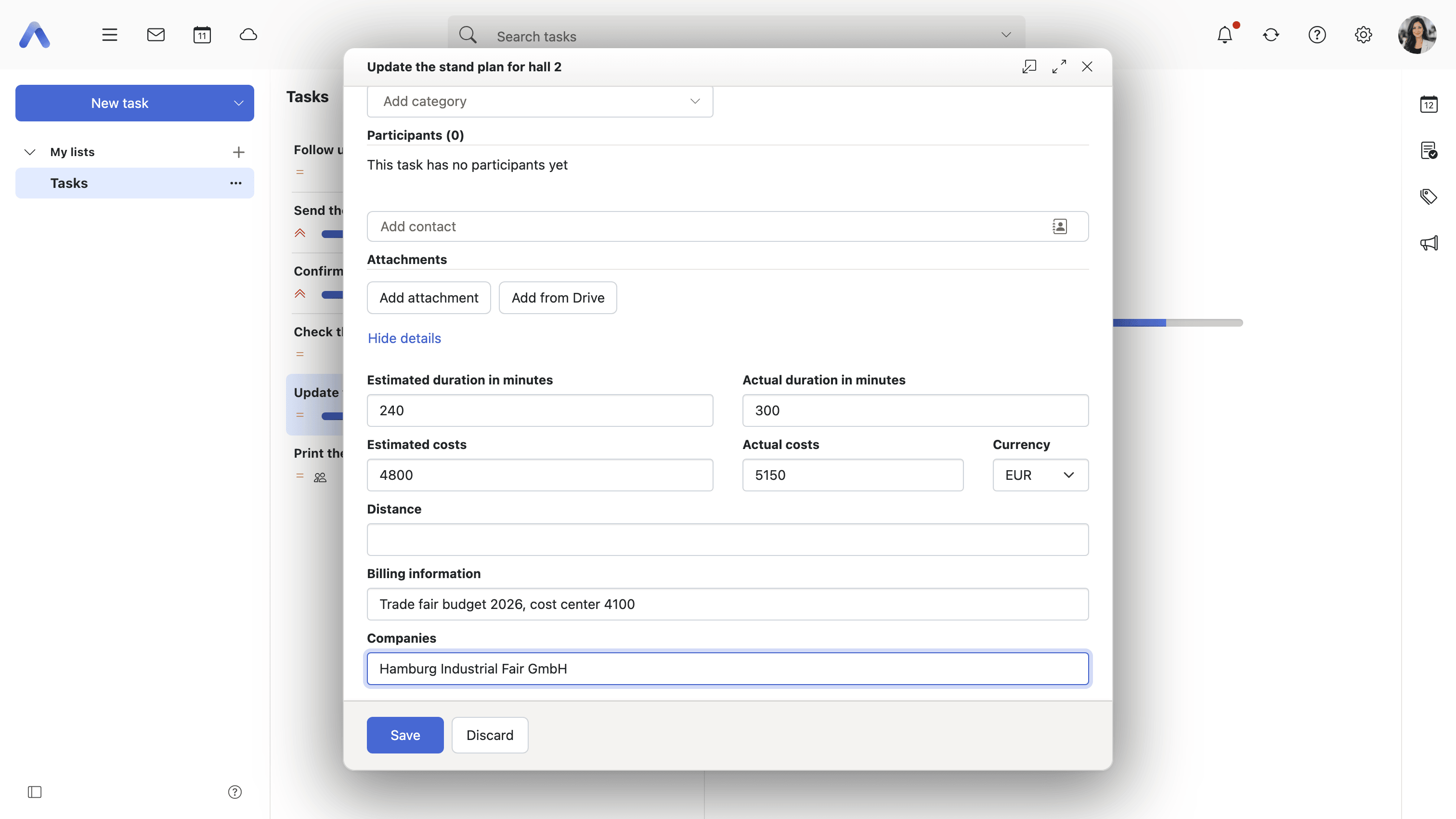
Summary Behind Show details the task carries a second record: estimated and actual duration in minutes, estimated and actual costs with a currency, a distance, free-text billing information and the companies involved. None of it is required, and none of it is in the way — the block is collapsed until it is asked for.
Why it matters This is what separates a work-tracking tool from a checklist. For anyone who bills their time — an agency, a consultancy, a tradesperson, an internal team that charges its work on — the task and the record of what the task cost are the same thing, and keeping them apart means a spreadsheet maintained in parallel that is always a few days behind the work. Having the estimate and the actual on the same record also answers the question a plain to-do list cannot: whether the job took as long as it was quoted at, which is the number the next quote depends on. Because the block is hidden by default, none of this is paid for by the user who only wanted a reminder to call somebody back.
Description
- Show details reveals the block in the edit dialog; Hide details puts it away again
- Estimated duration in minutes and Actual duration in minutes
- Estimated costs and Actual costs, with a Currency chosen from a list
- Distance, Billing information and Companies
- The list of currencies offered is configurable
Availability Since 7.10.6 or earlier. Requires tasks. The currencies offered come from io.ox/tasks//currencies.
Assign categories to a task
Summary Tags a task with the named, colored categories that are shared across the apps. Categories are set from a Set categories dropdown in the toolbar or in the edit dialog, and searched for, so the same tag can be put on a task, a message and an appointment about one thing.
Why it matters Tasks are filed on one axis only — the task list they happen to sit in — and that is rarely the axis of the question being asked. Everything for one customer, everything waiting on legal, everything that belongs to a release: the answer is spread across a personal list, a team list and a project list at once. Moving tasks around to answer such a question is not an option, because the list a task sits in is also who can see it. Categories cut across all of that, and because the category list is the same one the other apps use, the tag survives when the work moves from a message to a task to a meeting.
Description
- Set categories from the Set categories dropdown in the toolbar, or in the edit dialog
- The dropdown writes the whole selection back to the task's category list
- The search panel offers a category filter with autocomplete
- The same category system is used in Mail, Calendar and Address Book, and is described under Working with content
Availability Since 8.52. Requires tasks and Middleware 8.19 or newer. Feature toggle categories, off by default. Not on smartphones.