Portal
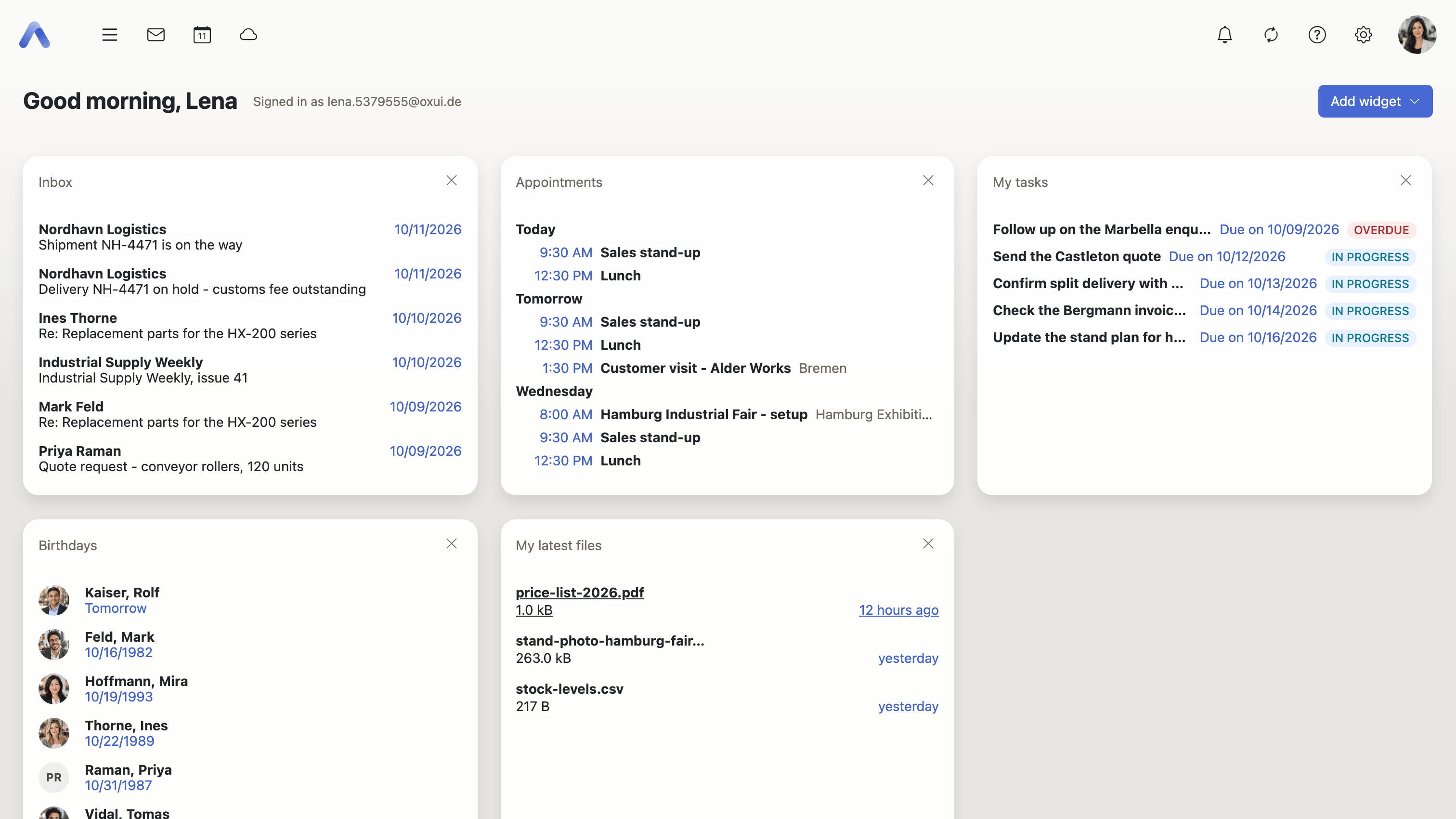
A dashboard of widgets, shown as its own app. Each widget is a compact tile reporting one thing from elsewhere in the product — the newest messages, the next appointments, what is due, whose birthday is coming, how full the account is — so the state of a working day can be read on one screen instead of in five apps; users arrange their own tiles, and operators decide what is on the screen before a user has touched it. The Portal ships with the Provider Edition, so a deployment without it has no Portal app at all.
Provider Edition
Every feature on this page needs the Provider Edition, and the Availability lines below do not repeat it — they name the capability and whatever else a feature asks for of its own. Without the edition there is no Portal app, and the io.ox/portal settings have no effect.
Open a dashboard of widgets
Summary A separate app whose whole screen is a grid of compact tiles: the newest messages, the next appointments, tasks that are due, birthdays coming up, how full the account is, an RSS feed. It greets the user by name, says which account they are signed in with, and keeps the tiles current for as long as it is open.
Why it matters Finding out what has changed since yesterday means opening Mail, then Calendar, then Tasks, and reading in each one a list built for working through rather than for glancing at. Most of that round trip answers "nothing new". A dashboard collapses it into a single screen that can be read in a few seconds and that keeps itself up to date while it sits there, so the answer stays true without anyone pressing refresh.
Description
- Greets the user by name and names the account they are signed in with
- Lays the enabled widgets out as a grid of tiles
- Reloads the tiles on the global refresh, at most once every 30 seconds, and whenever new mail arrives by push
- Clicking an item inside a tile opens it in a detail popup, so the dashboard is not left behind
Availability Since 7.10.6 or earlier. Requires portal.
Add, remove and rearrange widgets
Summary The dashboard belongs to the user: an Add widget menu offers the widget types the deployment provides, tiles are dragged into whatever order suits, and one that is not wanted can be hidden or thrown away. The same list appears under Settings > Portal, where a widget type that has a configuration of its own is set up.
Why it matters What belongs at a glance is personal, and it does not survive being guessed at: somebody who lives in their calendar and somebody who only wants to see unread mail want opposite dashboards, and a screen full of tiles that neither of them reads is worse than no screen at all. Letting each user keep the three tiles they look at and drop the rest is what keeps the dashboard worth opening a second time.
Description
- Pick from the widget types the deployment offers, from an Add widget menu on the dashboard itself and under Settings > Portal
- Reorder the tiles by dragging, either on the dashboard or in the settings list
- Disable a widget to keep it but hide it, or delete it outright; a widget holding data of its own asks which of the two was meant
- Edit a widget's own configuration where its type has one — the Inbox, RSS and Flickr widgets
- Choosing a widget type the user has no capability for opens an upgrade offer instead of adding it
- Inbox — the newest messages of a mail account, with sender, subject and date
- Appointments — the next appointments with date, time and location
- My tasks — tasks that are due soon or overdue
- Birthdays — contacts whose birthday falls within the next few weeks
- Recent files — two widget types, one listing recently changed files across all folders, the other only those in the user's own files folder
- Storage — mail and file storage used against what the account is allowed, the same figures as the storage bar
- RSS feed — headlines from a feed the user names
- Flickr photo stream — photos from a Flickr search or from a public Flickr user's stream
- Connect your device — opens the device setup wizard
- Drive clients — advertises the desktop and mobile client for the file storage, under the name the deployment configures, and links to the store page for the user's platform
- Parental control — opens the PowerDNS parental control settings
- User data — shortcuts to the user's own contact data and password
Availability Since 7.10.6 or earlier. Requires portal. Each widget type additionally needs the capability of the app it reports on, and the Flickr widget an API key the deployment configures.
Pin a mail, file or distribution list to the dashboard
Summary An Add to portal action in Mail, Drive and Address Book turns one chosen item into a widget of its own. The tile goes on showing that single message, file or distribution list, and stays until it is removed.
Why it matters What somebody needs to come back to all week is usually one item rather than a folder: the booking confirmation, the spreadsheet everybody is editing, the list the invitations go to. Finding it again costs a search, and more to the point the willingness to break off what they were doing. Pinning it puts it on a screen that is already open, and because the pin is per item and not per folder, the dashboard does not silently fill up.
Description
- In Mail, Add to portal pins one message; the tile disappears when the message is deleted
- In Drive it pins one file — not a contact file, nothing in the trash, and not an old version
- In Address Book it pins one distribution list, and is offered only while that list is not pinned
- All three confirm with a success notification
- The Mail side of this is described under Working with the other apps
Availability Since 7.10.6 or earlier. Requires portal alongside the capability of the app the item comes from.
Pre-configure and lock down widgets
Summary An operator decides what a dashboard holds before the user ever touches it: which widgets a new account starts with, which ones are pushed out to accounts that already exist, and which ones cannot be taken away. Each widget is declared in one of three modes, and a locked widget can be opened up again attribute by attribute.
Why it matters A dashboard that is empty on first start is a dashboard nobody ever fills in. The screen has to be worth looking at before the user has done anything at all, or it becomes the first thing they stop opening — and an overview app that is skipped costs more than it saves. It is also the one surface where a provider reaches every user directly: a support notice, an offer or a link to its own service sits on a screen people open daily, and goes on sitting there.
Description
default— the widget is there on first start, and the user may move, disable and delete iteager— the widget is pushed out to existing users as well, one generation at a time, and a user's deletion is remembered per generation so it does not come backprotected— the widget is always present, and the user may change only the attributes listed underchangeable, its position for instance- A protected widget that is disabled, and whose disabled state is not changeable, is hidden from the settings list altogether
widgetSetsuffixes the widget settings keys, so one deployment can run several sets of widgets side by side- With nothing configured at all, the first start creates Inbox, Appointments, My tasks, Birthdays and My latest files
Availability Since 7.10.6 or earlier. Requires portal. The three modes are declared under io.ox/portal//widgets/defaults, io.ox/portal//widgets/eager and io.ox/portal//widgets/protected, with io.ox/portal//widgetSet and io.ox/portal//generation beside them — see the settings list. Writing a widget of your own is described under Portal widget.
Reduce widgets to a summary on phones
Summary A setting that collapses every dashboard tile on a smartphone down to its heading and a single line, tapped once to open the tile and again to close it. Some widget types supply a summary line of their own — the Inbox widget shows how many messages are unread.
Why it matters A dashboard that fits a desktop window turns into a long scroll on a phone, and ten tiles showing five rows each is a worse way to find today's appointment than simply opening Calendar. Reduced to one line apiece, the whole dashboard fits on the screen again and the one tile that is actually wanted is a tap away. That is the only shape in which an overview survives the small screen at all.
Description
- Switched on under Settings > Portal > Advanced, and takes effect on smartphones only
- A widget type can supply its own summary line; the Inbox widget shows the unread count
- Types without one are given a generic collapsed heading
- Tapping the heading expands the widget, tapping it again collapses it
Availability Since 7.10.6 or earlier. Requires portal. Smartphones only, through the setting io.ox/portal//mobile/summaryView.