Search, print and transfer
Getting at an appointment that is not on the screen, and getting appointments out of the screen altogether — onto paper, or into a file another calendar can read, and back again.
Search appointments
Summary The search field at the top of the window searches the calendar: a word typed straight in, or a filter built from named fields — title, location, description, participant and category — over a date range. Participants can be picked from the address book, and the results are listed.
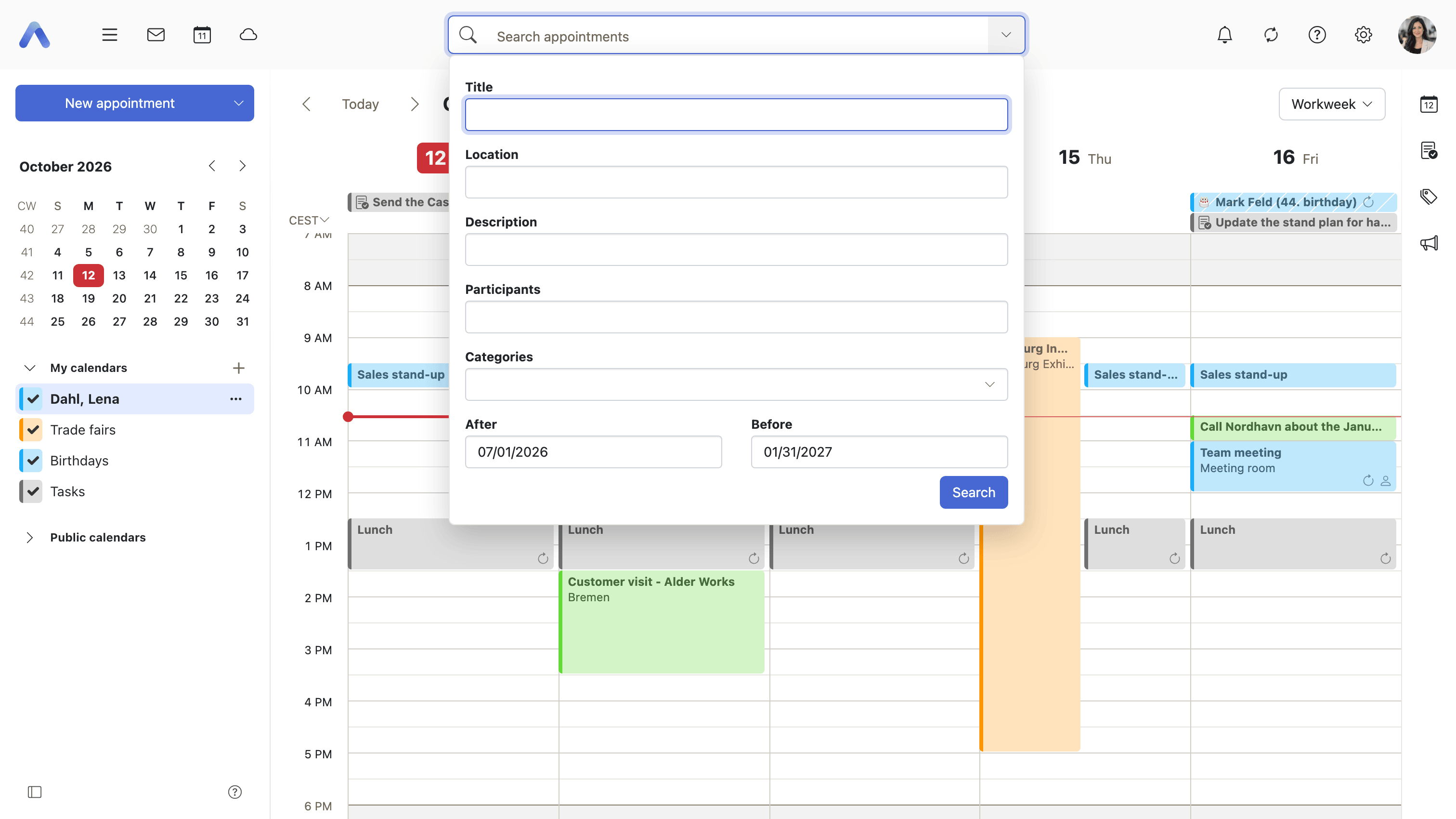
Why it matters A calendar is good at showing the week it is already on and poor at everything else. Finding the review that was "sometime in March" by paging through months is slow enough that people stop trying and ask a colleague instead, which costs two people's time for one person's question. Searching across the fields at once is what makes it land, because nobody remembers an appointment by its title alone: the meeting in the Berlin office and the one with Anna are how people actually recall them, and those are the location and the participant.
Description
- Type a word into the search field, or build a filter from named fields
- Fields are title, location, description, participant and category
- Participants can be picked from the address book
- The search covers a date range, starting at three months either side of today
- Results are shown in the list view, and the previous layout returns when the search is canceled
Availability Since 7.10.6 or earlier. Requires calendar. The category field depends on the feature toggle categories, off by default. The search field itself is shared by every app and is described under Getting around.
Import appointments from a file
Summary Reads appointments out of an .ics or .ical file into a calendar. The file is chosen in an import dialog, reached from the calendar's secondary menu or from a calendar's context menu, and such files can also simply be dropped onto the calendar.
Why it matters Appointments arrive as files: exported from the calendar someone used before, sent by a conference organizer, produced by a booking system that has never heard of this product. Without a way in, each one is retyped, which is where the wrong times and the missing participants come from. Import is also what turns leaving an old system into a decision rather than a project — a year of appointments arrives in one file, and a long import carries on in the background instead of holding up the window.
Description
- Pick a file in the import dialog, from the calendar's secondary menu or a calendar's context menu
- Drop .ics or .ical files onto the calendar to import them into the selected calendar
- Large imports continue in the background, with a notice saying so
Availability Since 8.3. Requires calendar, and is not available on smartphones. The drop path, and only it, is governed by the feature toggle dragDropICAL, on by default. Importing and exporting across the other apps is described under Working with content.
Export appointments
Summary Writes appointments to an iCal file: either the ones currently selected, from the appointment actions, or a whole calendar at once, from its entry in the folder list.
Why it matters One export answers several different questions. Taking a calendar to another product, keeping a copy of a project's schedule after the project is wound up, handing a series to someone outside the organization who cannot simply be invited — all of them end at a file. Without one, everything in the calendar is readable only through this client, which is precisely the kind of dependence that makes people hesitate to put anything important into it.
Description
- Export one or more selected appointments from the appointment actions
- Export a whole calendar from its context menu in the folder list
- Also offered from the toolbar on smartphones
Availability Since 7.10.6 or earlier. Requires calendar.
Print the calendar
Summary Prints what is on the screen — the week, the month or the list view — or just the appointments that are selected. For a selection of several, the user is asked whether to print them in detail or as a compact list.
Why it matters Paper still wins where a screen does not reach: a meeting room with no laptop, a handover to someone who does not use the product, a day out of the office on a dying battery. A printout taken from the view already on screen is one that matches what everybody agreed to, with no step in between to get wrong. The choice between detailed and compact is the difference between a usable one-page agenda and nine pages of mostly white.
Description
- Print the current week, month or list view
- Print selected appointments, choosing Detailed or Compact where more than one is selected
- On smartphones the browser's own print is used
Availability Since 7.10.6 or earlier. Requires calendar-printing. Printing elsewhere in the product is described under Getting around.