Attachments
What the client does with the files that arrive attached to a message, and the ways files are put into a message that is being written. Both directions are about moving a file between the mailbox and the place it is actually used, without a detour through the local disk.
Download attachments
Summary Each attachment in a message can be downloaded on its own, and all of them can be downloaded together in a single action, which produces a zip file. Attachments that belong to a message referenced inside another message are the exception: they are downloaded one by one, because they cannot be collected into an archive.
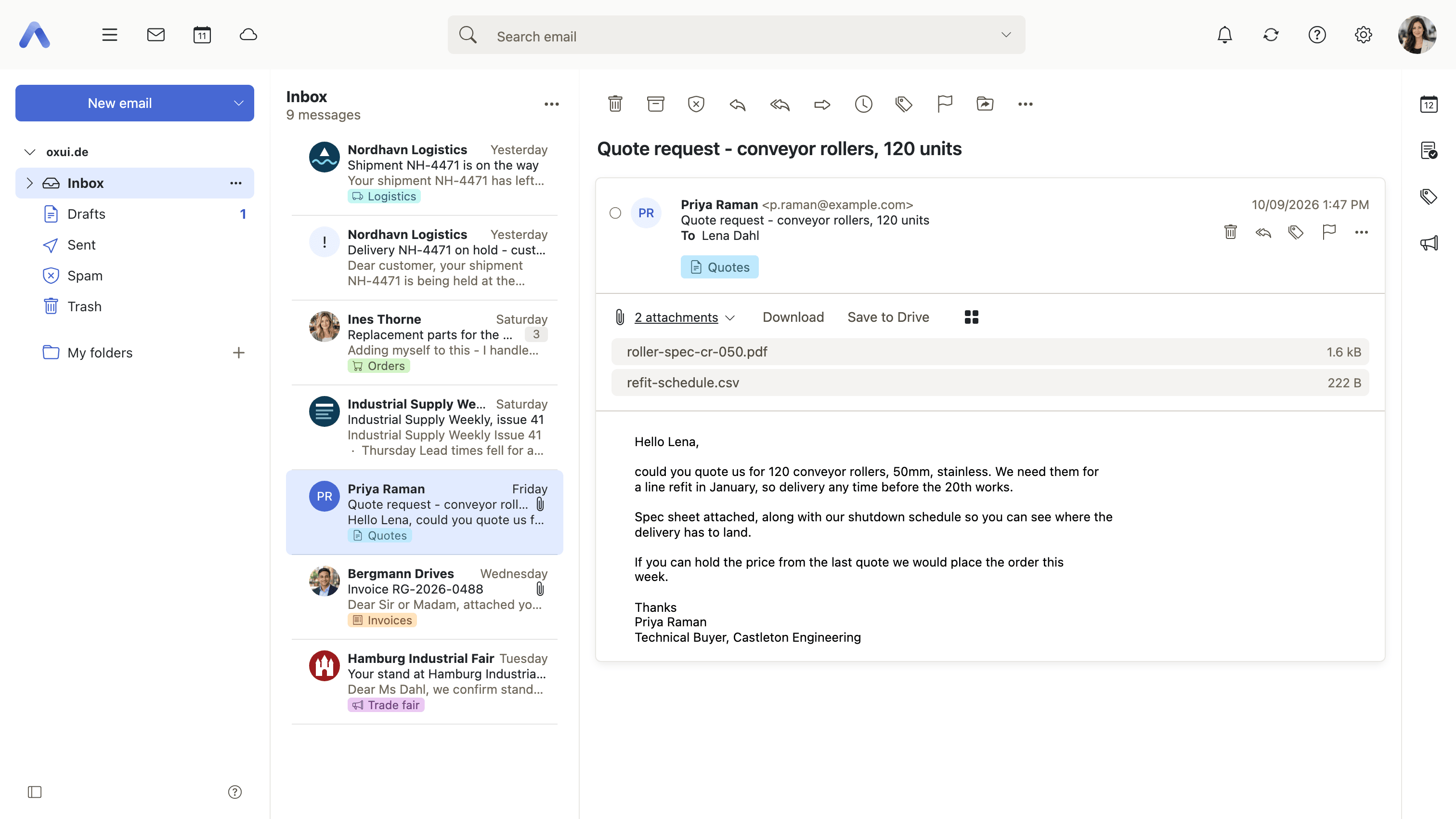
Why it matters A message carrying a dozen files is otherwise a dozen separate downloads, each one a click and a dialog, and it is exactly the messages with many attachments that people need the files out of. Collecting them into one archive turns that into a single action. The single-file download remains for the far more common case, where only one of the attachments is wanted at all.
Description
- Download a single attachment directly
- Downloading several at once produces a zip file
- Attachments of referenced messages are downloaded one by one, since they cannot be zipped
Availability Since 7.10.6 or earlier. Requires webmail.
Save an attachment to Drive
Summary An attached file can be put straight into a Drive folder without being downloaded first. Save to Drive asks which folder it should go into and stores it there. The action is not offered for attachments of a message referenced inside another message, because those have no mailbox id to fetch them by.
Why it matters An attachment that will be worked on, shared or kept belongs in Drive, and the usual route there is a download followed by an upload: the same file transferred twice, with a stray copy left in the browser's download folder. Saving it directly skips both steps. The file then sits where it is going to be used and is reachable from every device the user signs in on, rather than on the one machine the message happened to be read on.
Description
- Save to Drive asks for the target folder
- Not offered for attachments of referenced messages, which have no mailbox id
Availability Since 7.10.6 or earlier. Requires webmail and infostore.
Add an attached appointment to the calendar
Summary An attached .ics file can be turned into a calendar appointment. Add to calendar appears on attachments that are .ics files and on those carrying a calendar content type. It is not offered for iMIP invitations, which have their own handling inside the message.
Why it matters Not every invitation arrives as a proper iMIP invitation. A great deal of software sends the appointment as a plain .ics attachment instead, and on its own that is a file the calendar never sees. Without this step the user reads the date and time off the message and types them into the calendar by hand, with the transcription errors that invites. One action turns the file into the appointment it describes.
Description
- Add to calendar appears for .ics attachments and calendar content types
- Not offered for iMIP invitations, which have their own handling in the message
Availability Since 7.10.6 or earlier. Requires webmail and calendar.
Add an attached contact to the address book
Summary An attached vCard can be turned into a contact. Add to address book appears on .vcf attachments and on attachments carrying a vCard content type, and the contact is shown for review before it is stored.
Why it matters A vCard is how contact details travel between systems, and as a file it is unreadable, so the usual outcome is that the name, the company and the phone numbers get retyped by hand — and that one of them ends up wrong. Importing takes the details the sender already entered correctly, and the review step means nothing lands in the address book without the user having looked at it first.
Description
- Add to address book appears for .vcf attachments and vCard content types
- The contact can be reviewed before it is stored
Availability Since 7.10.6 or earlier. Requires webmail and contacts.
All attachments folder
Summary A Drive folder lists every attachment in the mailbox and is browsed, sorted and searched like any other folder. All attachments opens it from the mail settings dropdown and from the secondary toolbar, and each entry links back to the message it came from. The folder is only shown where the deployment has configured it.
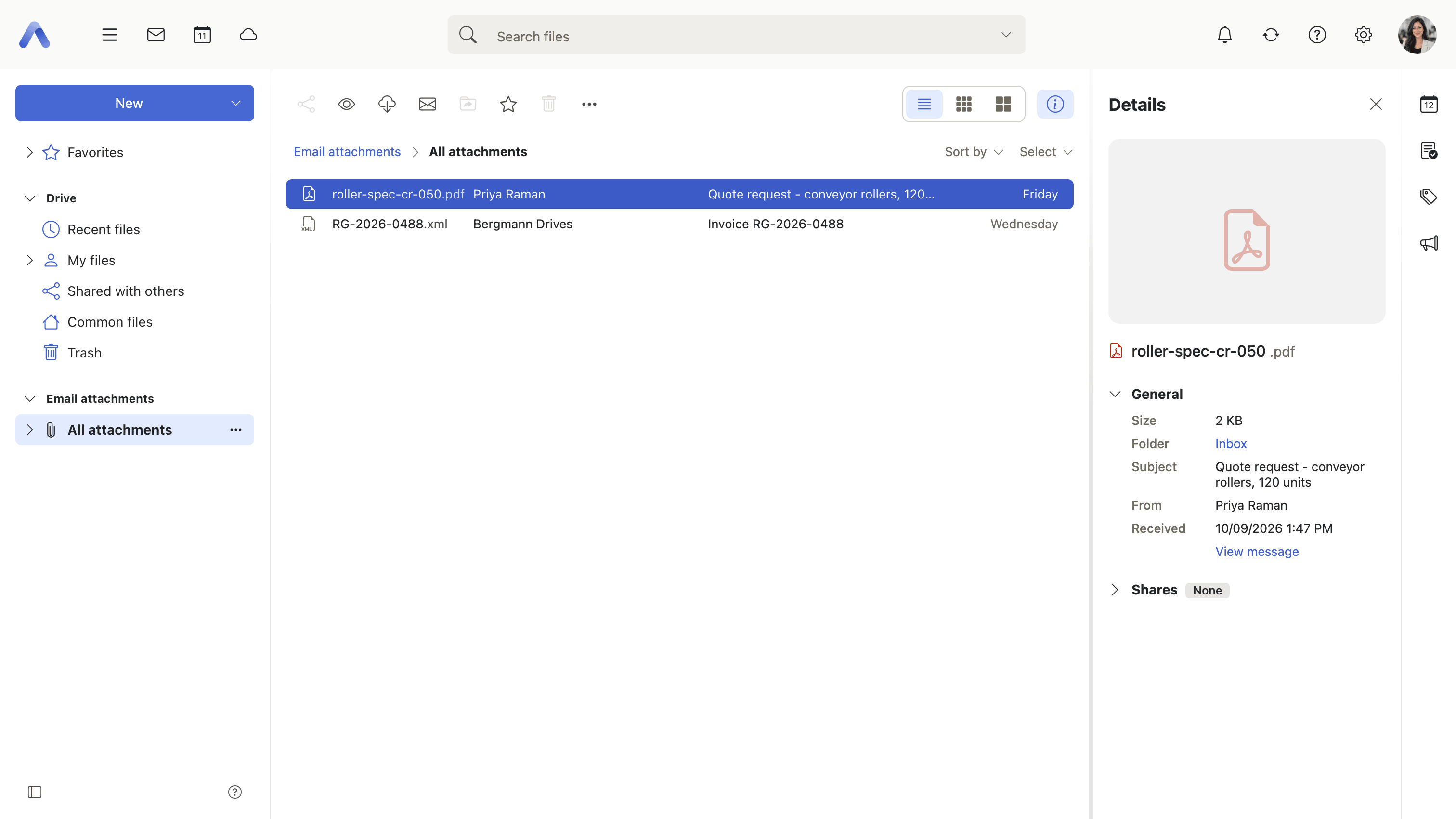
Why it matters People remember files better than they remember the messages that carried them: the name of a spreadsheet, roughly when it arrived, who sent it. Searching the mailbox for a file means reconstructing the message around it first. A folder view lets the same mailbox be scanned by file instead, and the link back to the original message is there for the times when the conversation around the file is what is actually wanted.
Description
- All attachments opens the Drive app on a virtual folder of mail attachments
- Reachable from the mail settings dropdown and the secondary toolbar
- Only shown when the deployment configures the folder
- Each entry links back to the message it came from
Availability Since 7.10.6 or earlier. Requires webmail and infostore. Shown only where the deployment configures the folder (io.ox/core//folder/mailattachments).
Read an e-invoice attachment
Enterprise
Summary An invoice that arrives as an XRechnung XML attachment is recognized as an invoice and can be previewed as one, instead of opening as a wall of raw markup. Attached XML files are probed and labeled in the message when they match, so it is clear what the attachment is before anyone opens it.
Why it matters An e-invoice is a machine-readable file: opened as it arrives, it is unreadable, and the recipient has to download it and find something that can display it. Reading the invoice in the message is the difference between dealing with it now and filing it to deal with later. German public-sector invoicing already requires this format and business-to-business is following, so for many organizations it is how invoices arrive.
Description
- Attached XML files are probed and marked as "xrechnung" when they match
- The detected profile is remembered on the message for the session
Availability Since 8.38. Requires webmail and document_preview_xrechnung. Desktop only, not available on smartphones.
Attach files from another email
Summary The attachment menu in compose offers attachments that are already in the mailbox. With emails selected it lists Files from selected email; otherwise it lists Most recent attachments, taken from the messages opened last. Picking one attaches it to the message being written, without it having to be downloaded first.
Why it matters Forwarding a single file out of an older message is otherwise a round trip: find the message, download the attachment, go back to the draft and upload it again. Taking it from the menu removes both transfers and the copy they leave on disk. The same move is available from the other end, starting at the message rather than at the draft, which is the quicker path when the file is the reason the message was opened in the first place.
Description
- Shows Files from selected email when emails are selected, otherwise Most recent attachments
- Add all attachments adds every attachment of the selected message at once
- New email with attachment starts a compose window pre-filled with the attachments of the selected message
- Encrypted messages and PGP key files are left out
Availability Since 8.15. Requires webmail. Not available to guest users.
Attach files dropped as web links
Summary A drag and drop from another application that carries a web address is downloaded by the client and attached to the message, instead of being inserted as a link. A status line counts the files still downloading, and they are attached in one go, in the order they were dropped.
Why it matters An integrated document application holds files the user wants to send, but what it hands over on a drag is an address, not a file — so the recipient would get a link they may not be able to open rather than the document itself. Fetching the target and attaching it makes drag and drop between the two applications do what it looks like it does. Because it means the client downloads whatever address was dropped on it, it stays off until a deployment that integrates such an application turns it on.
Description
- Accepts DownloadURL and uri-list drops, including the Firefox text/x-moz-url shape
- A status line counts the files still downloading; the files attach in one go, in drop order
- The number of files per drop is capped, and a message says how many were attached
- A separate toggle allows the sign-in prompt when a download answers with 401
Availability Since 8.53. Requires webmail. Feature toggle dragDropAllowDownloads, off by default. The sign-in prompt has its own toggle, dragDropAllowDownloadsWithPassword.
Reduce the size of attached images
Summary When large JPEG or PNG images are attached, a control offers to shrink them to a small, medium or large edge length before the message is sent. It is offered only when at least one of the attached images is big enough for the reduction to be worth it, and keeping the original file is always one of the options.
Why it matters Photographs straight from a phone or a camera run to several megabytes each, and a handful of them is past what many mail servers accept — so the message is rejected after it was written, or it arrives and eats into the recipient's quota. For a picture that will be looked at on a screen, most of that size is detail nobody sees. Offering the reduction at the moment of attaching keeps the message sendable without the user having to resize anything outside the client.
Description
- Offered only when at least one attached image is large enough to benefit
- Small, medium and large target sizes and the JPEG quality are configurable
- The original file can always be kept
Availability Since 7.10.6 or earlier. Requires webmail. Target sizes, quality and the size thresholds are configured under io.ox/mail//features/imageResize.
Send attachments as links (Drive Mail)
Summary Instead of being attached to the message, the files are stored in Drive and the recipient is sent a download link. A checkbox under the attachment list turns it on, and an options dialog covers an expiry date, deleting the files once it passes, a password, and notifications when the link is downloaded, visited or expires. The product name is configurable.
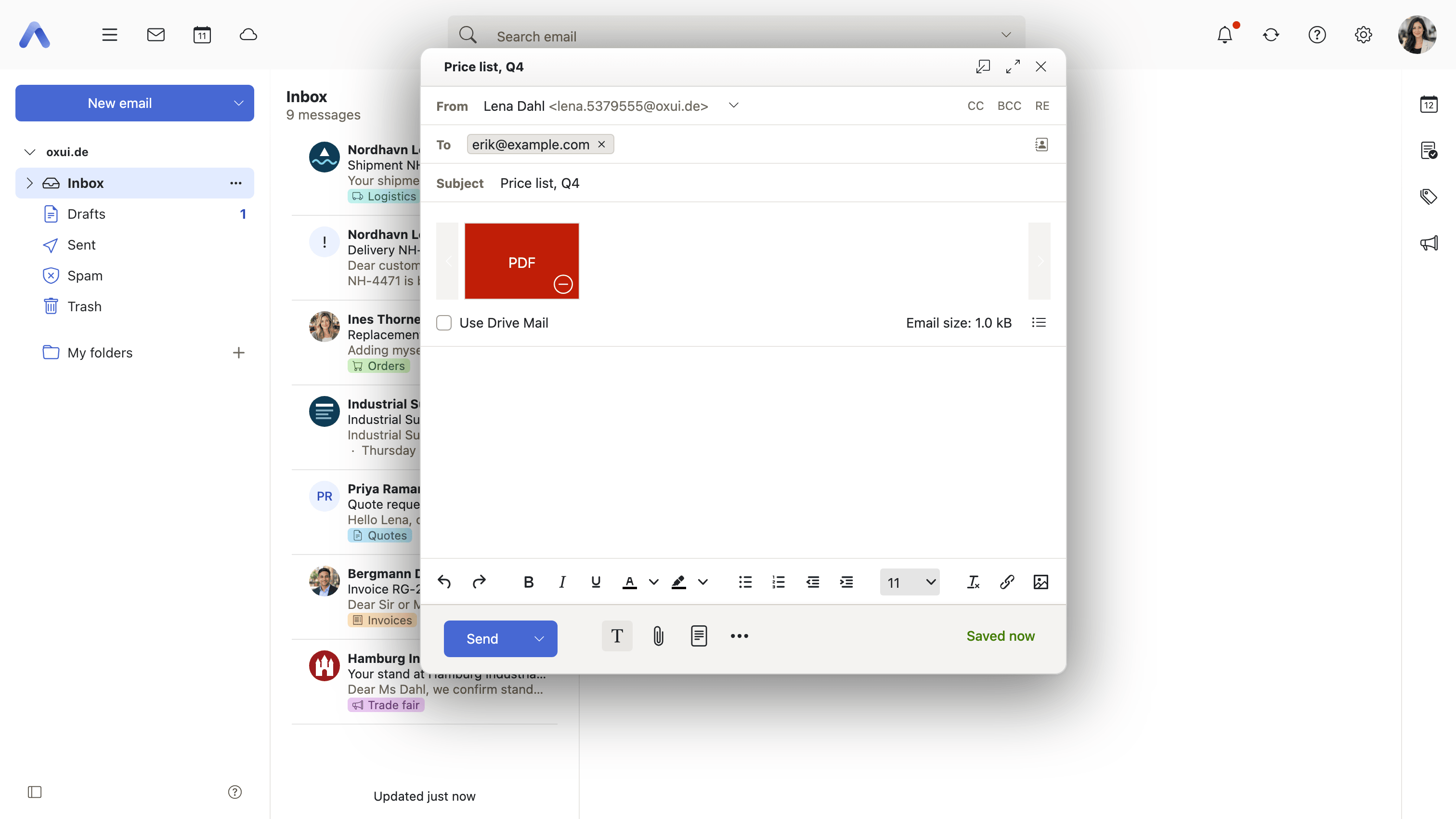
Why it matters Message size limits are set by servers the sender does not control, so a large attachment can be refused anywhere along the way, often well after the message was sent. A link keeps the message small and leaves the files somewhere the sender still owns: access can be given an end date, put behind a password, and the sender can be told when it was used. For the deployment it is also what keeps large files out of mailboxes and their quotas, which is why it can be set to switch itself on once the attachments pass a threshold.
Description
- A checkbox under the attachment list turns it on; the product name is configurable
- Options dialog for the expiry date, deleting the files after expiry, a password, and notifications on download, visit and expiry
- Turns itself on automatically when the attachments exceed the configured threshold or the mailbox quota
- A deployment can force an expiry date or force automatic deletion
- Only available for the primary sender address; the automatic switch is not offered on smartphones
Availability Since 7.10.6 or earlier. Requires infostore. Availability, product name, threshold and the expiry policy are configured under io.ox/mail//compose/shareAttachments.