Sharing
The ways another person comes to reach a file: a colleague inside the organization, somebody outside it who signs in as a guest, anyone at all holding a link, and users whose account lives on an entirely different installation. Alongside them, the folder everybody in the organization can reach, and the one list that shows what the user is currently sharing and with whom.
Share a file or folder with people inside your organization
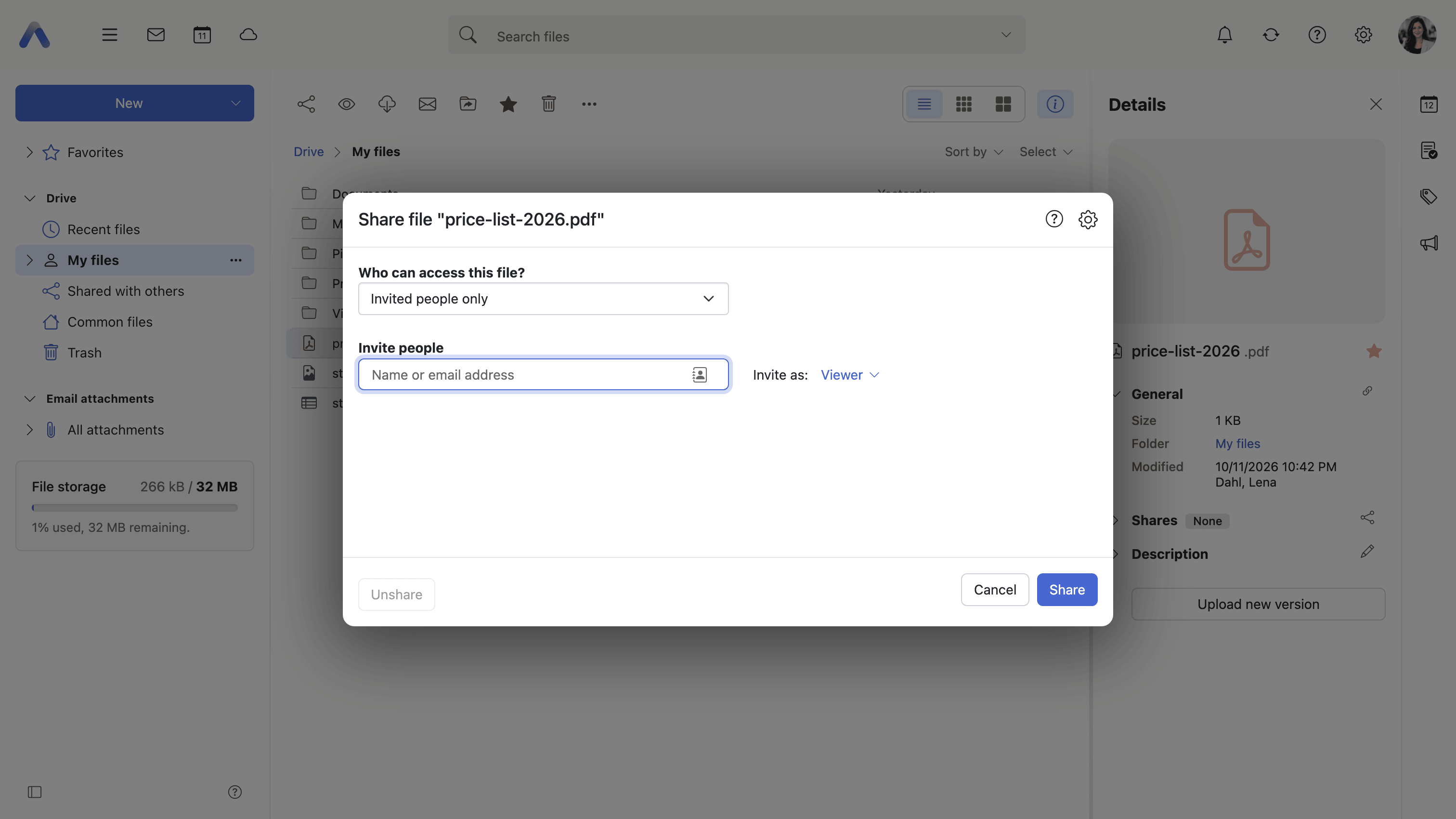
Summary A permissions dialog on any file or folder, where colleagues and groups are invited by name and given a role — Viewer, Reviewer, Author or Administrator. The same dialog is where an existing share is changed, an invitation is sent again, and somebody's access is taken away.
Why it matters The alternative to sharing is sending copies, and a copy is out of date from the moment it is sent. Four people end up holding four versions of one document with no way of telling which is current, and the only person who knows is the one who mailed it. Working on the file where it lives removes the question. Roles are the second half of it: most people who need to read a document have no business deleting it, and an all-or-nothing model turns that into a choice between an obstacle and an accident waiting to happen.
Description
- Invite internal users and groups by typing a name, or pick them from the address book
- Roles are Viewer (read only), Reviewer (read and write), Author (read, write and delete, folders only) and Administrator
- A Details menu exposes the individual folder, read, write and delete rights behind a role
- Change somebody's role, send their invitation again, or revoke their access
- An invitation message can go with the notification email, and the notification itself can be switched off
- Unshare removes every share on the item at once, after a confirmation
- The file list marks shared items with a person, a person-plus or a link icon, according to who they are shared with
- Sharing a folder whose subfolders the user does not administer asks before it goes ahead
Availability Since 7.10.6 or earlier. Requires read_create_shared_folders, or edit_public_folders for a folder that is already public. Picking people from the address book needs contacts, is not offered on smartphones, and can be turned off with io.ox/contacts//picker/enabled. Where guests cannot be invited, the lookup is restricted to the global address book and so needs gab.
Invite people outside your organization as guests
Summary Typing an email address that belongs to nobody inside the organization turns that address into a guest: an account whose only purpose is to reach the one file or folder it was invited to. Guests are listed among everyone else with access, marked as guests, and given a role in the usual way.
Why it matters Work crosses the edge of an organization constantly — an accountant, a client, a contractor who needs one folder for six weeks. The two obvious answers are both bad. Mailing the file as an attachment loses track of it permanently, and making the item public means hoping nobody passes the address on. A guest invitation is the narrow option in between: a named person, a role that can be held down to reading, and access that the person who granted it can withdraw afterwards.
Description
- Type any email address into the invite field to create a guest
- Guests appear in the permission list marked as Guest and are given a role like anyone else
- In Contacts and Tasks folders a guest is capped at Viewer rights, and a notice says so where a higher role had been preselected
- A newly invited guest address becomes a contact suggestion afterwards
- Mail folders cannot be shared with guests at all
- What the guest meets when they follow the invitation is described under Signing in
Availability Since 7.10.6 or earlier. Requires invite_guests.
Share a link to a file or folder
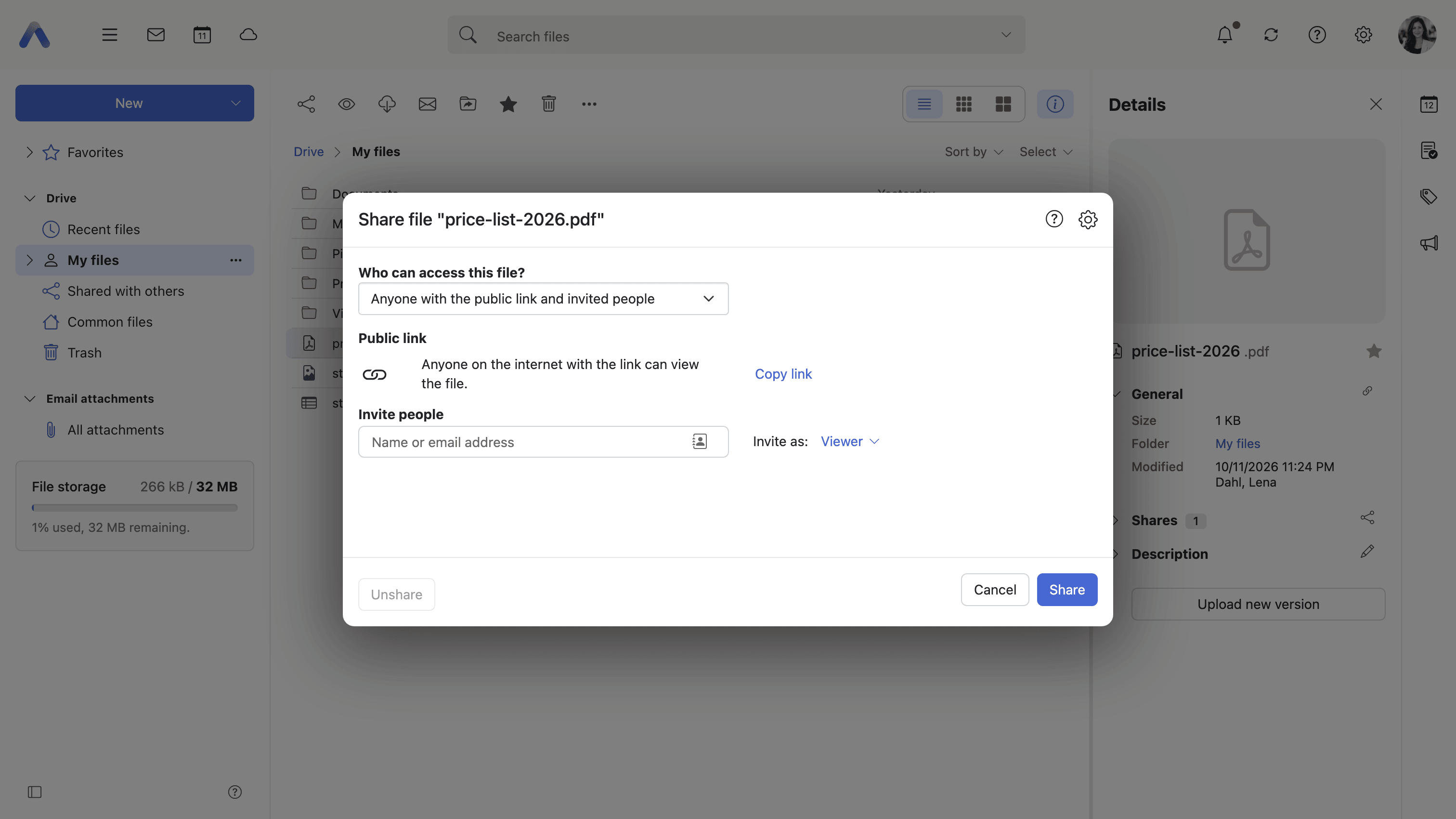
Summary Creates one link that opens the item for whoever holds it, with no invitation and no account. A Who can access setting switches the item between Invited people only and Anyone with the public link and invited people, and the link can be given a password and an expiration date.
Why it matters An invitation has to know who the other person is, and often nobody does: a link dropped in a chat, a file for a mailing list, a document handed to whoever picks the ticket up. A link answers that, and the password and the expiry are what keep it from becoming a permanent, unattributable hole. A link with no end date is still live years after the project closed, sitting in a thread nobody remembers being on; one that stops working in three months limits the exposure to the window in which it was actually needed.
Description
- Who can access switches between the invited people only and anyone holding the public link
- The link is copied to the clipboard in one click
- An optional password protects the link, with a show and hide toggle on the field
- An optional expiration — one day, one week, one month, three months, six months, one year, or never
- A link on a folder can be made to cover its subfolders as well
- Removing the link stops it working for everyone who holds it
- Not offered for encrypted (Guard) files
Availability Since 7.10.6 or earlier. Requires share_links.
See and manage everything you share
Summary A Shared with others entry in the folder view listing every file and folder the user currently shares, folders and files together, each row naming the folder it sits in. Selecting a row and pressing Edit share opens the same permissions dialog the share was made in.
Why it matters Shares accumulate, and nothing ever prompts anyone to look at them again. A folder opened to a project team in 2019 is still open to the two people who have since left, and the link made for one review is still live. No reminder exists, because from the owner's side a share becomes invisible the moment it is granted — it leaves no trace in the folder they work in every day. A single list is the only way to answer what has been exposed and to whom, and the only practical place to shut something down, since the alternative is remembering which folders are worth going back to check.
Description
- Lists shared folders and shared files together, with the parent folder named on each row
- The Share button is labeled Edit share here and opens the same permissions dialog
- Subfolders that only inherit a link share from a folder above them are left out, so the list shows the shares that were actually made
- Sorted by date by default
Availability Since 7.10.6 or earlier. Requires either gab or share_links, and is not offered to guests.
Files everyone in the organization can reach
Summary A top-level folder in Drive holding what is shared with everybody in the same context. It is called Common files unless the deployment chooses other wording, and it sits in the folder view and in the collapsed view's quick access bar beside the user's own files.
Why it matters Some documents belong to the organization rather than to a person: the handbook, the templates, the price list, the forms everyone fills in twice a year. Kept in somebody's own folder and shared outward, they leave when that person does, and the first anyone notices is the day a leaver's account is closed. A place of their own means nobody has to be asked for access, and nothing goes missing when the person who first uploaded it moves on.
Description
- Named Common files by default; a deployment can choose company, organization, team, family or public wording instead
- The folder's icon follows the chosen name
- Appears in the folder view and in the collapsed view's quick access bar
Availability Since 8.54. Requires infostore. The wording is chosen with io.ox/files//tree/publicFilesName.
Work with files shared from another deployment
Summary Files and folders shared from a different context or a different installation appear under Shared with me like any other share, with the name of the remote host after the file name. Editing one opens it in the deployment that owns it, in a new browser tab.
Why it matters Organizations rarely sit on one installation. A merger, a subsidiary, a partner running its own deployment — each puts colleagues on the far side of a boundary that ordinary sharing does not cross, and the usual workaround is mailing files back and forth until nobody knows which copy is which. Naming the remote host on the row matters nearly as much as the access itself: a user who cannot tell which of two identically named folders is the local one will put something in the wrong place sooner or later.
Description
- A federated row carries the remote host name in parentheses after the file name
- Edit opens the file in the deployment that owns it, in a new browser tab
- A federated account that has broken shows an error line in the file details
- Cross-context recipients can be invited where the module allows it; Drive's own folders are never cross-context targets
Availability Since 7.10.6 or earlier. Only mail and calendar folders can be cross-context targets, never Drive, Tasks or Contacts folders; whether mail folders accept one is set by io.ox/mail//crossContextPermissions.