Onboarding and devices
What happens in a user's first hour with the product, and everything that follows it onto the other devices they own. The wizard that runs on a new account, installing App Suite so it behaves like a native app, getting mail and calendar onto a phone, being shown around the interface, and connecting accounts held at other providers.
First Start Wizard
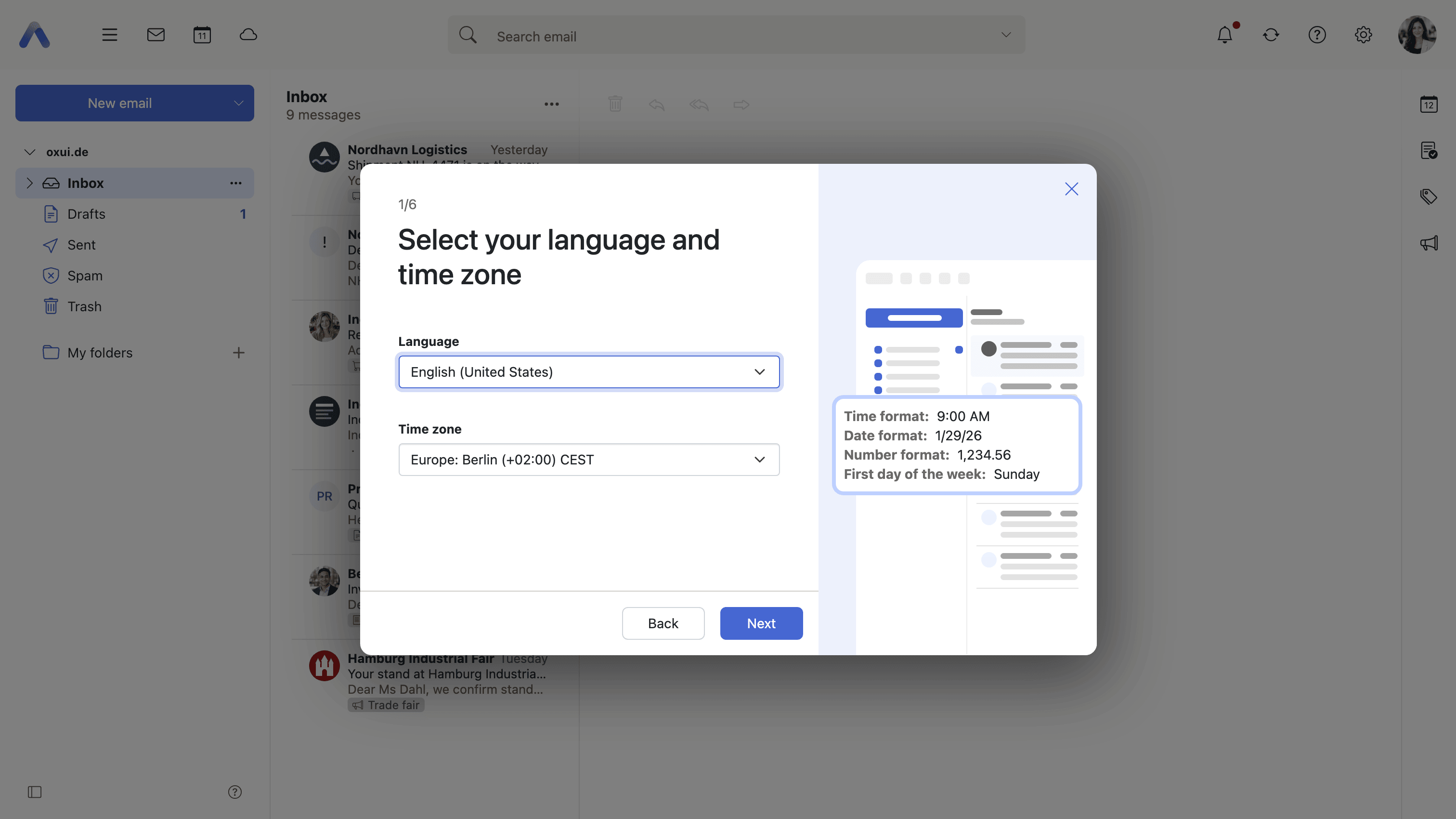
Summary A short sequence of pages that opens by itself when a newly created account signs in for the first time. It asks for the few things that make the product feel like the user's own: language and time zone, name and contact details, light or dark, how the mail list should look, and which hours the calendar should treat as the working day. The last page offers a QR code for getting the app onto a phone.
Why it matters Without it, a new account looks the same for everybody, and the settings that would change that sit in a dialog most people never open. Defaults that are merely wrong rather than broken — a time zone taken from the server, a working day that starts two hours before the user's does — are the kind of friction people put up with instead of fixing, and they color the first impression of everything else. Asking while the user is still paying attention costs a few clicks; asking a week later costs a support call, or never happens.
Description
- Opens automatically, once, and only for accounts created within the last 30 days
- Pages for language and time zone, personal data, light or dark and the theme, the mail list layout, and calendar working hours — all of them changeable later under Settings and appearance
- A final page offers a QR code for installing the app on a phone
- A page is left out where the deployment has locked the setting behind it, so a wizard with nothing to ask does not appear
- Restart initial setup in the help menu opens the wizard again later
Availability Since 7.10.6 or earlier; the wizard was rebuilt in 8.28. Not available to guest users, and not on smartphones. Feature toggle firstStartWizard, on by default.
Set up mail, calendar and contacts on your own device
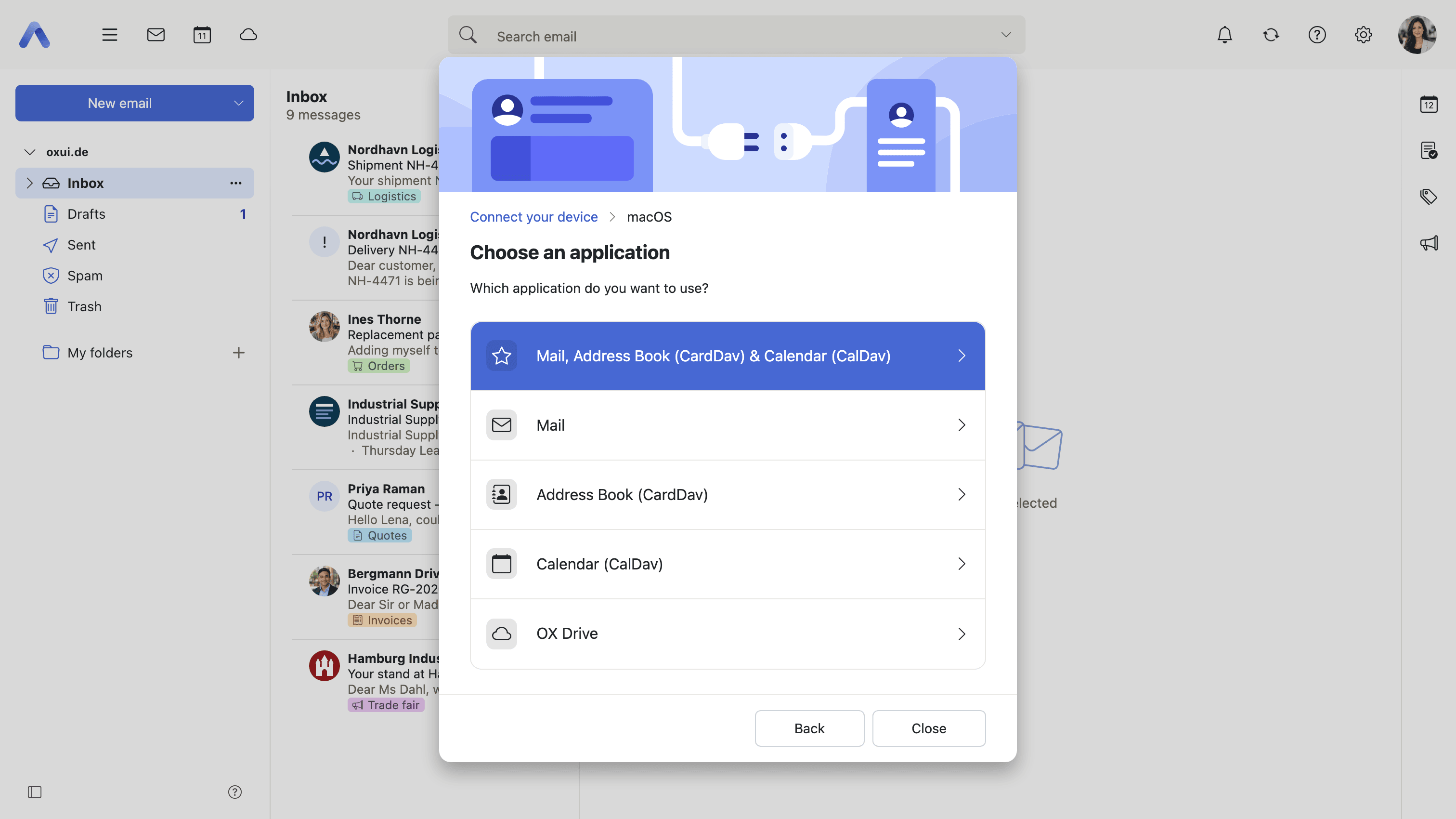
Summary A wizard that asks which platform — Windows, Android, macOS or iOS — and which app is to be set up, then hands over exactly what that app needs: the server names to type in, a configuration profile to download, or a link to the right entry in an app store. It is reached from the settings menu on a desktop and from the account menu on a phone.
Why it matters A phone's mail and calendar apps are set up once, usually by someone who has never heard of IMAP, against a server whose hostname they have no way of knowing. The usual outcomes are a support call or a half-configured account that sends but does not receive. Having the client state its own settings removes the one piece of knowledge the user could not have had, and on Apple devices the configuration profile removes the typing as well. For a provider these are among the most expensive calls there are, because each one is a conversation about somebody else's software.
Description
- Choose a platform — Windows, Android, macOS or iOS — and then the app to set up
- Shows the IMAP, SMTP, CalDAV, CardDAV and Exchange ActiveSync settings to copy
- Offers a downloadable configuration profile instead on macOS and iOS
- Links to the Drive app in the platform's store, with a QR code to scan when the wizard is open on a desktop
- Sets DAVx⁵ up automatically on Android, where the deployment offers it
- An app the account has no permission for leads into the upsell flow instead
- A one-off hint on smartphones points at the menu entry that opens the wizard
Availability Since 7.10.6 or earlier. Requires client-onboarding. Feature toggle connectYourDevice, on by default. The hint on smartphones is off until a deployment switches it on.
Install the app on your device
Summary App Suite can be installed from the browser, after which it opens in a window of its own, with its own icon in the dock or on the home screen and no browser chrome around it. A dialog explains the steps for the browser in use, and on phones a banner offers it.
Why it matters A browser tab is a poor home for the thing people check twenty times a day: it is lost among thirty others, it has no icon anywhere, and on a phone it means opening a browser first and the product second. Installed, it sits where native apps sit and is reached the way they are reached. What this is not is a way of getting mail into the phone's own mail app — that is the Connect your device wizard described above. The two are regularly confused, and a deployment that enables one is asked about the other.
Description
- The server delivers a web app manifest carrying the product name, icon and background color
- Once installed, the app opens in a standalone window without browser chrome
- Name, short name and icon are set per host by the deployment
- An entry in the settings menu opens instructions for installing the app, matched to the browser in use
- On phones a banner offers the same instructions, a limited number of times
Availability Since 8.20. Feature toggle pwa, on by default, but it only takes effect where the deployment serves a web app manifest for the host; the instructions dialog and banner have a toggle of their own, pwaInstructionsWizard, also on by default. Setup is described under Progressive Web App.
Move your session to your phone with a QR code
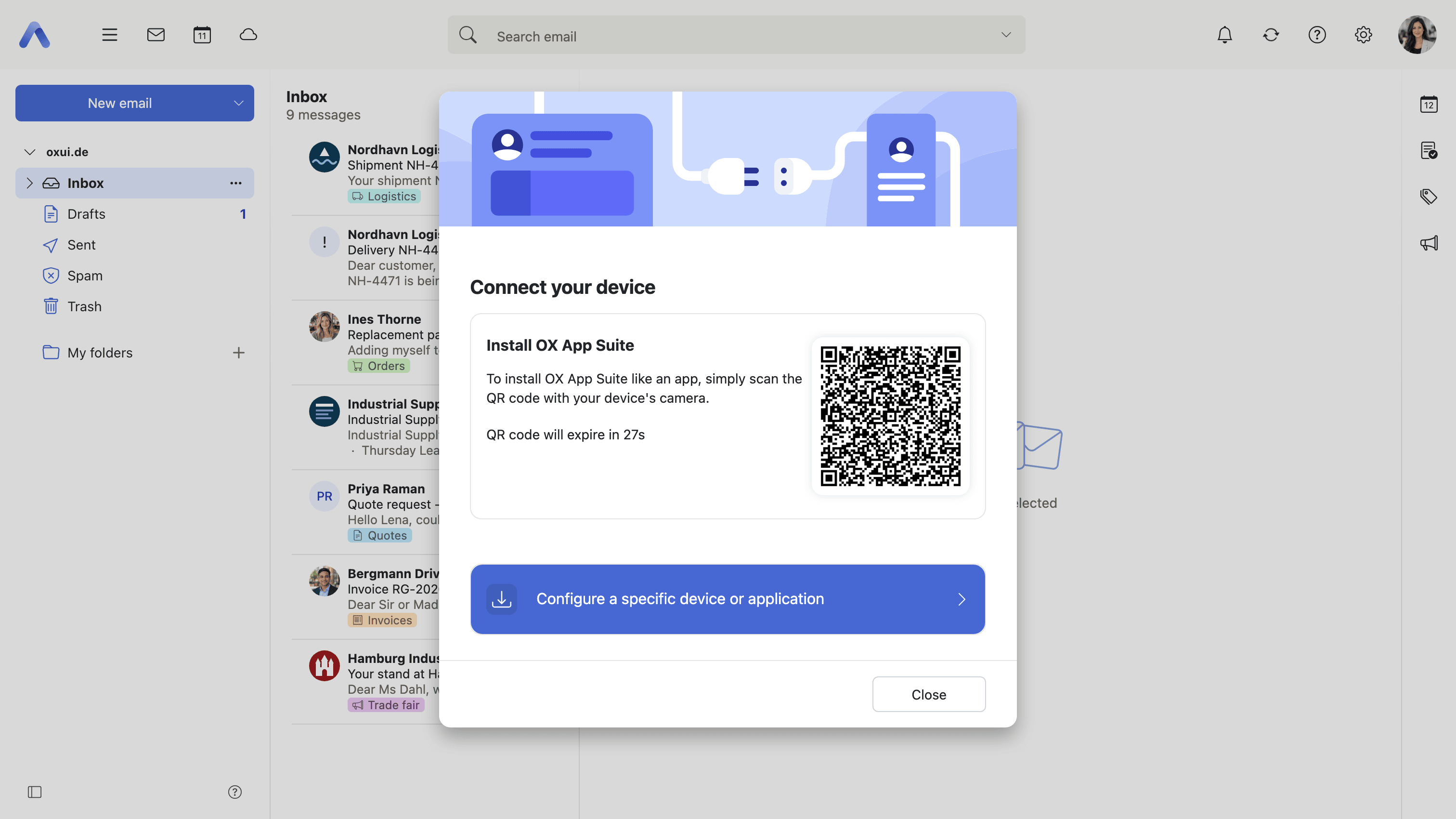
Summary A QR code shown on the desktop that signs a phone in to the same account when it is scanned with the phone's camera. Nothing is typed on the phone — no address, no password. The code appears in the Connect your device wizard and on the last page of the First Start Wizard.
Why it matters Typing an email address and a password on a phone keyboard is the single most common place where onboarding is abandoned. The password is long, the keyboard is small, the characters are hidden while they are entered, and a second failed attempt usually ends the effort for that day. A scan replaces all of it with pointing a camera, so the step that used to lose users takes three seconds. It also drops the phone straight into the instructions for installing the app, which means the two things that should happen at setup happen in one go.
Description
- A QR code in the Connect your device wizard and on the last page of the First Start Wizard
- The code carries a one-time token and expires after a short time; it refreshes itself for a while and then offers a button to request a fresh one
- Scanning opens the product on the phone, already signed in
- The phone then continues straight into the instructions for installing the app
Availability Since 8.30. Feature toggle qrSessionHandover, on by default. It additionally needs Middleware 8.29 or newer with a qrlogin application configured in com.openexchange.tokenlogin.applications, and it is only offered where the install-as-an-app instructions are enabled.
Guided tours
Summary Walkthroughs that step through an app, highlighting one part of the interface at a time and explaining what it is for. Getting started runs the general introduction and Guided tour for this app runs the tour of whichever app is open; both sit in the help menu.
Why it matters Hardly anybody reads the help, and the people who would are not the ones who need it. A tour meets a new user inside the interface, where a sentence about the folder tree can simply point at the folder tree. It is also the cheapest answer to the question an organization's own users all ask in the same week after a migration. It is off by default because a tour nobody asked for is an interruption — a deployment decides whether its users are at that stage.
Description
- Getting started runs the introductory tour; Guided tour for this app runs the tour of the app that is open
- Tours exist for the introduction, Mail, Calendar, Address Book, Drive, Tasks, Portal and two-factor setup
- The introductory tour can be set to run once, at the first sign-in
- What a user has already been shown is remembered, so a tour does not repeat itself
Availability Since 8.50. Not available to guest users, and not on smartphones. Feature toggle guidedTours, off by default.
Connect a third-party account
Summary An account held at another provider is connected by signing in at that provider rather than by handing its password over here. Its mail, files, calendar or contacts then appear among the user's own folders, and the settings list shows what has been granted, per app, with a way to take it back.
Why it matters People have mail and files somewhere else, and the alternatives are both poor: work in two products, or type a second provider's password into the first. The second is what password-reuse incidents are made of, and a product that asks for it is indistinguishable from one phishing for it. Signing in at the provider means that password is never seen here, and the grant can be withdrawn from either end afterwards. Listing each app's access separately is what turns that from a promise into something a user can check.
Description
- Sign-in happens at the provider; no third-party password is stored here
- One connected account can serve several apps at once, each shown as its own entry
- Each entry links into the folder it created, and can be removed on its own
- When the provider withdraws access, a dialog offers to reauthorize, with a cooldown so the user is not asked again straight away
Availability Since 7.10.6 or earlier. Requires oauth, with the services configured in the Middleware.
Recover stored passwords of external accounts after a password change
Summary Some external accounts do keep a password here — an additional mailbox or a storage account — and it is stored encrypted under the user's own password. When that password changes, a dialog at the next sign-in asks for the previous one so the stored passwords can be re-encrypted and keep working.
Why it matters This is the other half of connecting an external account. Where no password has to be stored, none is; where one does, it is unreadable the moment the password protecting it changes. Without a way back the failure is silent: external mail stops arriving and a storage folder turns up empty, with nothing to connect either to a password change made last week. Catching it at the next sign-in is the one moment when the recovery is still cheap, because it is also the last moment the user reliably remembers the old password.
Description
- Shown at sign-in when the server reports that the stored secrets can no longer be decrypted
- Recover re-encrypts the stored passwords with the new one, once the old one has been entered
- Remove passwords discards them instead, and Remind me again postpones the decision
Availability Since 7.10.6 or earlier. Requires oauth. The password change that triggers this is described under Account and security.