Getting around
The frame the user works inside, rather than anything that happens within it: how one moves between the applications, how windows and panels behave, and the small conveniences — shortcuts, printing, undo, help — that work the same way wherever the user happens to be.
Moving around the application
Summary The top bar, the folder tree on the left and the browser's own back and forward buttons are the same in Mail, Calendar, Address Book, Drive, Tasks and Portal. An app launcher and a row of quick launch icons move between them, one context menu creates and organizes folders everywhere, and the avatar in the top bar holds the signed-in identity.
Why it matters A suite assembled from separate applications teaches its users a separate set of habits for each one, and the cost of that lands on whoever answers the questions. Here the folder context menu is learned once and then works the same way everywhere, and the back button steps back through what the user just did rather than leaving the application — which, on a page holding a half-written reply, is the difference between an annoyance and lost work. Detail popups do the same for people: a name is clickable wherever it appears.
Description
- An app launcher and a quick launch bar switch between Mail, Calendar, Address Book, Drive, Tasks, Portal and Settings
- The folder tree on the left is shared by every app, with sections for the user's own, public, shared and external folders
- The browser's back and forward buttons step through what the user did inside the app instead of leaving it
- One folder context menu adds, renames, moves, colors, shares and deletes folders, the same way in every app
- The avatar in the top bar opens who the user is signed in as, plus personal data, password and sign out
- An About dialog reports the UI and Middleware version numbers
- Clicking a person, an appointment or a resource anywhere in the UI opens a popup with its details
Availability Since 7.10.6 or earlier. How many quick launch icons appear, and which, comes from io.ox/core//apps/quickLaunch and io.ox/core//apps/quickLaunchCount; operators can keep folders out of the tree with io.ox/core//folder/blacklist and io.ox/core//folder/hidden.
Search
Summary One search field in the middle of the top bar, labeled for the app the user is in — Search email, Search appointments — and searching that app with the filters that app has to offer. Terms can be typed straight into the field as from:anna subject:report or picked from a More search options dropdown, and whatever is active appears as removable chips underneath.
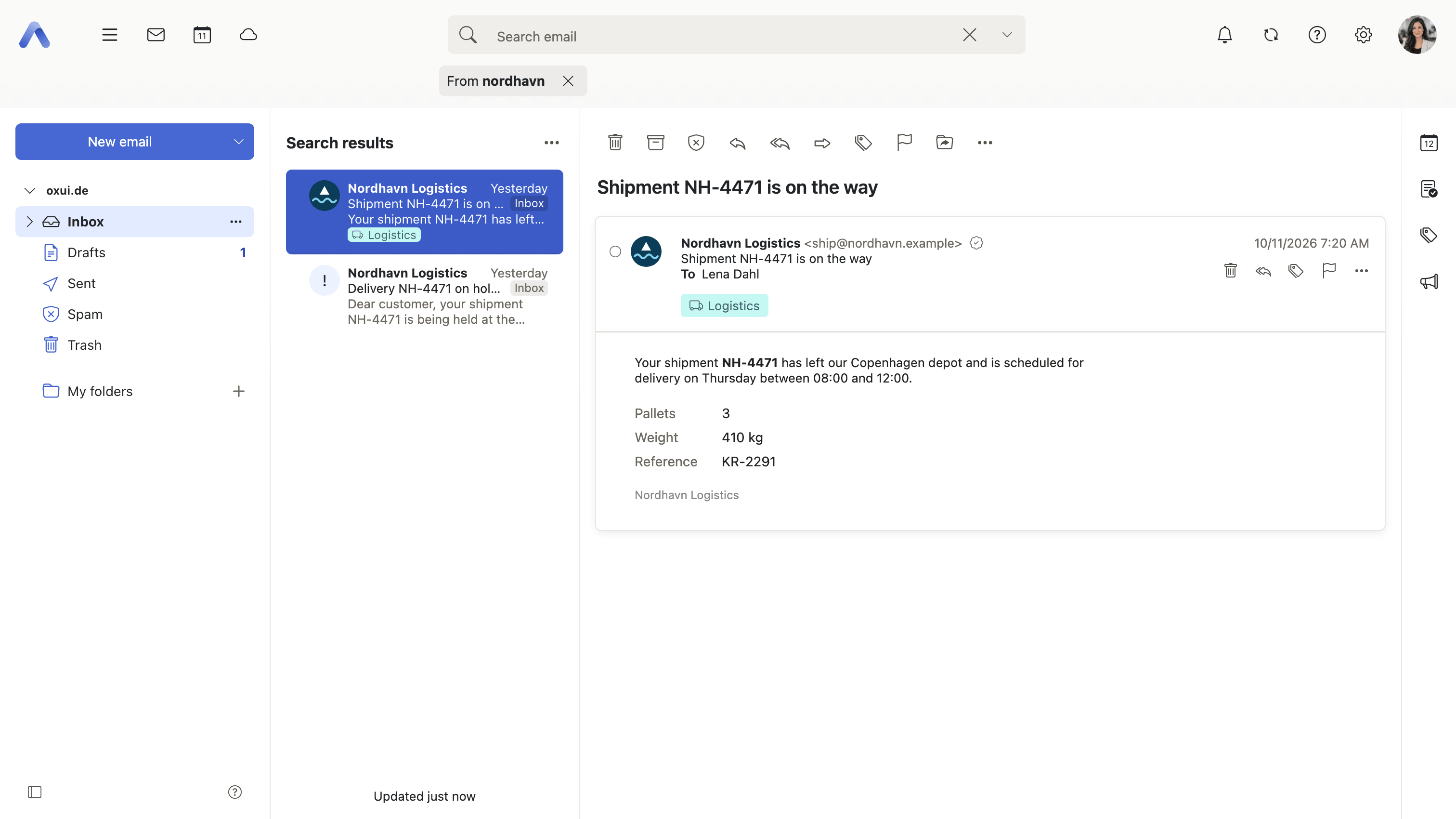
Why it matters A mailbox that has been in use for ten years is not something anyone browses. The folder tree stops being a way of finding things long before it stops being a way of organizing them, and from there on search is the only route back to an old message. One field in one fixed place means a user never has to work out whether this app has a search of its own and where it is hidden. The chips matter separately: the commonest reason a search comes back empty is a filter left behind by the previous one, quietly excluding the answer.
Description
- The field sits in the middle of the top bar and is labeled for the current app; on phones it opens from a magnifier button
- Filters can be typed straight into the field as
from:anna subject:report, in the user's own language, with quoted phrases kept together - A More search options dropdown offers the current app's filters — addresses, date ranges, categories, folders, checkboxes
- Mail, Drive and Tasks offer a Search in scope: all folders, the current folder, one account, or all unseen messages
- Active filters appear as removable chips under the field
- Suggestions while typing cover contacts, filter prefixes and a Contains entry naming the fields that free text will search
/focuses the field; arrow keys, Enter, Tab and Escape drive the suggestion list- After opening an item found by search, a Search: <term> breadcrumb returns to the results
Availability Since 7.10.6 or earlier. The single search bar with its options in a dropdown dates from 8.0, and the / key that focuses it from 8.18, through the feature toggle shortcuts, on by default — the field itself is always present. Which fields free text searches in mail is set by io.ox/mail//search/default/fields, and the Address Book's minimum query length by io.ox/contacts//search/minimumQueryLength. Mail's own filters and search scopes are described under Reading and organizing.
Mobile navigation
Summary On a phone the shell is a bottom bar of app tabs with a Menu button beside them, and the screens behind it are a stack of pages that slide in and out under a back button. Each page brings its own navigation bar and toolbar, so the controls that matter are within reach of a thumb.
Why it matters A desktop layout on a phone is not a smaller desktop layout, it is an unusable one: a folder tree, a wide top bar and mouse-sized context menus do not survive the trip. Mail on a phone is mostly read on the move and one-handed, in the minutes that would otherwise be dead. Giving the small screen its own shell — app switching at the bottom, actions on the page itself — is what keeps the common path of opening an app, finding the item and acting on it from asking for a second hand.
Description
- A bottom bar carries up to three app tabs plus a Menu button that opens the full list of apps
- The menu also shows who is signed in and which draft windows are open, with entries for personal data, settings, device connection, help, about and sign out
- Screens form a stack of pages with sliding transitions and a back button; each page brings its own navigation bar and toolbar
- Search and the notification bell appear per page, where the page asks for them
Availability Since 7.10.6 or earlier. Smartphones only. How many app tabs the bottom bar carries comes from io.ox/core//apps/quickLaunchMobile and io.ox/core//apps/quickLaunchCountMobile.
Side panel
Summary A panel along the right-hand edge, opened from a vertical rail of icon buttons, that holds a compact calendar, the task list, the category browser, the notification area and the Updates list. It opens beside whatever app the user is already in, can be resized by dragging, and closes with Escape, putting the focus back where it came from.
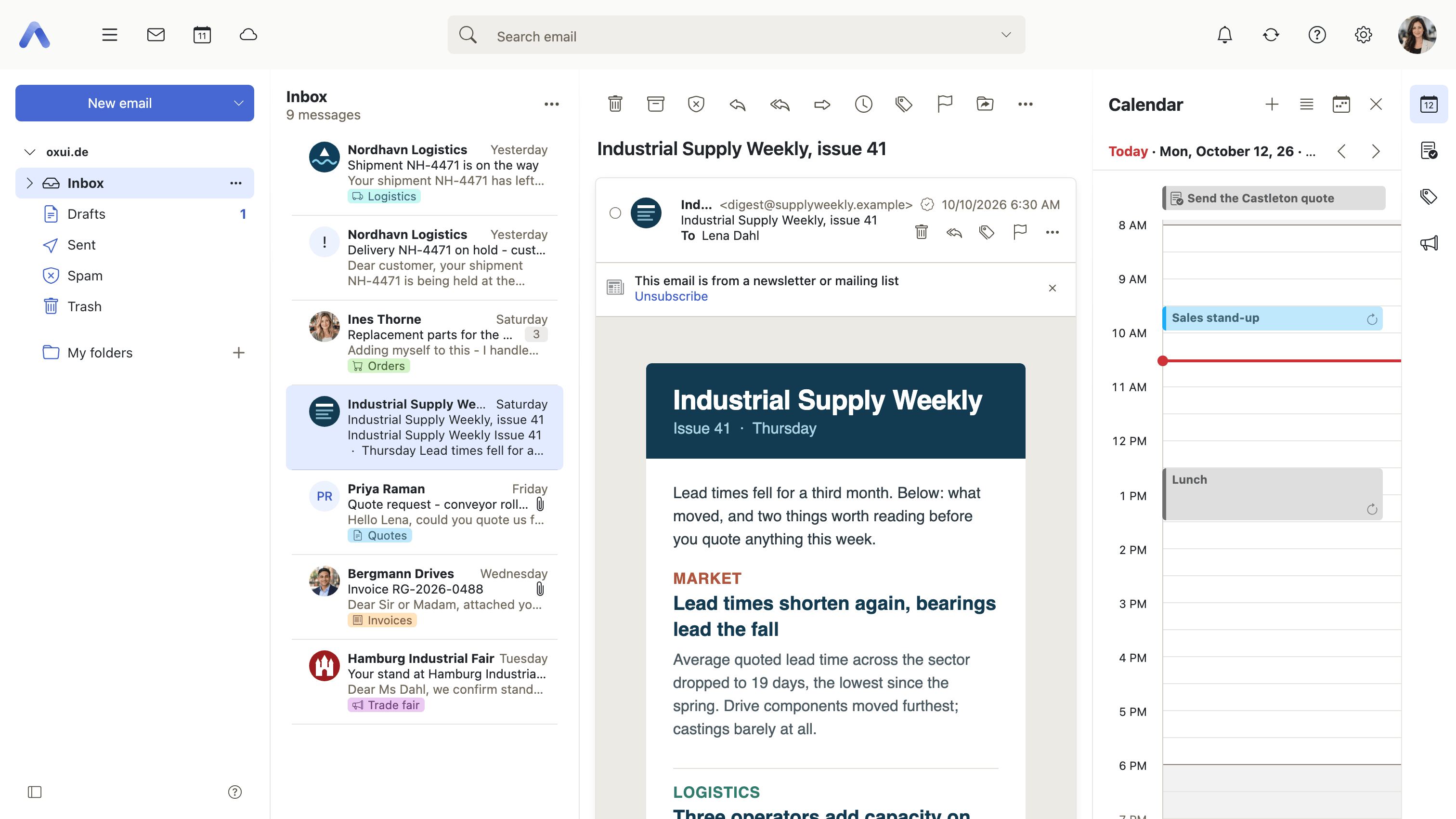
Why it matters "What does the rest of my day look like?" and "is that task still open?" are questions that arrive in the middle of doing something else — usually while writing a message that mentions a date. Switching to Calendar to answer one costs the draft, the scroll position in the inbox and the user's place in the thread, and the trip back is rarely clean. A side panel answers the question beside the work instead of in place of it. The rail is also where further panels are contributed, so what can be consulted without leaving the current app is not fixed to this list.
Description
- A vertical rail of icon buttons on the far right switches between panels; the panel itself is resized by dragging
- A compact calendar and agenda, available while working in another app
- The user's tasks next to Mail or Calendar, with a filter for undone tasks and a button for a new one
- The category browser, the notification area, and an Updates panel of release notes opened from a megaphone button
- Each panel has a title, an optional back button and its own online help button
- Escape closes the panel and focus returns where it came from
- The rail can be switched off by the user under Settings > General > Sidebar
Availability Since 8.40. Not on smartphones. Feature toggle sidepanelToolbar, on by default, with a user-level switch of the same name under Settings > General > Sidebar.
Floating windows and the taskbar
Summary Compose windows and the other editing forms open as windows floating over the application rather than replacing it. They can be dragged by the header, resized, maximized, stuck to the right-hand side so they sit beside the content, or minimized into a taskbar at the bottom and restored from there.
Why it matters Writing a message is almost never self-contained: the figure, the date or the address being written about is somewhere else in the mailbox or the calendar. A full-screen composer makes the user abandon the draft to look it up, and the usual outcomes are a message sent without the detail or a second copy of the application opened in another browser tab. Floating windows keep several drafts open while leaving the content underneath readable, and bringing the windows back after a reload means an accidental refresh is no longer a lost draft.
Description
- Drag by the header, double-click to maximize, or use the maximize, shrink, minimize and close buttons
- A window can be stuck to the right-hand side so that it sits beside the content instead of over it
- Minimized windows collect in a taskbar labeled Minimized windows and are restored from there
- Escape closes the window, Tab stays inside it, and Ctrl or Cmd plus Enter saves or sends
- Ctrl+. and Ctrl+, move to the next and the previous open window
- The display mode last used is remembered per app
- Windows that were open before a reload or a sign-out come back
Availability Since 7.10.6 or earlier. Not on smartphones. The key bindings for cycling between windows arrived later, with the shortcuts feature toggle in 8.18. Which apps start in which display mode is set under io.ox/core//features/floatingWindows/preferredMode.
Start app
Summary Which app opens after signing in. The user picks one of the apps available to them, or none at all, in general settings, and phones carry their own choice. The setting is offered only where there is something to choose: more than two apps available, and an operator who has not fixed the value for everyone.
Why it matters Someone who lives in the calendar should not have to click past an inbox every morning, and someone whose working day is entirely mail should not land on a portal page they never read. It is a few seconds per sign-in, repeated every working day by every user. It also answers a problem deployments with many apps enabled always have: the sensible default for a whole installation is rarely the sensible default for any one person in it.
Description
- Pick any of the available apps, or none
- Falls back to the first available app when the chosen one is no longer there
- Offered only where more than two apps are available and the operator has not fixed the value
Availability Since 7.10.6 or earlier. Stored in io.ox/core//autoStart.
Direct links into the application
Summary A URL can name an app, a folder and a single item, and the application opens exactly that: a message in its folder, an appointment in the calendar, a file in the viewer, or one particular settings page. A mailto: link opens the composer.
Why it matters This is what makes the contents of the product quotable. A ticket that says "see the message from Tuesday" costs its reader a search and some guessing; a ticket with a link costs them one click, and they arrive at the same item the writer meant. The same applies to support, which can send a user straight to the setting that has to change rather than describing a path through three menus. Older link formats are still understood, so links pasted into wikis and tickets years ago keep working.
Description
- App plus folder plus item, a folder on its own, or a settings page plus a section
- Links into Drive open the file in the viewer
mailto:links open the composer- An appointment produces a link that opens that one appointment in the calendar
- Older link formats are still understood
Availability Since 7.10.6 or earlier.
Create an item in another app
Summary A New ... menu in the folder side panel offers the create actions of the other apps — a new email, appointment, contact or task — started from wherever the user currently is. The entry for the app the user is already in is left out, because that app has its own button for it.
Why it matters "I should put that in the calendar" is a thought that arrives while reading a message, not while looking at the calendar. Making the user switch apps first puts the whole detail — the date, the room, the name — behind them at the moment they need to type it, and the common result is an appointment created later from memory, or not at all. Offering the create actions where the thought happens keeps the source of the information on screen.
Description
- Offers New email, New appointment, New contact and New task, each hidden in the app it belongs to
- An entry is only shown where the matching capability exists
- Apps add their own entries to the same menu
Availability Since 7.10.6 or earlier. Each entry requires the capability of the app it creates for — webmail, calendar, contacts or tasks.
Keyboard shortcuts
Summary Key combinations for the common actions across the apps, with a choice of shortcut sets: the product's own, one modeled on Gmail, one modeled on Outlook.com, or none at all. Pressing ? opens an overlay listing the shortcuts that apply at that moment.
Why it matters People who spend their working day in a mailbox do it with their hands on the keys, and every action that requires aiming a mouse at a toolbar interrupts that. The second half is migration: someone who has pressed the same key to archive for five years will keep pressing it, and on a client where it does something else they will keep being wrong. Letting them bring their old key set over removes the friction that otherwise makes a change of mail client feel like a demotion.
Description
- Choose a shortcut set in general settings — the product's own, a Gmail-like one, an Outlook.com-like one, or off
- The ? key opens a help overlay listing the shortcuts that apply right now
- Shortcuts for switching apps, for mail, calendar, address book, tasks and Drive actions, and for text formatting while composing
- Mail contributes its own: jumping to Inbox, Sent or Drafts, and running toolbar actions without the mouse
- The calendar switches view, moves through time and creates an appointment from the keyboard
- Ctrl+. and Ctrl+, move between open floating windows
- Suppressed while the user is typing in a field and while a dialog is open
Availability Since 8.18. Desktop only — not on smartphones or tablets. Feature toggle shortcuts, on by default. The chosen set is stored in io.ox/core//shortcutsProfile.
Online help
Summary A question-mark button in the top bar opens the help page for whatever the user is looking at — the current app, the floating window on top of it, or the dialog that is open — rather than a table of contents. Individual dialogs and settings sections carry their own Learn more links into the same help.
Why it matters Help that opens on an index is help that gets closed again. The user is already in the middle of something, and a contents page asks them to translate their problem into the documentation's vocabulary before they can look it up. Resolving the topic from where they actually are removes that step, and that step is most of the difference between a question answered inside the product and a support ticket. It counts most for the things people meet rarely — a sharing dialog, a filter rule, a second factor — where no habit has had a chance to form.
Description
- Resolves to the help topic of the current app, floating window or dialog, falling back to the help index
- Help opens in a floating window, in a modal, or in a new browser tab
- Localized, with explicit fallbacks for locales that have no help of their own
- Individual dialogs and settings sections carry their own Learn more links into the same help
Availability Since 7.10.6 or earlier. Not on smartphones. Help links can be taken out of the product entirely with io.ox/core//features/showHelpLinks.
Summary Emails, contacts, distribution lists, tasks, appointments, a calendar week or month, and documents opened in the file viewer can all be printed. The application opens a separate window holding a rendering made for paper and then hands over to the browser's print dialog, which is also the route to a PDF.
Why it matters Printing is where a web application meets the parts of an organization that still run on paper: an agenda carried into a meeting room, a message filed with a contract, a day's appointments on a clipboard. The screen layout is the wrong one for all of them, because a folder tree, a toolbar and a dark theme have no business on a printed page. Rendering separately for print is what makes the output readable, and what makes "print to PDF" a usable way of handing one message or appointment to somebody outside the product.
Description
- A separate window holds the print-friendly rendering, then the browser's print dialog takes over
- Emails, contacts, distribution lists and tasks print one selected item or many
- Appointments print detailed or compact, and the current calendar week or month prints as a calendar sheet
- The file viewer prints a server-converted PDF of office documents, PDFs, images, text and XML
- On smartphones mail and calendar fall back to the browser's own print
- What printing an email produces is described under Reading and organizing
Availability Since 7.10.6 or earlier. Printing a calendar sheet requires calendar-printing, and printing from the file viewer requires document_preview.
Undo the last action
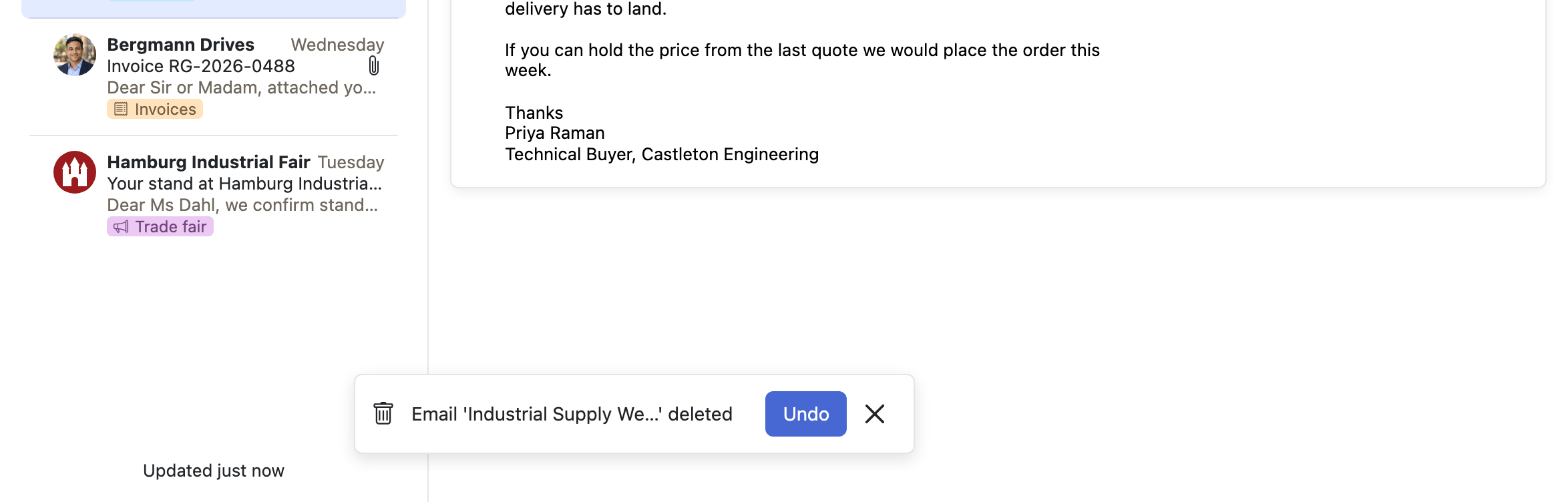
Summary After items have been deleted or moved, a toast appears at the bottom of the screen naming what happened and offering an Undo button for a few seconds. Taking it reverses that one action. Only the most recent action can be undone, and a new toast replaces the one before it.
Why it matters Deleting and moving are single clicks, often made while scrolling a list quickly, and the item then lands somewhere the user has to go and find — the trash, or whichever folder the pointer happened to be over. The alternative safeguard, a confirmation dialog in front of every delete, is dismissed without reading within a week and protects nobody. A few seconds of grace afterwards costs nothing for the actions that were meant and catches the ones that were not.
Description
- A toast at the bottom names the action and offers an Undo button
- Only the most recent action can be undone; a new toast replaces the previous one
- How long the toast stays is chosen under Settings > General > Advanced — Do not show, 5, 10 or 60 seconds
- Wired for mail and address book operations
Availability Since 8.33. Requires Middleware 8.33 or newer. Feature toggle undo, on by default. The display time is stored in io.ox/core//undoPeriod, where Do not show turns the toast off altogether.