Writing and sending
What happens between opening a compose window and the message leaving: how it is written, which address it goes out under, the mistakes the client checks for, and how long the user has to change their mind.
Write in rich text or plain text
Summary The compose window has an HTML editor with a formatting toolbar, and a plain-text mode that can be switched on for a single message from the options menu. The toolbar can be hidden, and what it offers — buttons, font list — is configurable, as are the font, size and color that new messages start with.
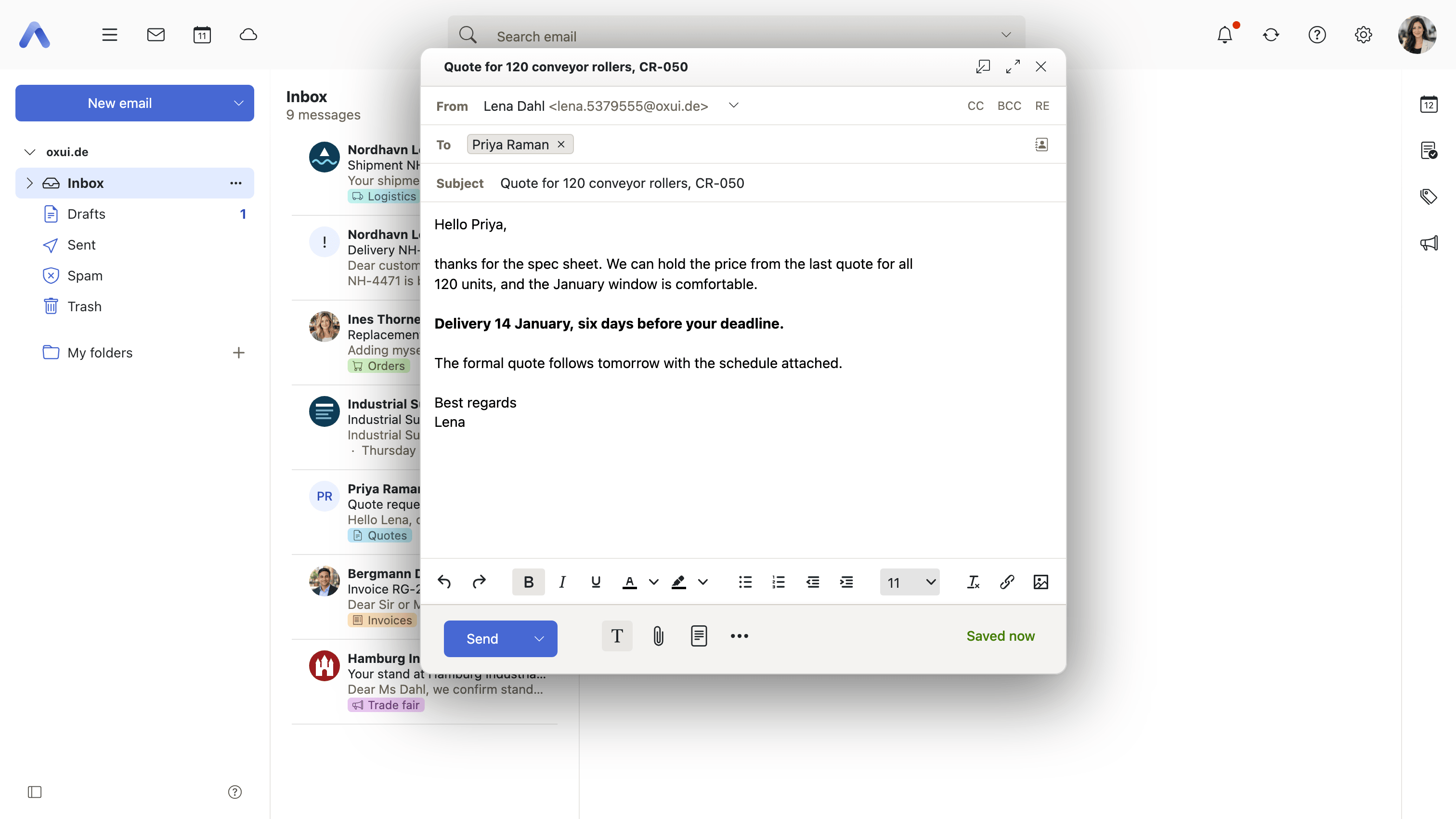
Why it matters Some mail wants formatting: a structured update, an inline image, text in a right-to-left script. Other mail is better off plain, because that is what mailing lists, ticket systems and careful correspondents expect. Choosing per message means neither habit has to win. For a deployment, the default format and the starting font are house style, and setting them centrally spares every user from configuring it themselves.
Description
- Switch between HTML and plain text per message from the compose options menu
- Show or hide the formatting toolbar; the choice is remembered
- The toolbar buttons and the font list are configurable
- Insert images directly into the message body, where they are uploaded as inline attachments
- The editor runs in a sandboxed frame under a Content Security Policy, with one configurable font source
- On smartphones a message is always composed as HTML; the toolbar can be shown from the options menu
- Set a default font, size and color for new messages — a settings section that fixes the font family, size and color used when composing HTML messages, with a live preview and a reset
- Right-to-left text in compose — the compose options menu offers left-to-right, right-to-left or an automatic switch that follows what is typed
Availability Since 7.10.6 or earlier. Requires webmail.
Undo send
Summary Pressing Send does not hand the message over at once. A bar shows the sending progress and offers an Undo button for a few seconds; taking it brings the compose window back with the message unchanged. The delay is 0, 5 or 10 seconds, chosen by the user.
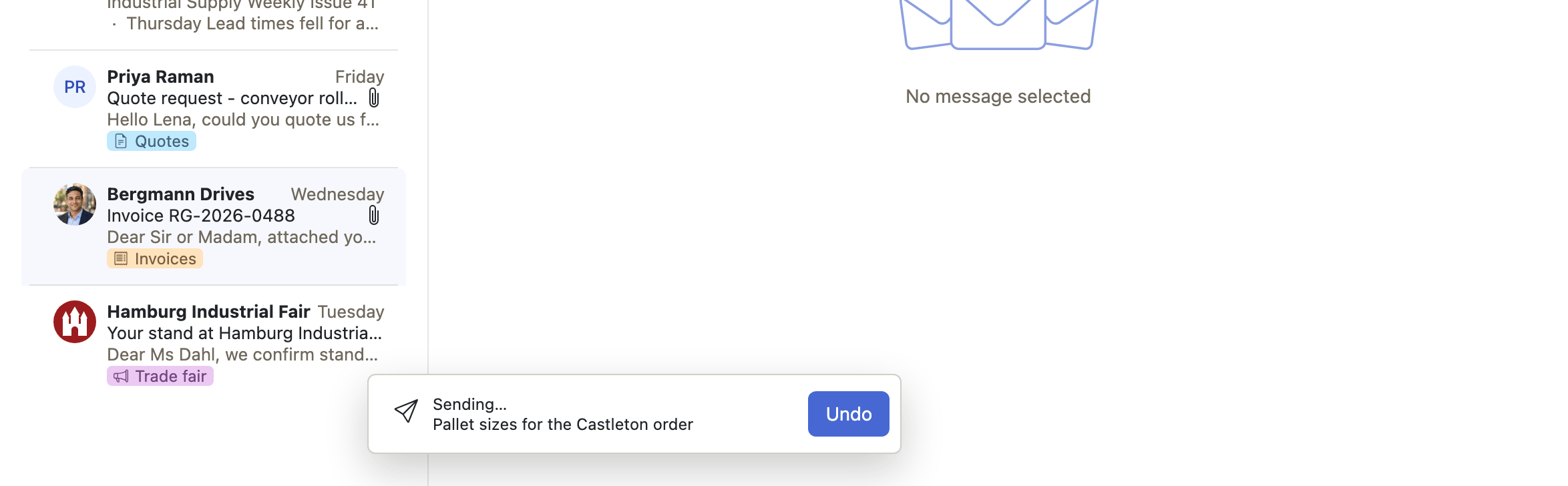
Why it matters The worst mistakes are seen in the second after the click: the wrong recipient, the sentence that reads differently once it is gone, the file that was not the right one. A few seconds of hesitation catches almost all of them and costs nothing when there is nothing to catch. Because undo restores the compose window as it was, the correction is an edit rather than a second message explaining the first.
Description
- A delay of 0, 5 or 10 seconds, chosen by the user in the Compose & Reply settings
- Undo restores the compose window with the message unchanged
- The progress bar also appears while attachments upload, and the send can be aborted then
- The browser warns before the tab is closed while a send is still pending
- A scheduled message skips the undo delay
Availability Since 8.13. Requires webmail. Feature toggle undoSend, on by default.
Schedule a message for later
Summary A dropdown next to the Send button sends the message at a chosen time instead of immediately. Quick options are anchored on morning, afternoon, evening and Monday morning, and a dialog takes an exact date and time. Until it goes out the message waits in a Scheduled folder, where a banner shows the send time and offers to cancel.
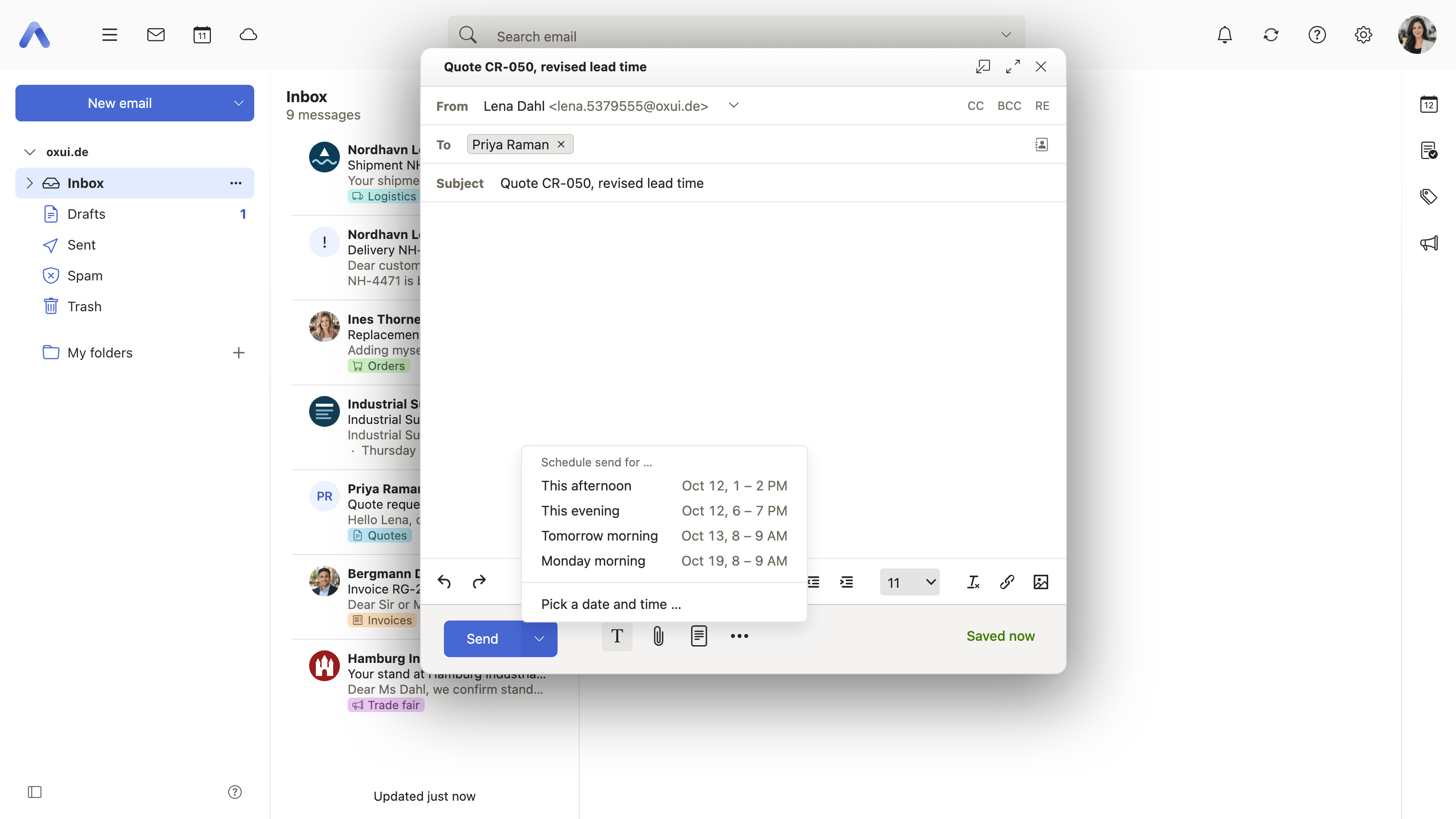
Why it matters Writing and receiving rarely suit the same hour. Mail composed late at night or over a weekend puts an obligation on the recipient at a time they did not choose, and in many workplaces that is something people are expected to avoid. Scheduling separates the two: the writing happens when the sender has time, the arrival when the recipient does. It is also the practical answer to recipients in other timezones and to a message that has to land on a particular day, without anyone having to be at a desk then.
Description
- Quick options anchored on morning, afternoon, evening and Monday morning, plus the time last chosen
- The quick options pick a random moment inside a configurable window, so popular times do not all fire at once
- A dialog for an exact date and time, with validation that the time is in the future
- A note explains that scheduled messages are queued and may go out with a short delay
- A scheduled message shows a banner with its send time and a Cancel send button that moves it back to Drafts
- Editing a scheduled message asks first, then discards the schedule
- The split Send button is not used on smartphones; scheduling is offered through the options menu instead
Availability Since 8.22. Requires scheduled_mail. Feature toggle scheduleSend, off by default.
Drafts and automatic saving
Summary An unfinished message is saved to the Drafts folder on its own while it is being written, and the compose options menu also offers to save and close it explicitly. A saved draft can be reopened for editing or copied, and after a browser reload the compose windows that were open come back from their drafts.
Why it matters A long message is real work, and every way of losing it is outside the user's control: a closed tab, a reload, an expired session, a browser that gives up. Saving continuously to the server rather than into the browser means the draft lives in the mailbox and not in one tab, so it survives whatever happens to that tab. It also removes the habit of mailing a half-written message to oneself to keep it safe.
Description
- The message is saved to the server repeatedly while composing, every 15 seconds by default
- Save draft and close in the compose options menu, with a one-time "Did you know?" explanation
- Reopen a draft for editing, or start a copy of it with Edit copy, which is prefixed with [Copy]
- After a browser reload the open compose windows are restored from the saved drafts
- A draft opened in two tabs is detected, and the newer version can be restored
- The number of drafts that can be open at the same time is limited by the server
Availability Since 7.10.6 or earlier. Requires webmail. The auto-save interval is configurable.
Choose the sender address
Summary The From field is a dropdown listing the primary address, its aliases and the addresses of any further accounts the user has added. One of them can be set as the default in settings, and the display name can be suppressed for a single message so that only the bare address goes out.
Why it matters People who run one mailbox under several addresses — a private one and a club one, a personal one and a role address — need the right one on each message, because the recipient answers whatever they see. Getting it wrong exposes the private address, or sends a work reply from a personal one. A configurable default means the common case needs no thought and the dropdown covers the rest; changing the sender also re-picks the signature that belongs with it.
Description
- Lists the aliases of the primary account and the addresses of added accounts
- A default sender address can be set in settings
- The display name can be suppressed per message, so only the bare address is sent
- Sending from an address of a disabled account is refused, with the From field pointed out
- Changing the sender re-evaluates the default signature
Availability Since 7.10.6 or earlier. Requires webmail.
Use a custom display name per sender address
Summary An Edit names dialog in the From dropdown sets the name shown in front of each of the user's sending addresses. Every address gets its own checkbox and name field, and leaving a field empty sends that address with no name at all.
Why it matters The display name is the part of the sender line a recipient actually reads, and one mailbox has to appear under more than one identity — a full name for work, a short one for friends, a team name for a role address. Without this, the account's single name goes out on everything. Sending with no name is the other half of it: that is how a user keeps their real name off a message to a recipient they do not know. A deployment that needs a uniform sender name can switch the dialog off.
Description
- One checkbox and name field per sending address; an empty field sends the address without a name
- Without a custom name, the mail account's own name is used
- A deployment can switch the whole dialog off
Availability Since 8.13. Requires webmail.
Set a different reply-to address
Summary A Reply-To field in the compose header, shown by a toggle button next to CC and BCC. It is pre-filled from the reply-to address configured on the sending account, and it follows a change of sender for as long as the user has not edited it.
Why it matters Answers do not always belong where the message came from. An announcement sent from a personal account that a shared inbox should handle, mail from an address the sender is about to give up, a campaign that should be answered somewhere other than where it originated — all of them need the reply routed elsewhere, and a recipient will not do that by hand. Pre-filling the field from the account means the usual arrangement works without the user knowing the field exists, while the toggle keeps it out of the way for everyone else.
Description
- Shown by a toggle button next to CC and BCC
- Pre-filled from the account's configured reply-to address, and updated when the sender changes, as long as the user has not edited it
- Appears automatically when the account supplies a value
Availability Since 7.10.6 or earlier. Requires webmail.
Always add a BCC recipient
Summary One address, configured in the advanced mail settings, is added to BCC on everything the user sends — new messages, replies and forwards alike.
Why it matters Some people want a copy of everything they send to land somewhere else: an archive, a shared team address, a second mailbox that keeps the record. Doing it by hand fails exactly when it matters, because the message that most needs to be on file is the one written in a hurry. One setting makes the copy automatic, and BCC keeps it invisible to the recipient.
Description
- One address, set in the advanced mail settings
- Applies to new messages, replies and forwards
Availability Since 7.10.6 or earlier. Requires webmail.
Set the priority of a message
Summary A message can be marked high, normal or low priority from the compose options menu. Normal is the default. The level travels with the message, so it is the recipient's mail client that decides how to present it.
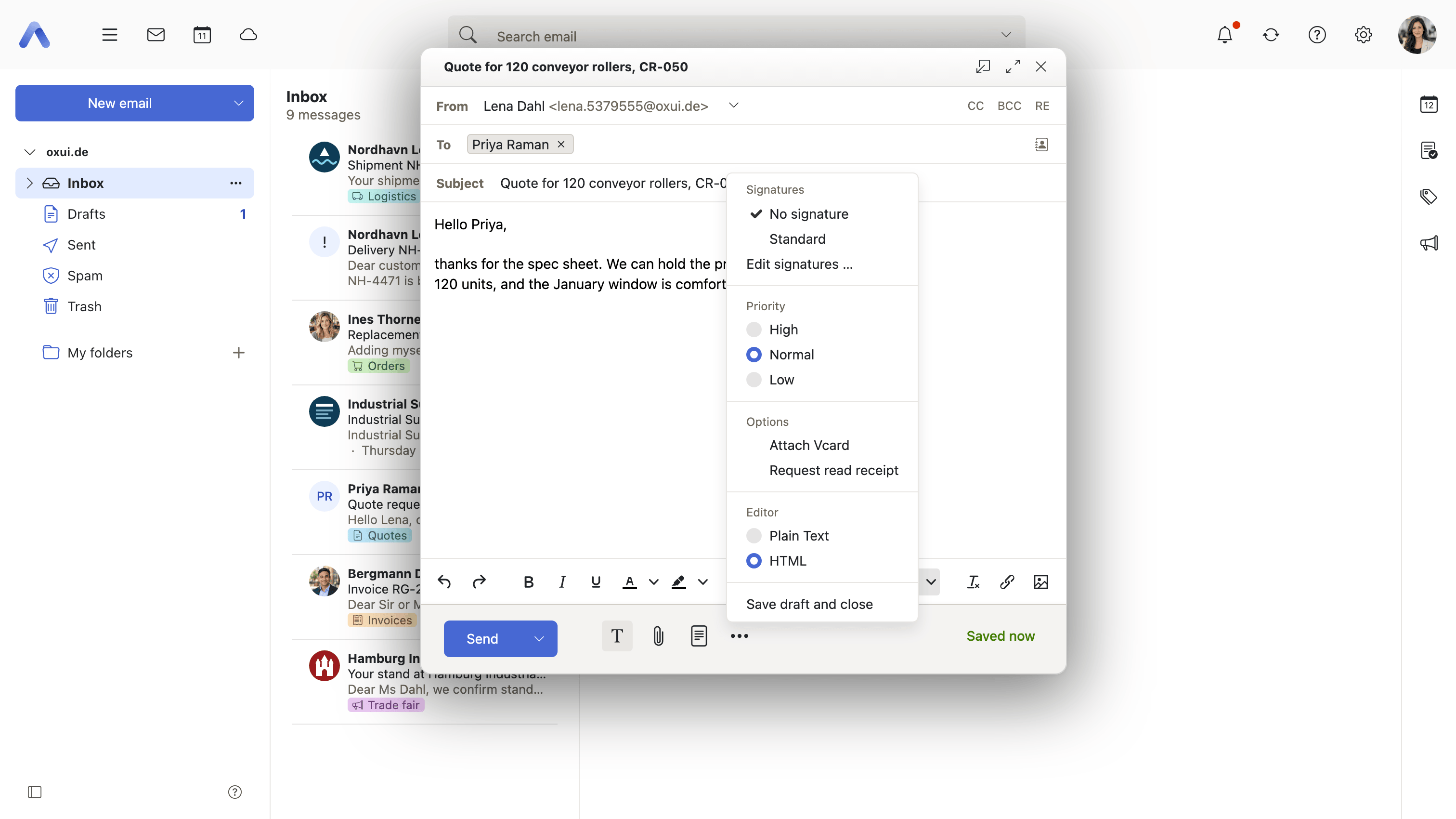
Why it matters Inboxes are read in order of arrival, not importance, and a sender otherwise has no way to say "this one first" except by shouting in the subject line. The priority flag says it in the message itself, where the receiving client can act on it. It works downwards as well: marking something low priority says it can wait, which is the considerate way to send a non-urgent message to a busy person.
Description
- Three levels; normal is the default
- On smartphones the levels sit in a nested menu under Options
Availability Since 7.10.6 or earlier. Requires webmail.
Request a read receipt
Summary An option in the compose options menu asks the recipient's client to confirm that the message was opened. The receiving side is covered too: a message carrying such a request shows a prompt with a button to send a receipt, and a separate user setting decides whether those requests are surfaced at all.
Why it matters Silence after an important message is ambiguous — it can mean the recipient is thinking it over, or that the message never arrived. A receipt separates the two, which matters for anything with a deadline or a formal edge. Because a receipt also tells the sender when someone read their mail, the receiving half stays under the recipient's control: it is a prompt with a button, never automatic, and the prompts can be turned off entirely.
Description
- Set per message from the compose options menu
- A separate user setting decides whether incoming requests are shown at all when reading
- Respond to a read receipt request — when a sender asks for a read receipt, the message shows a prompt with a button to send one
Availability Since 7.10.6 or earlier. Requires webmail.
Checks before a message goes out
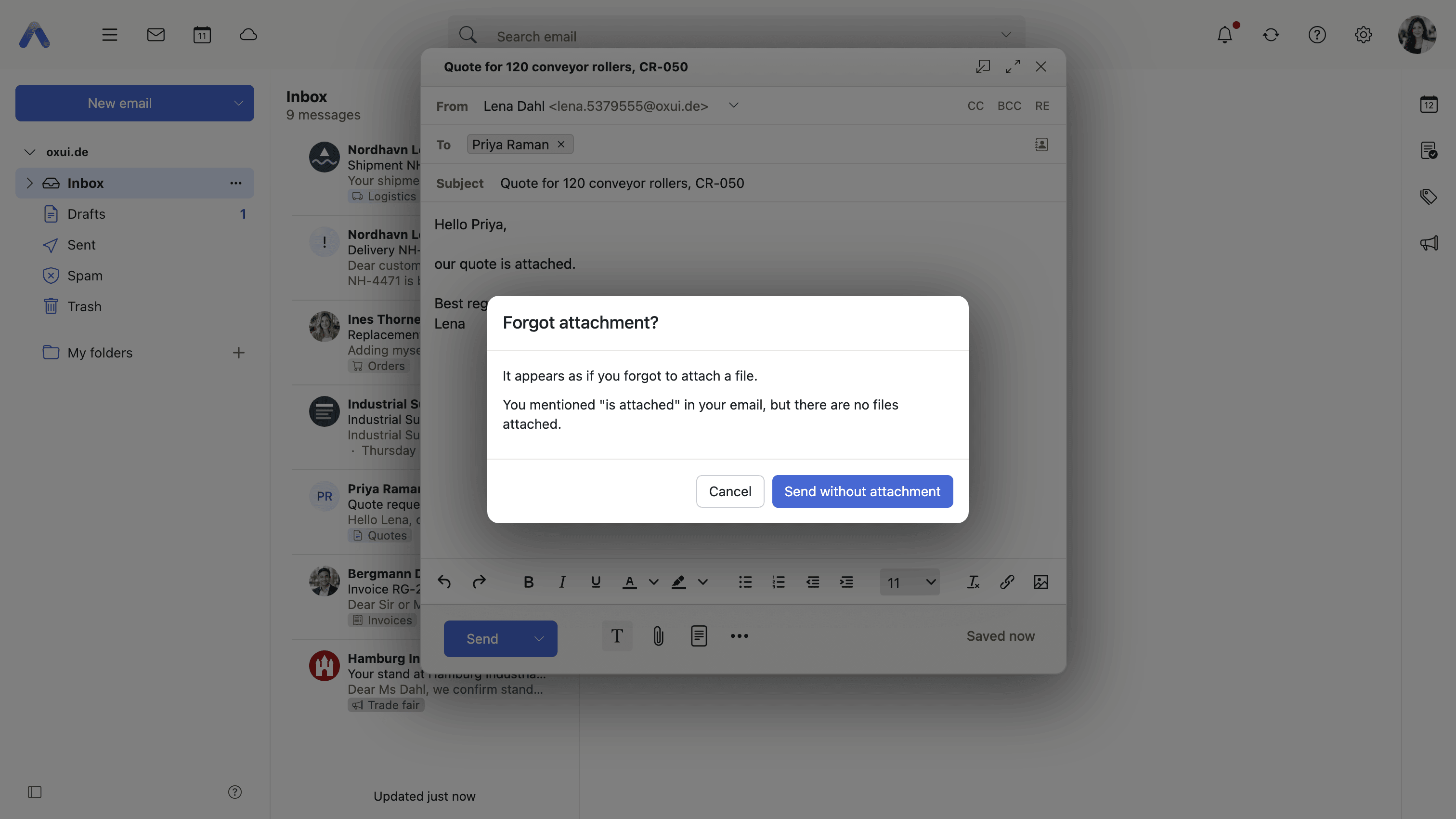
Summary Before a message leaves, the client looks for the mistakes people actually make: no recipient, an empty subject, a message that mentions an attachment but carries none, a zero-byte file, a sender address on a disabled account, or a message over the server's size limit. Each is reported at the moment of sending, with the fix offered where there is one.
Why it matters Every one of these is noticed one second after the message is gone, and none of them can be taken back. The forgotten attachment is the classic: it costs a second message, an apology, and another trip through the recipient's attention. The moment of sending is the only point where catching them is free. The size check turns what would otherwise be a server rejection into something actionable, because the dialog names the limit and points at the attachments.
Description
- Sending without a recipient is refused, and the recipient field is pointed out
- An empty subject is confirmed in a dialog that also offers to add one
- Text such as "see attached" with no file attached triggers a Forgot attachment? dialog, which matches phrases in the user's language plus English and German
- A zero-byte attachment is reported before sending
- A sender address belonging to a disabled account is refused
- A message that exceeds the server limit reports the limit and suggests reducing attachments
Availability Since 7.10.6 or earlier. Requires webmail.
Confirm recipients when replying to a mailing list
Summary When the message being answered arrived through a mailing list, a dialog asks whether the reply goes to the list or only to the sender. It names both addresses, so the choice is made against what will actually be in the To field rather than from memory.
Why it matters Replying to a mailing list is the one mistake that comes with an audience. The reply-all habit is right for most threads and wrong for this one, and the difference is invisible: in the message being read, the list and the person look alike. Asking once, with both addresses spelled out, is what keeps a personal remark from reaching several hundred subscribers. Users who always mean to answer the list can switch the question off.
Description
- Detected from the List-Id, List-Archive and List-Owner headers of the original message
- The dialog names the list address and the sender address, and offers Reply all or Reply to sender
- Can be switched off by the user in the Compose & Reply settings
Availability Since 7.10.6 or earlier. Requires webmail.
Collect addresses while sending
Summary Addresses the user writes to are added to a "Collected addresses" folder on their own, so they come up in autocomplete afterwards. A user setting turns collecting on send on or off, and a matching setting does the same for addresses encountered while reading.
Why it matters Most of the people someone mails are not in their address book and never will be, because adding a contact by hand is a separate task nobody performs in the middle of writing. Collecting addresses as a side effect of ordinary use means the second message to someone needs three letters instead of the whole address, and the user never has to decide, at the moment an address first appears, whether it is worth keeping.
Description
- A user setting switches collecting on send on or off
- A matching setting exists for collecting while reading
- Needs the server-side address collection capability
Availability Since 7.10.6 or earlier. Requires collect_email_addresses.
Attach your contact card
Summary An option in the compose options menu adds the sender's own vCard to the message. A user setting makes it the default for new messages. It is not applied when an existing draft, or a copy of one, is edited.
Why it matters Contact details written into the bottom of a message have to be retyped by hand before they are of any use. A vCard carries the same details in a form the recipient's address book reads directly, so adding the sender as a contact becomes one step instead of a dozen fields. It is worth most on a first message to someone new, which is exactly where the recipient is least likely to already have the details.
Description
- Set per message from the compose options menu
- A user setting makes it the default for new messages
- Not applied when editing an existing draft or a copy of one
Availability Since 7.10.6 or earlier. Requires webmail.