Contacts
What a contact record holds and what happens to it: the everyday work of creating one, filling it in and giving it a picture, the things that can be hung on it from files to categories, the rule that decides how a name is written, and the safety net underneath a deletion that was not meant.
Everyday contact actions
Summary Creating a contact, editing it, reading it and deleting it, together with the things done to one from the list — mailing it, inviting it to an appointment, opening its postal address in a map. The record runs from the obvious, names and email addresses and phone numbers, through business data to a note and twenty free-text fields.
Why it matters An address book is only as good as its last update, and every detail that is awkward to record ends up in somebody's head instead. Most of what a contact can hold is empty for most people, so a form that shows all of it is a form nobody finishes, and a detail view that listed every empty field would be unreadable. Showing only what has content keeps a record worth opening. The actions on the list serve the same end: an address used straight from the address book is one nobody retypes from memory.
Description
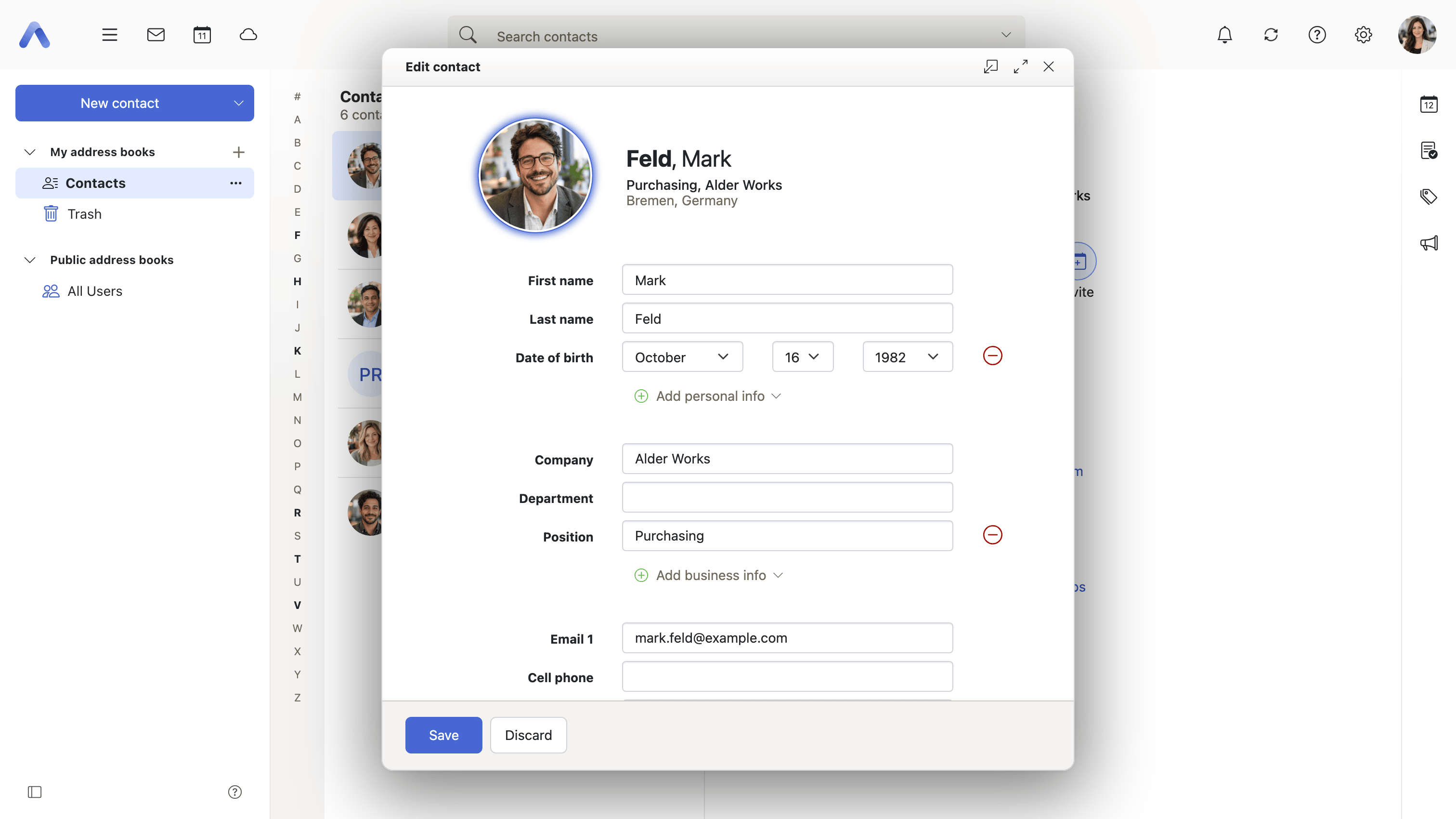
- Create contact opens an editor holding names, email addresses, phone and fax numbers, postal addresses, business data, a note and twenty free-text fields
- Fields are added in groups — personal, business, communication, addresses, additional information — so the editor starts short and grows only where something is entered
- The detail view shows only the fields that carry content, grouped the same way
- A contact picture is cropped in the browser, turned the right way up by its EXIF orientation and scaled down before it is sent; JPEG, GIF, BMP and PNG are accepted
- Deleting removes the selected contacts or distribution lists
- The list sorts by last or first name, ascending or descending, and is drawn with contact pictures, with checkboxes, or plain
- An alphabet index beside the list jumps to a letter
- Postal addresses become links into a map service — Google Maps, Open Street Map, or Apple Maps on Apple devices — and the links can be switched off altogether
- Send email opens the composer with the selected contacts, or every member of a selected distribution list, as recipients
- Invite to appointment opens the appointment editor with the same people already added as participants
Availability Since 7.10.6 or earlier. The largest photo that can be uploaded comes from io.ox/contacts//maxImageSize and the map service from io.ox/contacts//mapService, both under Settings > Address Book; how the list is drawn is remembered in io.ox/contacts//listViewLayout and io.ox/contacts//selectionMode.
Attach files to a contact
Summary Files can be put on a contact while it is being edited, either picked from the device or dropped onto the open edit dialog. Afterwards they are listed in the contact's detail view, where anyone who can see the contact can download them or save them to Drive.
Why it matters The documents that belong to a person — a signed agreement, a scan of a business card, the paperwork behind a supplier — otherwise live in the message they arrived in. That makes them findable by one person, for as long as they remember who sent them, and lost entirely when that colleague moves on. A file kept on the contact is where anybody would think to look for it a year later, which is the only test that matters for a document nobody expects to need again until they suddenly do.
Description
- Upload files while creating or editing a contact, or drop them onto the open edit dialog
- Attachments are listed in the contact's detail view, and can be downloaded or saved to Drive
- Attachment handling is shared with appointments and tasks and is described under Working with content
Availability Since 8.39. Requires filestore. Feature toggle PIMAttachments, on by default.
Choose how names are shown
Summary Decides how a name made of a first and a last name is written wherever one appears: the default for the user's language, First name Last name, or Last name, First name. Where a deployment provisions display names and prefers them, the choice disappears and everyone sees the name the directory supplies.
Why it matters A name is read many times for every time it is typed, and the order it is written in is not a matter of taste — it is what makes a list of several hundred people scannable, and the convention differs by language. An address book that imposed one order would be sorted wrongly for half its users. Deployments that provision names centrally have the opposite problem: the directory already holds the agreed form of each colleague's name, and letting every client rebuild it from parts produces several spellings of the same person.
Description
- The choices are the language-specific default, First name Last name, and Last name, First name
- Where the deployment prefers provisioned display names the choice is not offered, and the list sorts by display name rather than by first or last name
- For Japanese, and for any locale a deployment switches furigana on for, names carry a separate reading, and the display-name preference is not offered — a single display name has nothing to annotate
Availability Since 7.10.6 or earlier. Requires contacts. The format is stored in io.ox/contacts//fullNameFormat and chosen under Settings > Address Book. Preferring a provisioned display name arrived later, in 8.55, behind the feature toggle preferDisplayName, off by default; furigana is switched on with io.ox/contacts//features/furigana.
Assign categories to a contact
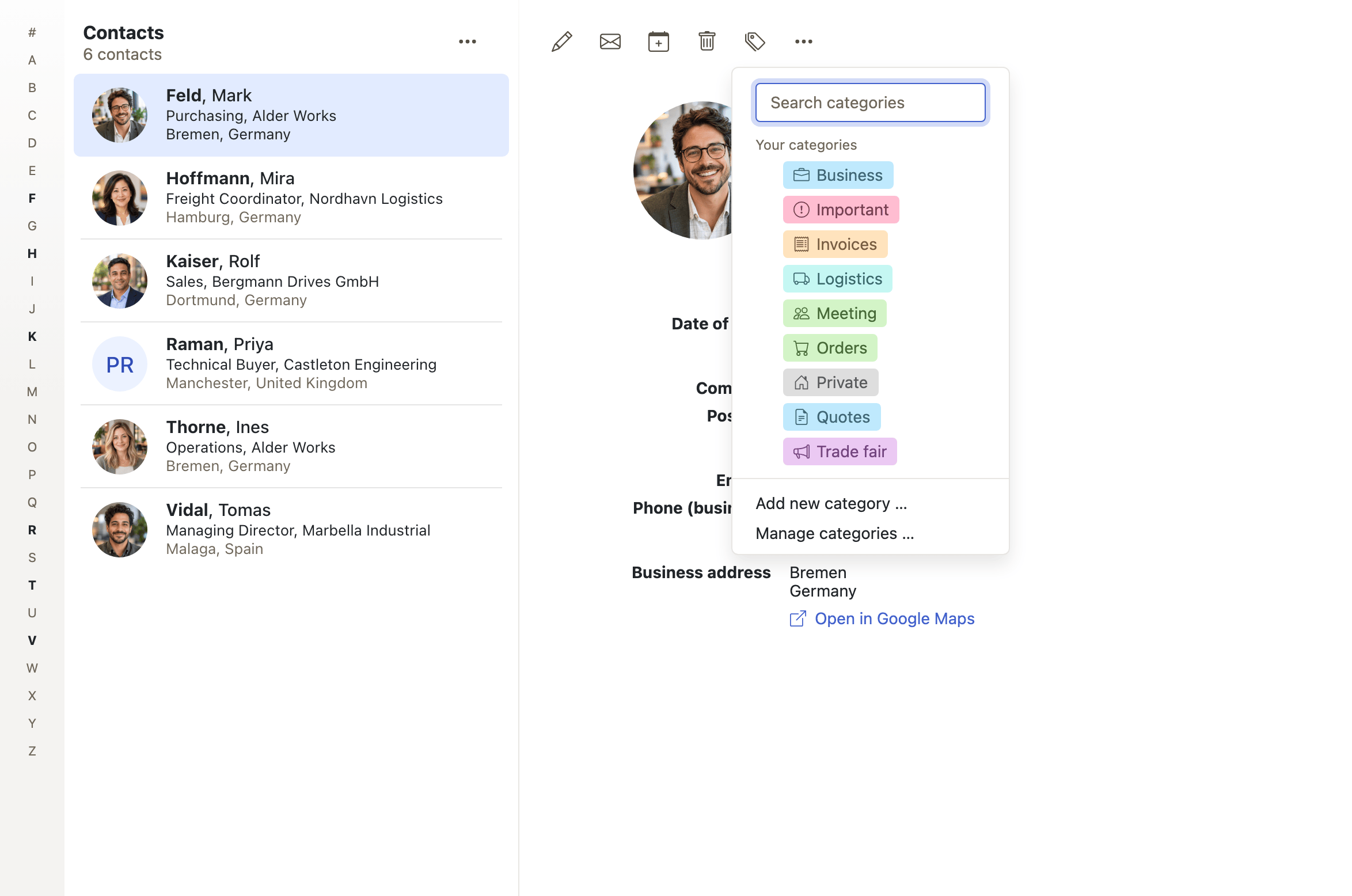
Summary Puts the named, colored categories that are shared across the apps onto a contact, from a dropdown in the toolbar or from the edit dialog. They appear in the detail view header and can be searched for.
Why it matters An address book files people on one axis: the book they are stored in. That is almost never the question being asked of it — everyone on this project, everyone at this customer, the people to call before a release. Each of those lists runs across a personal address book, a shared one and the global directory at once, and building them by copying contacts would leave three records to keep in step. A category is one label on the one record, and because the list of categories is the same one the other apps use, the customer's contact, the mail about them and the meeting with them can all carry it.
Description
- Set categories from a dropdown in the toolbar, or in the contact's edit dialog
- The dropdown writes the whole selection back to the contact at once
- Categories appear in the detail view header and can be searched for
- The shared category system itself is described under Working with content
Availability Since 8.52. Requires contacts and Middleware 8.19 or newer. Feature toggle categories, off by default. Not on smartphones.
Move or copy contacts between address books
Summary Moves or copies the selected contacts and distribution lists into another address book, chosen in a folder picker. Several can be handled in one step, and the result is reported when it is done.
Why it matters Contacts land in the wrong book routinely — created while a shared address book happened to be selected, or kept personal long after the whole team started needing them. Without a move, correcting that means typing the record again, and what gets retyped is the name and the one email address, not the second number or the note that explained who the person was. The split between the two operations keeps them safe on a book somebody else owns: copying out of it needs only the right to read, while moving takes something away and so needs the right to delete.
Description
- A folder picker chooses the target address book
- Moving requires the right to delete in the source book; copying requires only the right to read it
- Both work on several contacts and distribution lists at once, and report what happened
Availability Since 7.10.6 or earlier. Requires contacts.
Undo a move, copy or delete
Summary After contacts have been moved, copied or deleted, a toast at the bottom of the screen names what happened — the contact, or how many of them — and offers an Undo button for a few seconds. Taking it reverses that one operation.
Why it matters Deleting and moving are single clicks, usually made while running down a list at speed, and the mistake is noticed a second after the mouse button comes up rather than before it. This is also where a mistake is most expensive: a message deleted by accident still exists in the sender's sent folder, but a private mobile number that was only ever in one person's address book is gone with the record. A few seconds of grace costs nothing for the operations that were meant and catches the ones that were not.
Description
- Covers moving, copying and deleting, with the toast naming the contact or the number of contacts
- The shell mechanism behind it, and how long the toast stays, are described under Getting around
Availability Since 8.33. Feature toggle undo, on by default. In Address Book it additionally requires Middleware 8.38 or newer, and the undo period io.ox/core//undoPeriod must not be negative — set to Do not show, the toast is suppressed everywhere.
Restore a deleted contact from trash
Summary A deleted contact is not gone straight away: it moves into a contacts trash folder, which carries its own icon in the folder tree, and a restore action puts it back into the address book it was deleted from.
Why it matters A contact is the kind of item that cannot be reconstructed from anywhere else. An appointment survives in the invitations, a message in somebody's sent folder, but the number and the address that were only ever written down once disappear with the record, and nobody notices until the day they are needed. Trash turns that from irreversible into merely inconvenient — which is also why the delete can stop asking for confirmation where trash is available: the question has already been answered by the safety net.
Description
- Deleted contacts and distribution lists move to a trash folder, which has its own icon in the folder tree
- The restore action is offered only for items that are in trash, and returns each to the folder it came from
- Where trash is available, deleting from an ordinary address book no longer asks for confirmation
Availability Since 8.37. Requires contact_trash. Which folder is the trash comes from io.ox/contacts//folder/trash.
Automatically empty the contacts trash
Summary Sets how long deleted contacts stay in the trash before they are removed for good, and says so out loud: while the trash folder is open, a banner above the list states the period and links to the setting.
Why it matters A trash that is never emptied is not a safety net, it is a second address book full of records somebody decided to get rid of — still indexed, still synchronized to phones, and under most data-retention policies not something that should be kept indefinitely. Emptying it on a schedule fixes that, but quietly deleting a contact a user believed was recoverable is the worse failure of the two. The banner keeps the limit honest: people are told how long they have while they still have it.
Description
- The period is Never, after one week, after one month or after three months
- A period set by the operator that is not one of those is shown as the number of days it is
- The banner appears only in the trash folder, and links to the setting where the user is allowed to change it
Availability Since 8.39. Requires autodelete_contacts. The period is stored in io.ox/contacts//autodelete/retentiondays and offered under Settings > Address Book > Trash.