Storages and capacity
Drive is a front end for more than one store. The storage that comes with the account is the one most users ever see, but a Nextcloud server, an OpenCloud instance or a Dropbox account can sit beside it in the same folder tree. These are the ways another store is connected, what Drive can do once it is there, what it hands back to that storage's own client, and how much room is left in each.
Connect another file storage to Drive
Summary Drive shows more than the storage that came with the account. Adding a storage account puts another service's folders into the same folder tree, beside the primary ones, so the files held at that service are browsed, opened and attached from where the rest of the user's files already are.
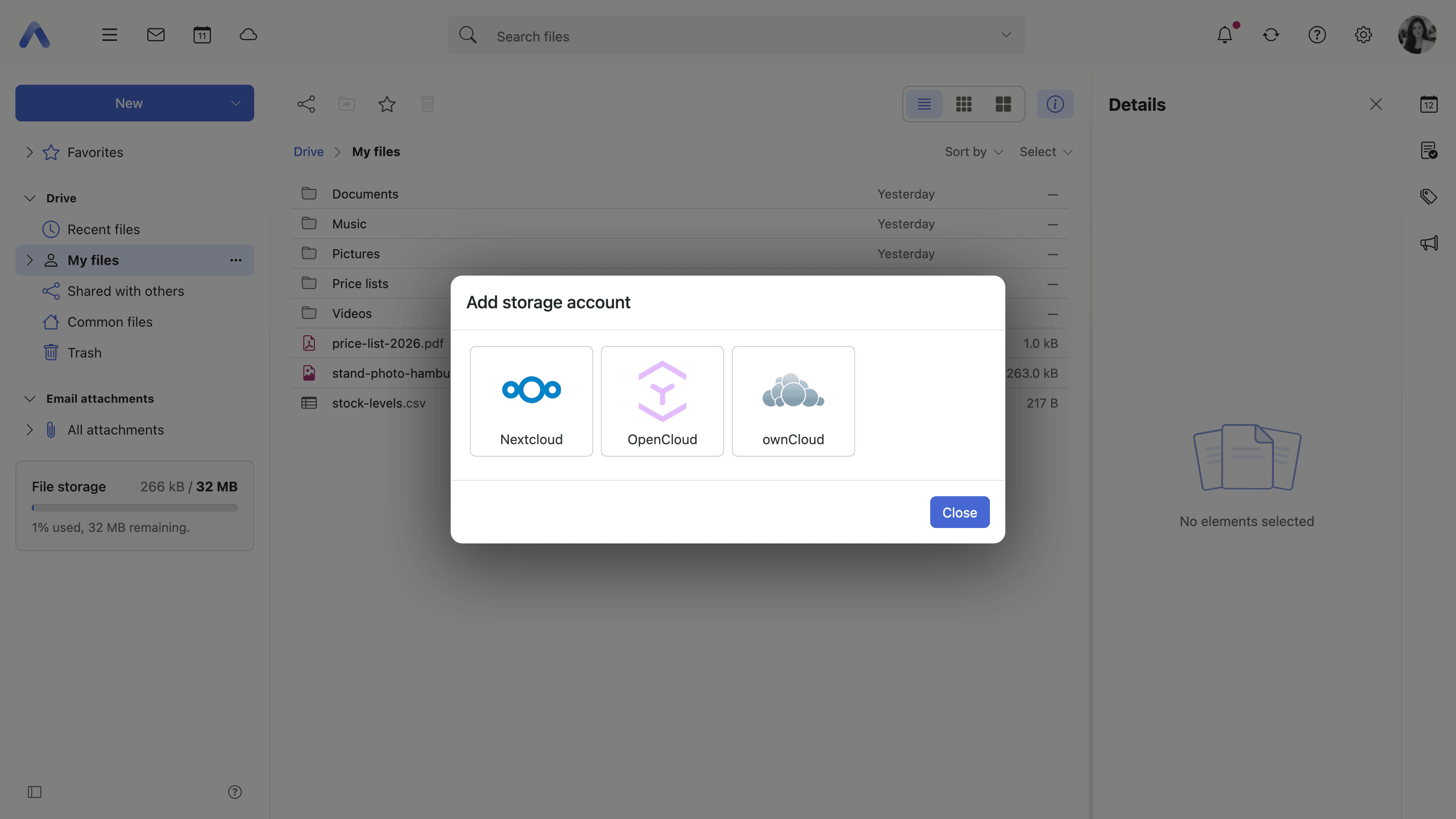
Why it matters People's files end up wherever each file happened to arrive — some in the account's own storage, some in a Dropbox from a previous job, some on the file server the team runs. Every time one of them is needed, the user has to remember which product it is in, sign in there, download it and bring it back. Mounting the service instead makes that one tree. An account whose credential has stopped working is flagged for the same reason: without that, the folder quietly turns up empty with nothing to say why.
Description
- Add storage account, from the Drive menu and from Settings > Drive, lists the services the deployment offers
- Google Drive, Dropbox, Box Drive and OneDrive are connected by signing in at the service and authorizing App Suite
- Nextcloud, OpenCloud, ownCloud and WebDAV ask instead for a server address, a user name, and a password or token
- The new account becomes a folder named after the service, under a product name the deployment can change
- Accounts are edited and removed under Settings > Accounts
- An account that has stopped working is flagged with what went wrong: The password or token for this account no longer works, This account cannot be reached at the moment, This account has to be connected again, or This account is disabled
Availability Since 7.10.6 or earlier. Requires infostore together with the capability of the individual service, such as filestorage_dropbox or filestorage_nextcloud. Signing in at a provider rather than storing its password is described under Onboarding and devices.
Use an OpenCloud account in Drive
Summary Connects an OpenCloud instance so that it becomes part of Drive. The personal space, the shared spaces the user belongs to, the trash and the sharing views all appear in the folder tree under their own names and icons, and the files inside them are opened, shared and attached like any other file.
Why it matters OpenCloud is where an organization that runs its own file platform keeps its documents, which means that without the integration those documents live in a second product behind a second sign-in. Attaching one to a message becomes a download in one tab and an upload in another, and the copy left on the local disk is the version somebody edits a week later. Mounting the instance removes the switch. Showing spaces, trash and shares under their real names rather than as a flat list of directories is what makes the account recognizable to someone who also uses OpenCloud directly.
Description
- Connected with the address of the instance and an App Token, which the dialog links to and can open the creation page for
- The address can be a bare host name, or the URL of any page of the OpenCloud web client
- Personal, Spaces, Trash and the sharing views — Shared with me, Shared with others, Shared via link — appear with translated names and their own icons
- Quota is reported per space rather than for the account as a whole
- Open in OpenCloud shows the selected item in OpenCloud's own web client
- The product can be presented under a name of the deployment's choosing
- An
http://address is refused unless the deployment allows it explicitly
Availability Since 8.54. Requires infostore together with filestorage_opencloud. Feature toggle opencloud, on by default. The instance address, the App Token path, the product name and the link password policy are configured under io.ox/files//opencloud. What the integration offers, and the setup behind it, are described under OpenCloud Drive Integration.
Use a Nextcloud account in Drive
Summary The same for a Nextcloud instance: the personal folder, the team folders, the trash and the sharing views are mounted in Drive with proper names, icons and a quota figure, rather than as the bare directory listing a plain WebDAV connection would give.
Why it matters Nextcloud is the file server a great many organizations and households already run, so for those users it holds most of what they would want to attach to a message or keep beside their mail. The detail is what decides whether the integration gets used: a row called Shared with me, a trash that can be restored from, a number saying how full the account is. A storage that mounts as an unlabeled set of directories is one people open once and then go back to the other product for.
Description
- Connected with the address of the instance and an app password, which the dialog links to in Nextcloud's own security settings
- Personal, Team folders, Trash and the sharing views — Shared with me, Shared with others, Shared via link — appear with translated names and their own icons
- Quota is reported for the account
- Open in Nextcloud shows the selected item in Nextcloud's own web client
- Public links are created, edited and removed from within Drive
- The product can be presented under a name of the deployment's choosing
- An
http://address is accepted, unlike OpenCloud, since an internal Nextcloud is legitimately reached over one
Availability Since 8.54. Requires infostore together with filestorage_nextcloud. Feature toggle nextcloud, on by default. The instance address, the app password path, the product name and the link password policy are configured under io.ox/files//nextcloud.
Share a link to a file on an external storage
Summary A dialog of its own for making and changing a public link on a connected OpenCloud or Nextcloud account, with an access level, a password and an expiry date. The links that already exist on a file or folder are listed beside it, each saying what it grants and when it runs out, with its own Edit and Remove.
Why it matters A link made in the other product's web client is invisible from here, so without this the user keeps two sets of links in two places and no single list of who has been given what. That is how an expired link goes unnoticed and how a link nobody meant to leave open stays open. Making and revoking them from Drive puts the whole set in front of the person who created them. The password and the end date are the part that matters afterwards, because a public link is reachable by anyone who has the URL for exactly as long as it is allowed to be.
Description
- Access level is Viewer (View, download) or Editor (View, download, edit, delete)
- The password field carries a live checklist of what is required and a generator; a generated password always satisfies the checklist
- An optional expiration date, refused if it lies in the past
- Copy link and password puts both on the clipboard together
- Existing links are listed with what they grant, whether they are password protected, and when they expire
- Removing a link asks first — it stops working for everyone who has it and cannot be brought back
- The password requirements are App Suite's own and are set per storage: OpenCloud requires a password by default, Nextcloud does not
Availability Since 8.54. Requires either filestorage_opencloud or filestorage_nextcloud, with the matching feature toggle opencloud or nextcloud, both on by default. The requirements are configured with io.ox/files//opencloud/sharingPasswordPolicy and io.ox/files//nextcloud/sharingPasswordPolicy.
Open an item in the storage's own web client
Summary An Open in OpenCloud or Open in Nextcloud action that leaves App Suite and shows the selected file or folder in the storage's own interface. It sits in the file details, in the context menu and in the Drive toolbar, and with nothing selected it opens the folder being looked at.
Why it matters No integration covers everything the other product does, and the gaps are the things people go to that product for — its activity log, its own editors, the settings on a space. Without a way across, reaching them means opening the other web client and finding the file again by hand: the right account, the right folder, the right name among a hundred similar ones. One action carries the item across instead. Naming it after the storage rather than calling it Open externally is what keeps it unambiguous for a user who has connected both.
Description
- In the file details, the context menu and the Drive toolbar
- With nothing selected it opens the folder the user is currently looking at
- Named after the storage the item belongs to, so a deployment with two accounts gets the right word on each
- Not offered where the storage has nothing to open — in the trash, on the account itself, or on folders that only group other folders
Availability Since 8.54. Requires either filestorage_opencloud or filestorage_nextcloud, with the matching feature toggle opencloud or nextcloud, both on by default. The word the action uses comes from io.ox/files//opencloud/productName and io.ox/files//nextcloud/productName.
Restore a deleted item from a storage's own trash
Summary A connected storage's trash is a folder in the Drive tree like any other, and an item sitting in it can be put back where it came from. The actions that storage does not serve out of its trash are left off there rather than offered and then failing.
Why it matters Deleting the wrong file is an everyday mistake, and the minutes after it are when it is cheapest to undo. If the recovery is only possible in the other product, the user has to realize that, find the other web client and sign in to it — and plenty of them conclude instead that the file is gone. Hiding what does not work is part of the same point: a download button in a trash that cannot serve downloads produces an error that reads like confirmation the file is lost.
Description
- Each storage names its own destination for an item whose original folder no longer exists
- Opening, downloading, copying, moving and thumbnails are left out inside the trash rather than failing there
- Offered even where the storage announces no sharing capability, since restoring has nothing to do with links
Availability Since 8.54. Requires either filestorage_opencloud or filestorage_nextcloud, with the matching feature toggle opencloud or nextcloud, both on by default.
See how much storage is left
Summary A widget under the Drive folder tree saying how much of the storage has been used and how much is left. It reports on whichever storage the selected folder belongs to, so moving into a connected account changes the figure to that account's, and it names what it is reporting on rather than calling everything File storage.
Why it matters A full account is not noticed gradually. It is noticed when an upload fails, often in the middle of doing something else and with an error that says nothing about the cause. A figure that is visible while there is still room turns that into a decision made in advance — delete something, or buy more. Following the selected folder matters once more than one storage is connected, because an account that is nearly full and an account that is nearly empty are both present in the same tree, and a single number for the two of them would be wrong for one of them.
Description
- Follows the selected folder — the primary account has one quota, and an OpenCloud account one per space
- Named after the storage it reports on, so an external space is not labeled File storage
- A storage that publishes no quota shows nothing, rather than a number that would be wrong
- Warns as the limit is approached, and offers an upgrade where more storage can be sold
- Also available as a Portal widget
Availability Since 7.10.6 or earlier. Requires infostore. Part of the Provider Edition. The widget, its thresholds and its wording are described under Storage, plans and feedback.