Working with content
The handling that behaves the same way whichever app the user is in: labeling and pinning things so they can be found again, looking inside a file without downloading it, keeping a document with the item it belongs to, and moving data into and out of the account.
Categories across apps
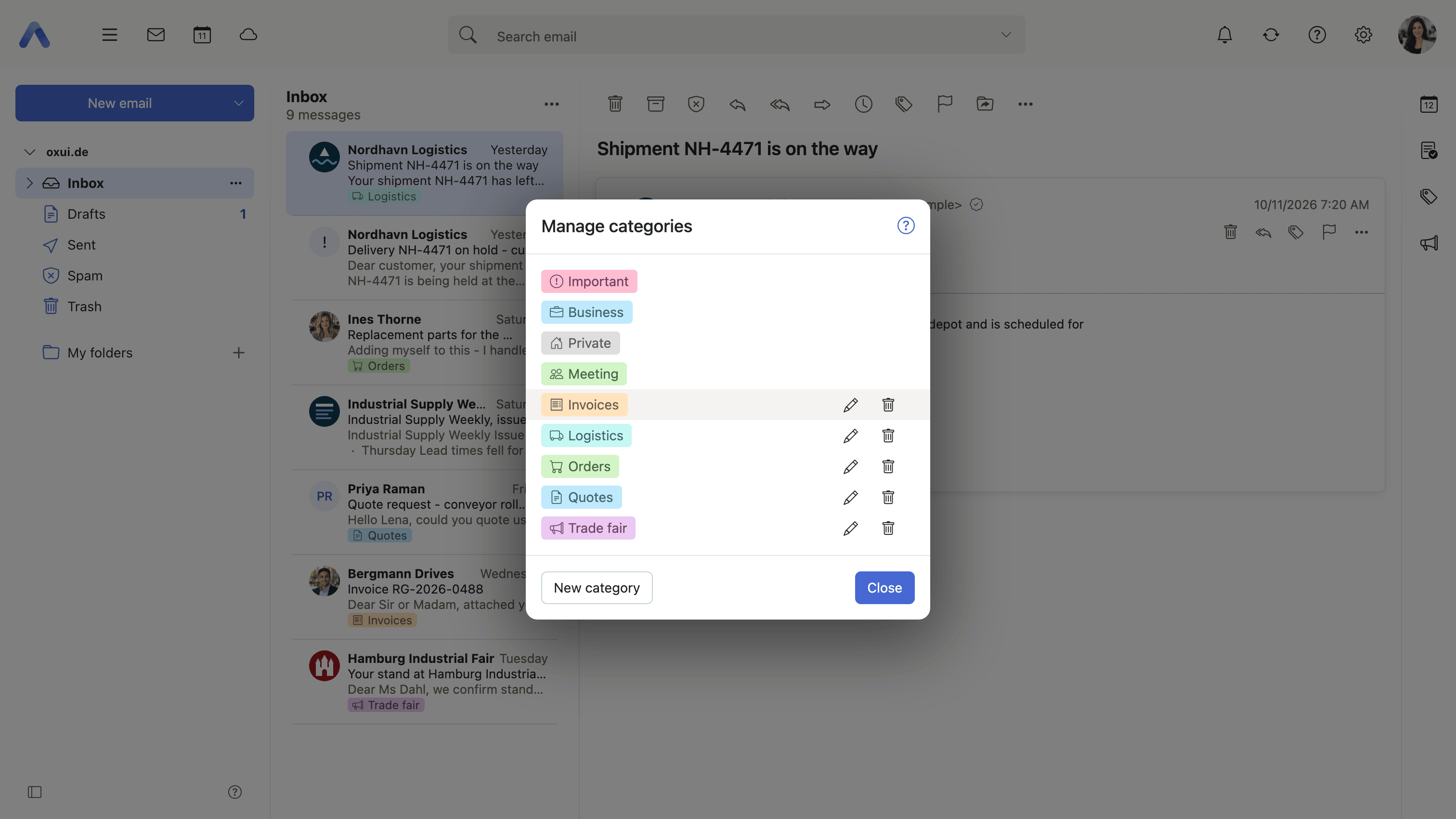
Summary Color-coded labels that can be put on an email, an appointment, a contact and a task alike. They are picked from a searchable menu that also creates a category as the user types, the list of them is maintained in one place in Settings, and a side panel browses everything that carries one, whichever app it lives in.
Why it matters A folder forces one choice per item and only ever covers one app, so the mail about a project, the meetings about it and the people involved end up in three separate hierarchies with nothing joining them. One category spans all four item types, which turns "everything about this customer" into a single list instead of four searches. That only holds while people use the same words, which is why an operator can ship the categories an organization has agreed on rather than leaving everyone to invent their own.
Description
- Assign categories to emails, appointments, contacts and tasks from a searchable menu that also creates a category as the user types
- Manage categories, under Advanced settings in General settings, edits the name, color and icon of each
- Operators can ship predefined categories that users cannot change or delete
- Browse categories opens a side panel listing everything that carries a category, across all four item types
- Each app applies categories to its own items; the mail side is described under Reading and organizing
Availability Since 8.20. Feature toggle categories, off by default. Requires Middleware 8.19 or later. Predefined categories are configured under io.ox/core//categories/predefined.
Attach files to appointments, contacts and tasks
Summary Files can be added to an appointment, a contact or a task while it is being created or edited, either uploaded from the device or picked out of Drive. They are listed on the item's detail view afterwards, and open in the same viewer that is used everywhere else.
Why it matters The agenda for a meeting, the floor plan, the signed contract behind a task belong to the item rather than to the message that happened to carry them. Mailing them instead leaves the file in one person's inbox: whoever opens the appointment a week later has to go hunting for the mail it came in, and anyone invited after the fact never receives it at all. Keeping the file on the item means everyone who can see the item can see the file, for as long as the item exists.
Description
- Upload files from the device while creating or editing an appointment, contact or task
- Add from Drive picks a file that is already in Drive instead of uploading a second copy
- Attachments are listed on the item's detail view and open in the shared viewer
Availability Since 8.39. Requires filestore. Feature toggle PIMAttachments, on by default. Picking a file from Drive has its own toggle, attachFromDrive, on by default, and additionally requires infostore and Middleware 8.8 or newer.
Preview files and attachments
Summary A full-screen viewer that renders documents, images, audio, video, text and email files in place, without downloading them first. It opens from Drive, from a mail attachment and from an attachment on an appointment, contact or task, and from there the user pages through the other files in the same folder.
Why it matters Downloading a file to find out whether it is the right one is the slow route: it leaves a copy on the machine, needs an application that can open the format, and on a borrowed or managed device may not be possible at all. Most of the time the question is only what is inside, and the viewer answers it in a second while the file stays where it is. It being the same viewer everywhere is the other half: an attachment on a task behaves exactly like a file in Drive, so there is one thing to learn and one place where printing, renaming and sharing details are found.
Description
- Opens from Drive, from mail attachments, and from attachments on appointments, contacts and tasks
- Zoom in and out, fit to width or height, and swipe or arrow through the other files in the folder
- Office documents and PDFs are converted on the server and rendered page by page, with page navigation and a thumbnail strip; spreadsheets open in the Spreadsheet app instead
- Audio and video show a cover with a play button and then play in the browser, where the deployment and the browser allow the format
- A slideshow plays the images of the current folder full screen on a timer, looping or stopping after one pass
- A sidebar beside the preview carries the file's size, folder, last change, the capture data of a photo, who it is shared with, its description, its versions and a private link
- Rename the file, print a converted copy, and pop the viewer out into a standalone view or a browser tab of its own where tab handling is enabled
- Supported types include office documents, PDF, images, text, XML, audio, video, contacts and .eml files
Availability Since 7.10.6 or earlier. The pop-out window and the online help link require infostore, and printing requires document_preview. Whether audio and video play at all is set by io.ox/files//audioEnabled and io.ox/files//videoEnabled, and the slideshow's timing and looping by io.ox/files//autoplayPause and io.ox/files//autoplayLoopMode.
Favorite folders
Summary Any folder can be pinned to a Favorites section at the top of the folder tree, from the folder's own menu. Favorites are kept per app and are put into the order the user wants by dragging them.
Why it matters A folder tree grows for years and is almost never pruned, so the three folders someone opens every morning end up several levels down among dozens they never touch. Scrolling and expanding to reach them costs a few seconds each time, dozens of times a day, and it is exactly the kind of friction that makes people give up on folders and keep everything in one flat inbox. Pinning puts the daily working set at the top of the tree, where it stays put as the rest of the tree grows around it.
Description
- Add to favorites and Remove from favorites in the folder menu
- Favorites are sorted by dragging, and are kept separately per app
- Entries whose folder no longer exists, or is no longer permitted, drop out silently
- Mail favorites follow a folder that is renamed
Availability Since 7.10.6 or earlier. Favorites that can point at a shared account arrived in 8.48. Favorites are stored per app under io.ox/core//favorites/mail, io.ox/core//favorites/chronos, io.ox/core//favorites/contacts and io.ox/core//favorites/tasks. Favorites that point at a shared account are hidden where the sharedAccounts toggle is off.
Import and export folder data
Summary Reads a calendar, address book or task folder in from a file, and writes one back out again, in the formats other programs understand. Both actions sit in the folder's context menu and are offered only where the folder permits them.
Why it matters Data that can only be reached through one client is data an organization does not really own. Someone arriving from another provider has their contacts and their calendar in a file and needs them read in; someone leaving, or simply wanting a copy of their own, needs them written out. Import also covers the everyday case of a public holiday calendar, which is published as an .ics file: the option to skip appointments that already exist is what keeps importing next year's edition from doubling every entry.
Description
- Import iCalendar (.ics), vCard (.vcf) and CSV files into a folder, optionally into a newly created calendar
- An option ignores appointments that already exist, which suits public holiday calendars
- Export a folder or a selection as iCalendar, vCard or CSV; calendar folders download directly
- Both actions sit in the folder context menu, and are offered only where the folder permits them
Availability Since 7.10.6 or earlier. Not on smartphones.
Drop files into the app
Enterprise
Summary Dragging files onto the window uploads, imports or attaches them, according to where they land. An overlay with a caption appears over the area that is about to accept the drop, so what will happen to the file is stated before the user lets go of it.
Why it matters The alternative to a drag is a file picker: a button, a dialog, and a walk through the folder tree to the file the user is already looking at. Once is nothing; for every attachment and every upload of a working day it is where the time goes. The caption on the overlay is what makes the gesture safe, because a window that accepts drops in several places has to say which one is about to receive the file, or dropping becomes a guess with an upload at the end of it.
Description
- An overlay with a caption appears over the area that will accept the drop
- Drive accepts files and whole folders, and the viewer sidebar accepts a new version of the file being previewed
- The calendar accepts .ics and .ical files for import, the message list accepts .eml files, and the composer accepts attachments and inline images
- Dragging items onto a folder in the folder tree moves or copies them
Availability Since 8.17. Not on smartphones. The calendar's import drop zone has its own feature toggle, dragDropICAL, on by default. Importing a message by dropping an .eml file is described under Accounts and automation.
Drag mail and attachments out of the app
Enterprise
Summary An email or an attachment can be dragged out of the browser, onto the desktop or into another web application in a second window. Which of the routes is offered depends on the browser and on what the deployment has set up for it.
Why it matters Filing mail into a records, case or document system is an everyday job in many organizations, and through a browser it means downloading the message, finding the file, uploading it and deleting it again — four steps for something that happens dozens of times a day, each one a chance to file the wrong thing. A drag collapses them into one gesture. There are two routes because deployments differ: handing over time-limited download links needs nothing installed on the machine, while the helper application performs a real operating-system drag for those that can deploy it.
Description
- Attachments can be dragged straight onto the desktop in Chromium-based browsers
- Drag email to browser opens a chip that the user drags into another browser window, which receives time-limited download links; the number of messages per drag is capped
- Drag to desktop (App) hands the selection to a helper application installed on the machine, which performs the operating-system drag
- The helper application's port and security token are configured in Mail settings
Availability Since 8.53. Requires webmail together with either drag_and_drop_http or drag_and_drop_native. Desktop only, and the helper application route is desktop Linux and Windows only. Feature toggles fileDragOut, mailDragOutToken and dragDropHelperApp, all on by default. The messages per drag are capped by io.ox/mail//dragAndDrop/maxTokenListSize. Both routes are described from the mail side under Working with the other apps.
Drop a link from another web application
Enterprise
Summary A drag that arrives from another browser window carries a reference rather than a file. The client fetches what the reference points at and imports or attaches the result, so dragging between two web applications does what it looks like it does.
Why it matters A line-of-business application in the next tab holds exactly the document the user wants to send, but what it hands over on a drag is an address, so the recipient would get a link they may well not be able to open instead of the file itself. Fetching the target makes the gesture a real handover and saves a download and a re-upload through the file system. Because it means the client downloads whatever address was dropped on it, it stays off until a deployment integrates such an application, and the sign-in prompt a dropped origin may ask for is a separate switch again.
Description
- The message list accepts dropped references to .eml messages; the composer accepts a reference of any type as an attachment
- Off unless the deployment integrates an application that hands over such references
- A second toggle separately permits the sign-in prompt a dropped origin may ask for, so downloads can be allowed without ever prompting for credentials
Availability Since 8.53. Feature toggle dragDropAllowDownloads, off by default; the sign-in prompt has its own toggle, dragDropAllowDownloadsWithPassword, also off by default. The mail side is described under Attachments.
Download your personal data
Summary Requests an archive of the user's own mail, files, contacts, appointments and tasks, and downloads it once it has been built. The user picks which modules go in and how large a single file may be; the request is carried out in the background and announced by email when it is ready.
Why it matters Data protection law gives people the right to a copy of everything held about them, and an organization has to be able to answer that request. With no route in the product, each one becomes a support ticket and a manual export by an administrator — slow for the person asking, expensive for the operator, and hard to show was complete. A self-service download answers it the same way every time. It is also the reassurance a user wants before committing years of mail to a hosted service: what goes in can be taken back out.
Description
- Choose which modules go into the archive, and the maximum size of one file — a larger archive is split across several files
- Request download starts the job; its status is shown while it runs, and it can be canceled
- The archive is announced by email and downloaded from the same settings page
Availability Since 7.10.6 or earlier. Part of the Provider Edition. Requires dataexport.