Reading and organizing
The everyday work of the mail client: the actions a user repeats on messages all day, the way the window and the message list are arranged, and the tools for finding, marking and filing what has arrived.
Everyday message actions
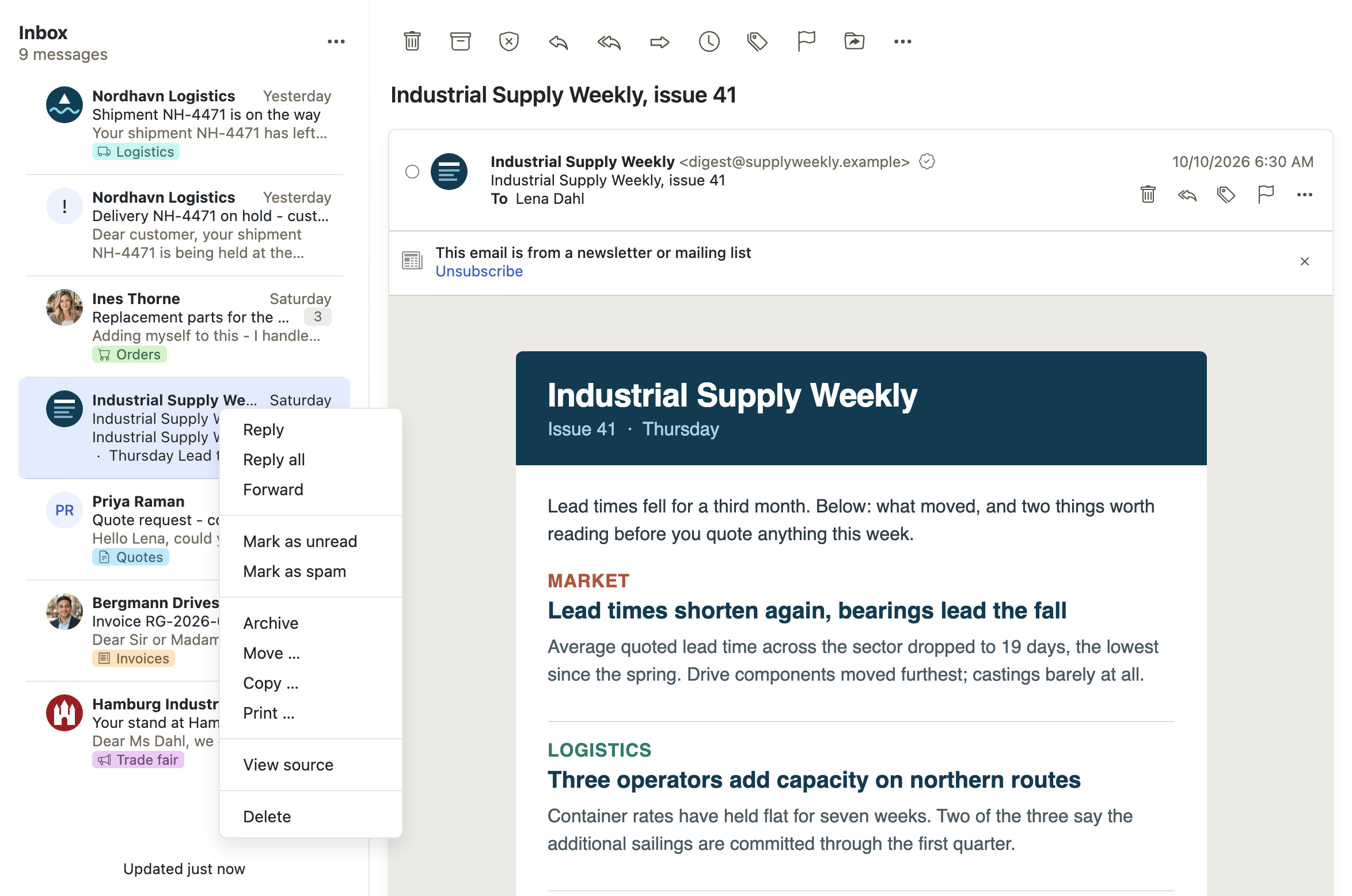
Summary The actions a user performs on messages all day, in one place: writing, replying and forwarding, deleting and emptying the trash, marking read or unread, moving and copying into folders, attaching files, entering recipients, sorting the list and keeping the folder tree in order.
Why it matters Nobody picks a mail client for these, but everybody gives up on one that gets them wrong: this is the baseline a mail client is expected to do. They are the operations a user repeats dozens of times a day, so a step too many is paid for again and again — and they are the part a deployment most often needs to adjust, because what counts as sensible here differs from one organization to the next.
Description
- Write a new email — a compose window with sender, recipients, subject, message body and attachments
- Reply and forward — answer the sender or everyone, or pass a message on to other people, with the original text quoted or attached
- Delete messages and empty the trash — move messages to Trash, delete them outright, or clear out a whole folder in one go
- Mark messages as read or unread — flip the read state of one or many messages, and decide how quickly an opened message counts as read
- Move or copy messages to a folder — move or copy the selection into another folder, with the folders used most recently offered directly on the button
- Attach files — add files from the local disk or from Drive, see them as a list or as previews, and remove or download them again
- Enter and manage recipients — To, CC and BCC fields with autocomplete over contacts, users, groups and distribution lists, entered as removable tokens
- Create and manage mail folders — add, rename, move, favorite and delete folders in the mail folder tree, and act on their whole content
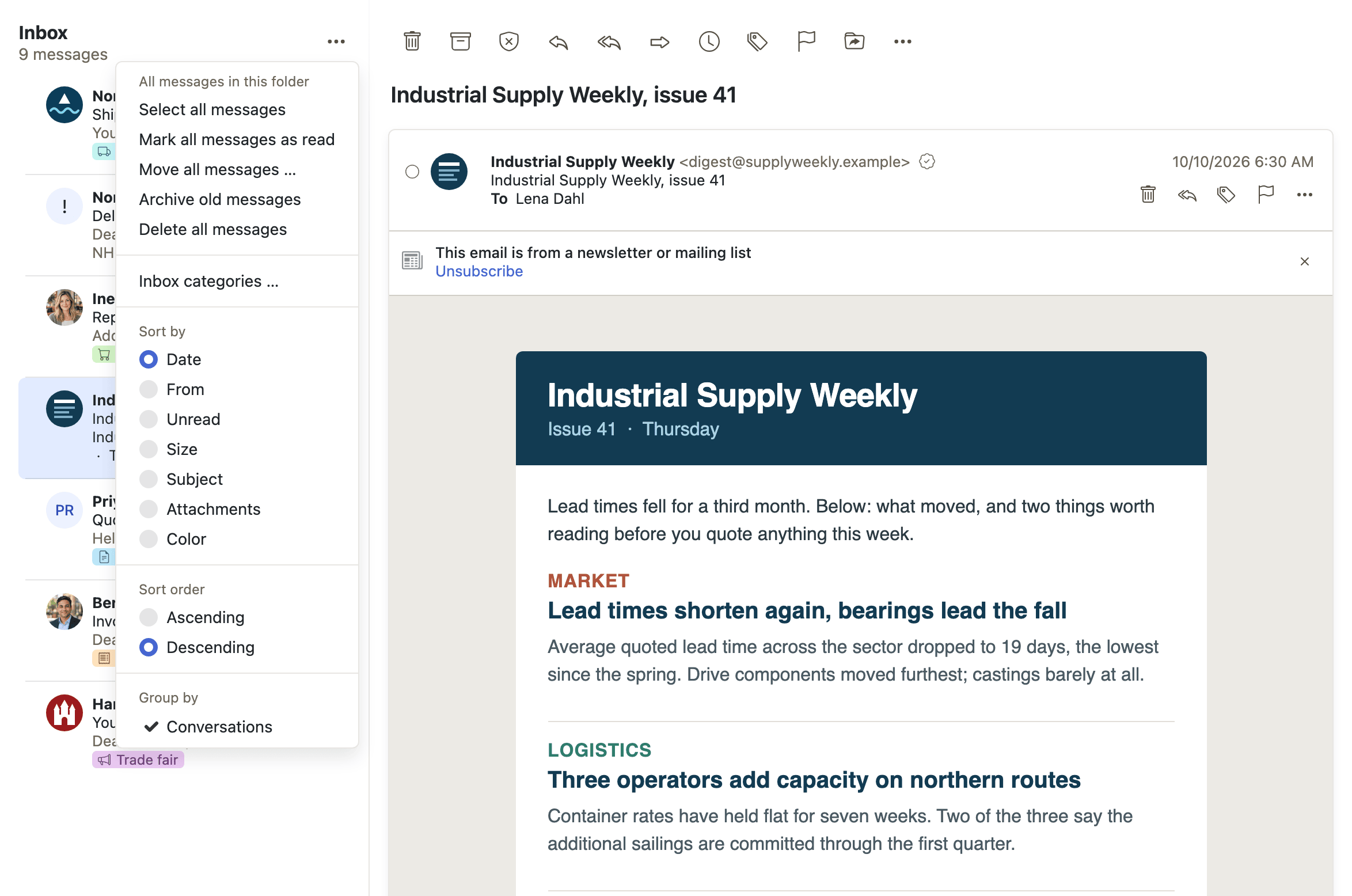
- Sort the message list — order by date, sender or recipient, unread state, size, subject, attachments, color or flag, ascending or descending
- Copy to a favorite folder from the context menu — favorite mail folders are offered as direct Copy to <folder> entries in the message context menu
Availability Since 7.10.6 or earlier. Requires webmail.
Reading layout and display
Summary The mail window arranges the message list and the reading pane vertically, horizontally, or as a plain list with no reading pane at all, and the choice is remembered per user. The same area holds the options that govern how a message body and the list itself are rendered, from quote coloring and text size to whether HTML mail is displayed at all.
Why it matters A reading pane that works on a wide desktop monitor wastes space on a narrow laptop and gets in the way on a tablet, and no single arrangement suits everyone. Letting the user pick, and remembering the choice, means the client fits the screen it is actually on. The display options serve a second audience: a reader who needs larger text, someone who wants a fixed-width font for code and logs, and a deployment that prefers every message shown as plain text are all accommodated without a separate client.
Description
- Pick Vertical, Horizontal or List from the settings dropdown in the mail toolbar
- The same choice is available in Mail settings and is remembered per user
- Smartphones are always vertical
- Adjust how a message body is displayed — reading-pane options for quote coloring, fixed-width font, text size, collapsed long quotes and cleaned-up subjects
- Change how the message list looks — control what each row shows (contact picture, checkbox or a plain row), plus text preview, category, exact date and message size
- Show messages as HTML or plain text — a switch that decides whether formatted HTML mail is rendered at all, or every message is shown as plain text
- Show the entire message for a very large email — an oversized message body is cut off at a size limit, and a notice offers to fetch and display the rest
- View the original message source — show the raw message, headers and all, in a dialog
Availability Since 7.10.6 or earlier. Requires webmail.
Thread view
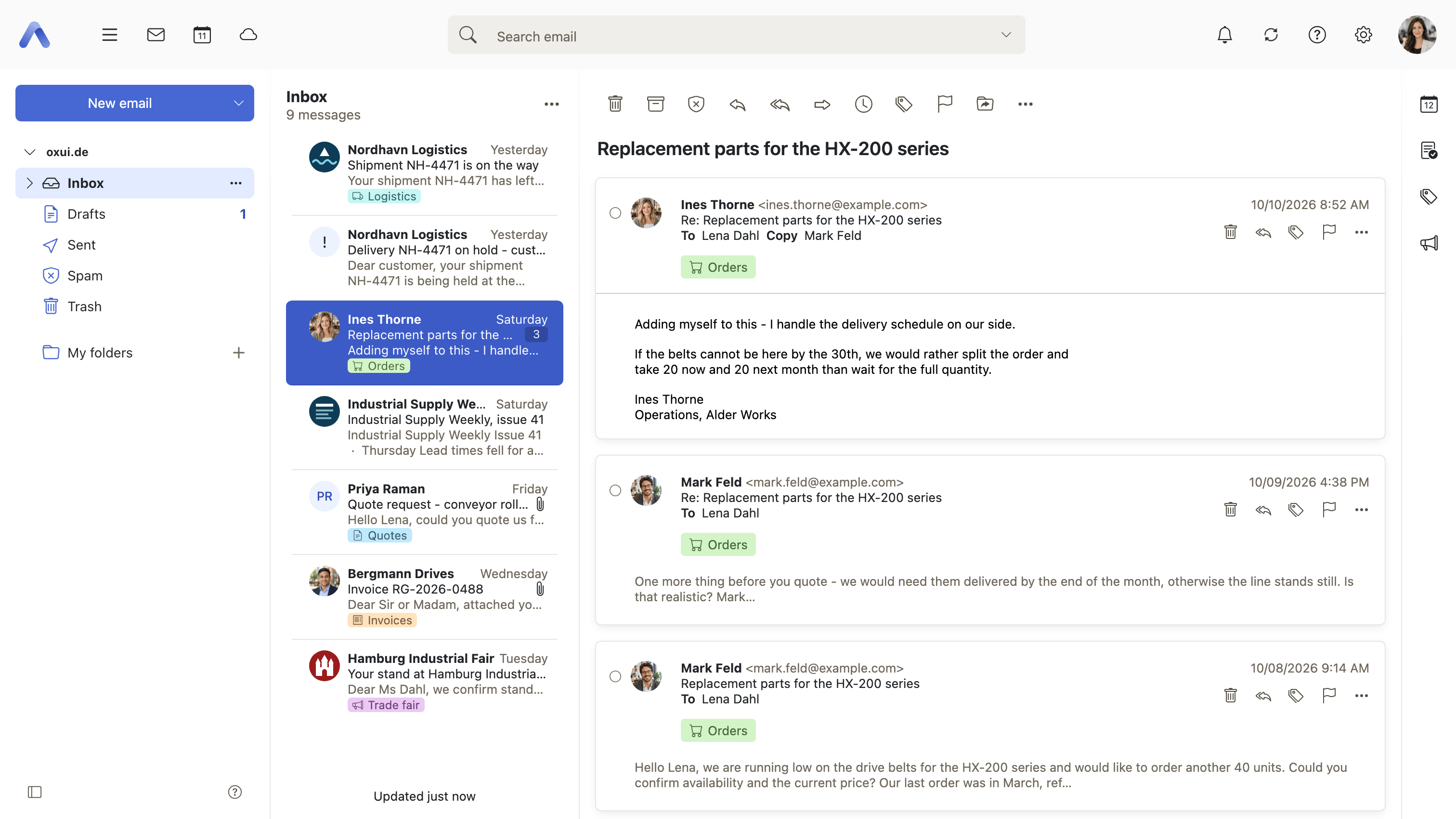
Summary A message and its replies are collected into a single row in the message list, labeled with the number of messages it holds. Opening the row shows every message of the thread, with navigation from one to the next. Conversation grouping is switched on and off from the list options.
Why it matters A back-and-forth of a dozen messages takes up a dozen rows in a flat list, with the oldest and the newest far apart and nothing saying they belong together. Grouping puts the whole exchange in one place, so the list stays as long as the number of discussions rather than the number of messages, and the context of a reply is one click away instead of a search. Operators whose users or mail backends do not want grouping can switch it off for everyone.
Description
- Turn Conversations on or off in the list options
- A conversation row shows how many messages it holds
- Opening a conversation shows every message of the thread, with previous and next navigation
- Grouping is suspended while a search is active, and is not offered in Sent, Drafts or the Unread folder
Availability Since 7.10.6 or earlier. Requires webmail. The operator can switch conversation grouping off entirely.
Search the mailbox
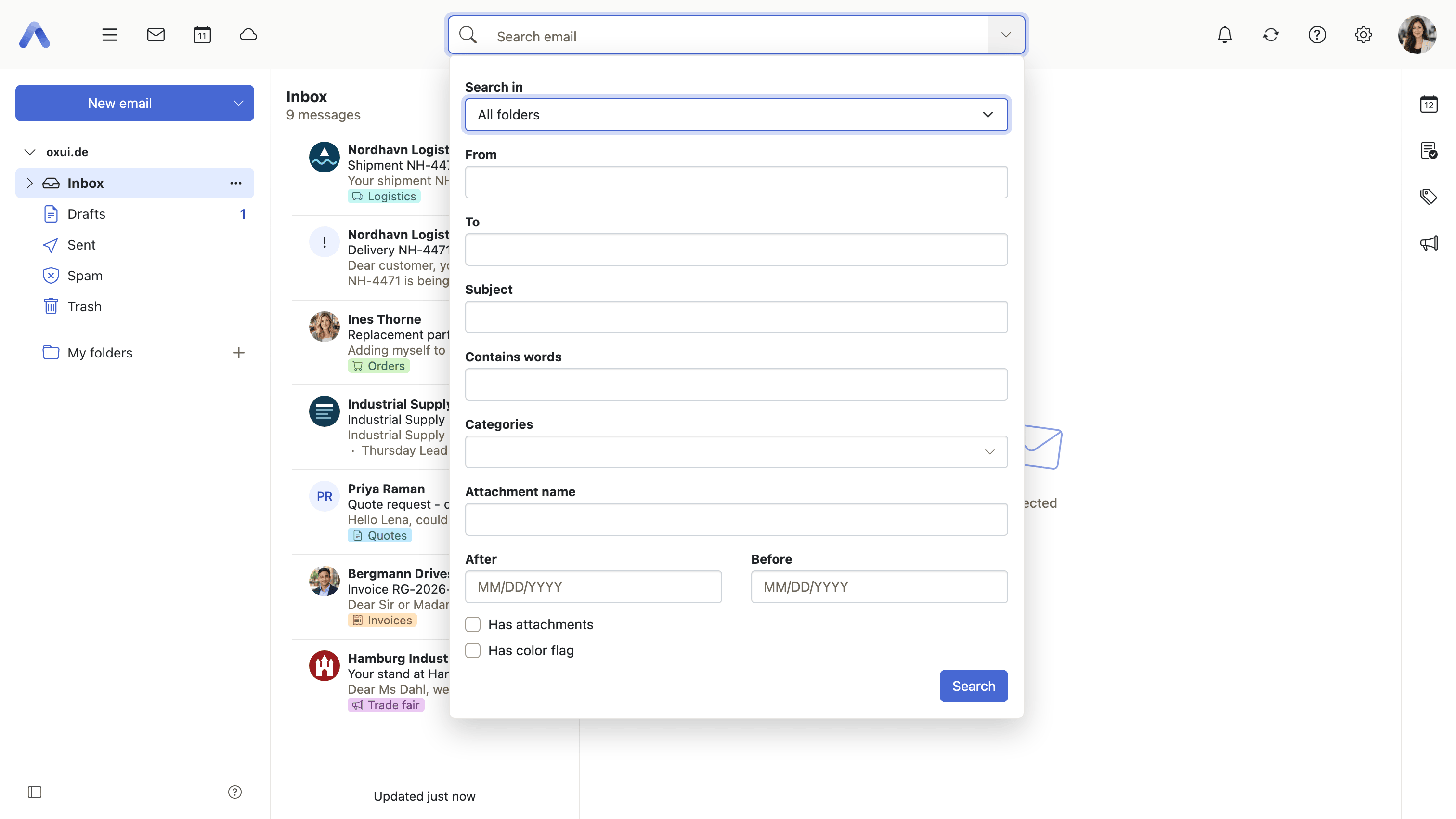
Summary Finds messages by words, sender, recipient, subject, content, attachment name, date range, category or color flag, across all folders or inside one. A single field accepts typed queries, and More search options opens a form with one field per criterion. Every applied criterion appears as a removable chip beneath the field.
Why it matters A mailbox that has grown over years is only as useful as the chance of finding something in it again, and by then the user rarely remembers which folder a message ended up in or what its subject was. Searching across all folders by the fragments people do remember — who sent it, roughly when, that it had an attachment — is what keeps old mail worth keeping. The chips make a search that returned too much something to narrow down rather than start over.
Description
- Type into the search field, or open More search options for a form with one field per criterion
- Criteria are From, To (which also matches Cc and Bcc), Subject, Content, Attachment name, Year, After/Before, Has attachments, Has color flag, and Categories
- Choose the scope — All folders, All unseen messages, Inbox, or the current folder; the primary account defaults to all folders, external and shared folders to the current one
- Each applied criterion appears as a removable chip under the field
- Typed prefixes such as
from:,subject:orbefore:are understood, and are translated - Address fields autocomplete from the address book
- Searching turns conversation grouping off and shows Search results as the list header
- A keyboard shortcut focuses the search field
Availability Since 7.10.6 or earlier. Requires webmail. Whether results can be sorted is governed by the feature toggle sortInMailSearch. Searching for attachment names needs support from the mail server.
Sort mail search results
Summary Mail search results keep the list's own Sort by and Sort order controls, so a set of results can be put in whatever order the user needs instead of always arriving newest first.
Why it matters A search that returns four hundred messages is where the work starts, not where it ends, and the message being looked for is often the oldest one rather than the newest. The switch exists because not every mail server can sort search results at all: where one cannot, the deployment turns this off and the forced default stands, which is better than offering an order that would then be ignored without the user being told.
Description
- While a search is active, the view options keep their Sort by and Sort order groups
- Switched off, results stay at the forced default of newest first, for mail servers that cannot sort search results
Availability Since 8.52. Feature toggle sortInMailSearch, on by default. It applies while a mailbox search is active, and to Mail only.
Flag a message with a star or a color
Summary Marks a message with a star, or with one of ten colors, depending on the flagging mode the deployment chooses. The two modes are mutually exclusive. Flagged messages can be sorted on, and are collected in the Flagged folder.
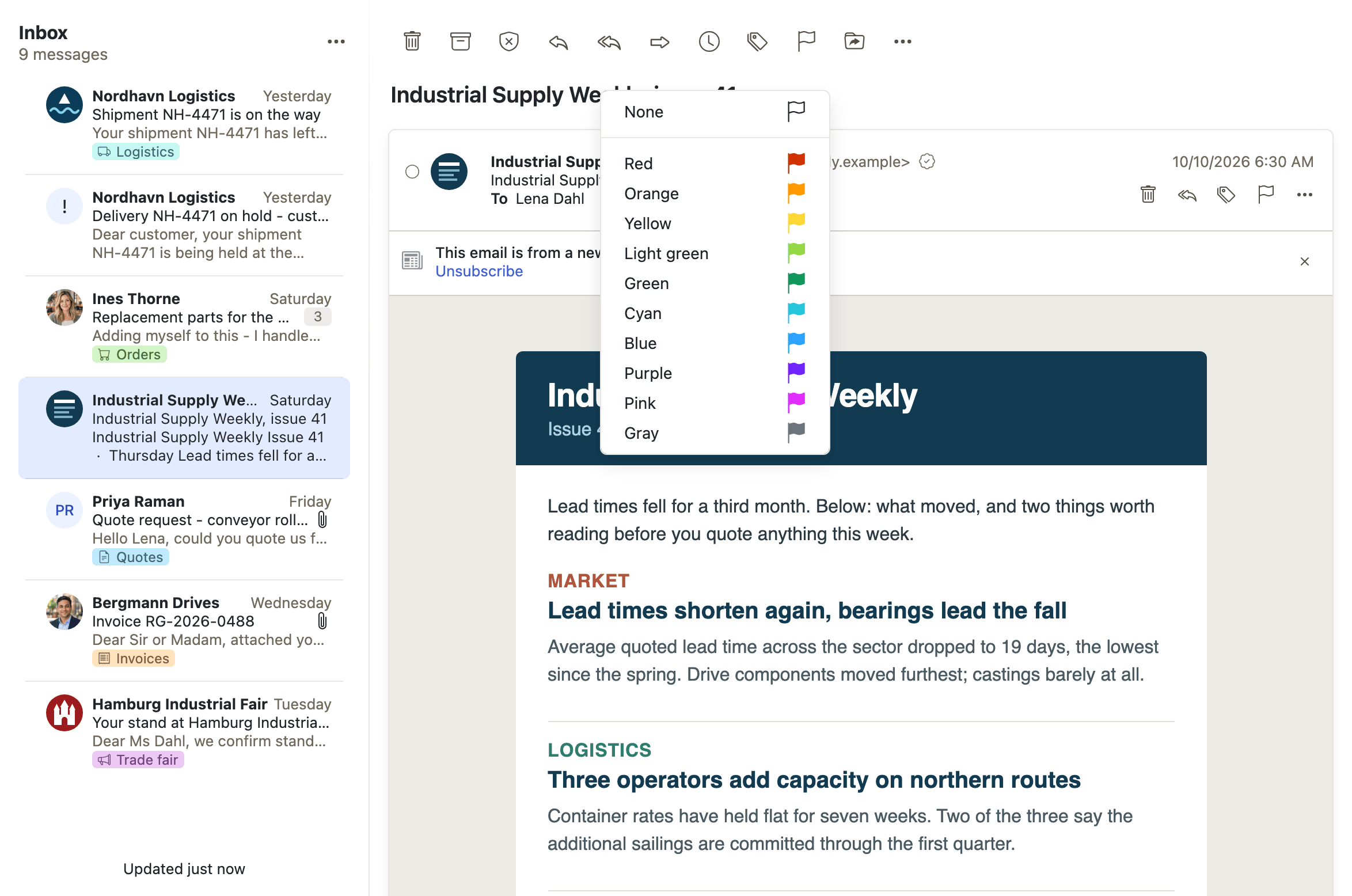
Why it matters Users need a marker that means "come back to this" without moving the message or committing to a folder, and it has to still be there tomorrow in whichever client they open next. The marker is stored on the mail server with the message rather than in the browser, so a message starred here is starred in a desktop client and on a phone. Color flags give the same mechanism a small vocabulary, so one marker can carry more than one meaning.
Description
- In star mode, Flag and Unflag toggle a single star
- In color mode, a picker assigns one of ten colors
- Flagged messages can be sorted on, and collected in the Flagged folder
Availability Since 7.10.6 or earlier. Requires webmail. The operator chooses the flagging mode, and the Middleware must support the mode chosen.
Assign categories to emails
Summary Tags a message with one or more of the user's own categories — the same categories that calendar, contacts and tasks use. Set categories is offered in the toolbar and in the detail view, the categories appear on the row in the message list, and clicking one searches the mailbox for everything that carries it.
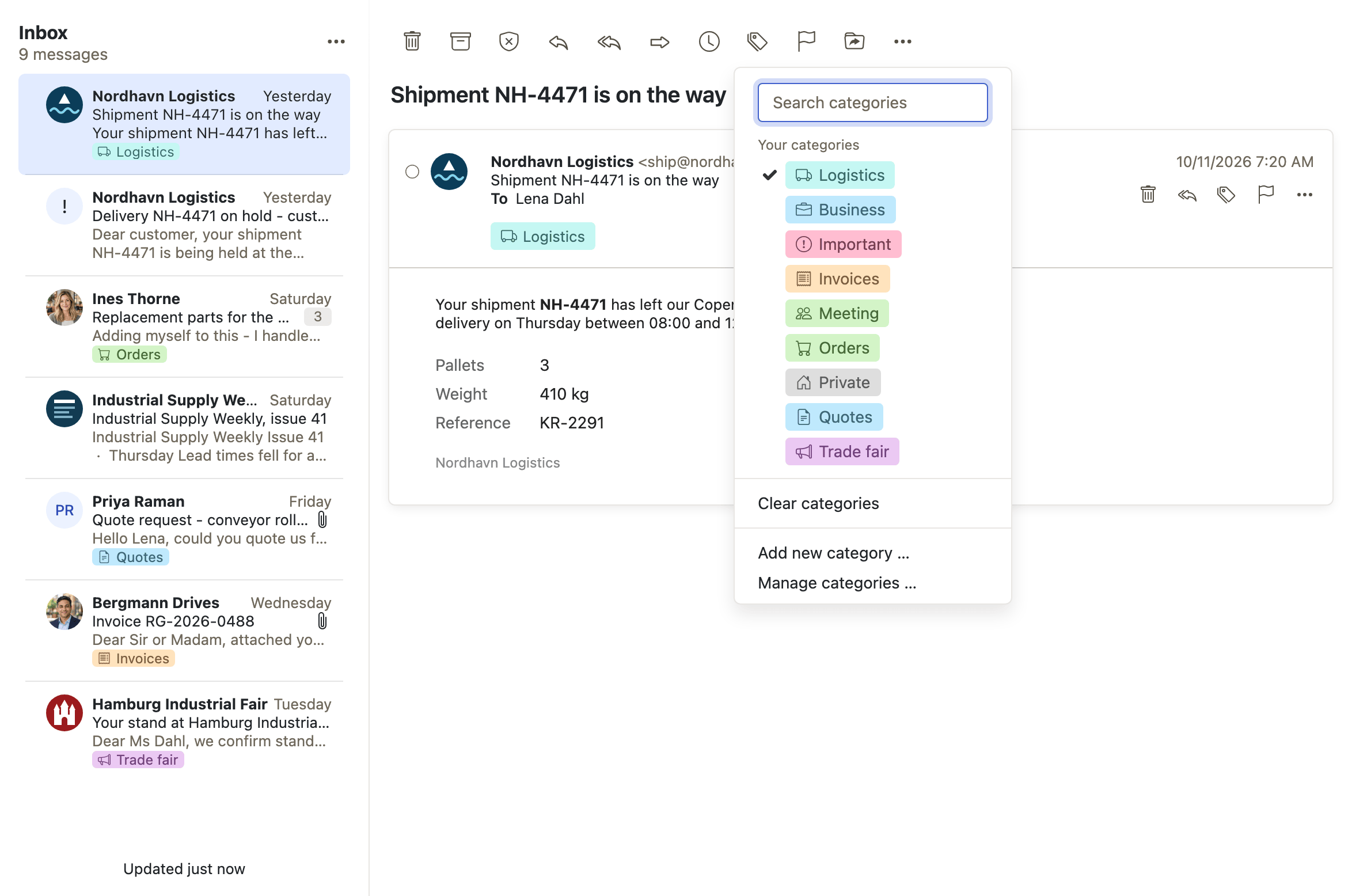
Why it matters Filing a message into a folder forces a single choice and takes the message out of the inbox; a category does neither, so a message can belong to a project and to a customer at once and stay where it is. Because the vocabulary is shared with calendar, contacts and tasks, one category covers everything about a topic rather than only the mail about it. The click-through to a search turns each category into a view the user never had to define.
Description
- Set categories in the toolbar and the detail view assigns categories to the selection
- Categories are shown in the message list row, and can be hidden there
- Clicking a category searches the mailbox for it
Availability Since 8.20. Requires webmail. Feature toggle categories, off by default.
Inbox categories
Summary Splits the Inbox into tabs such as General, Promotions and Social, each with its own unread count and icon. Moving a message to a category can take every other message from the same sender with it, so the sorting is taught once rather than repeated. Which tabs are shown is configured from the mail settings dropdown.
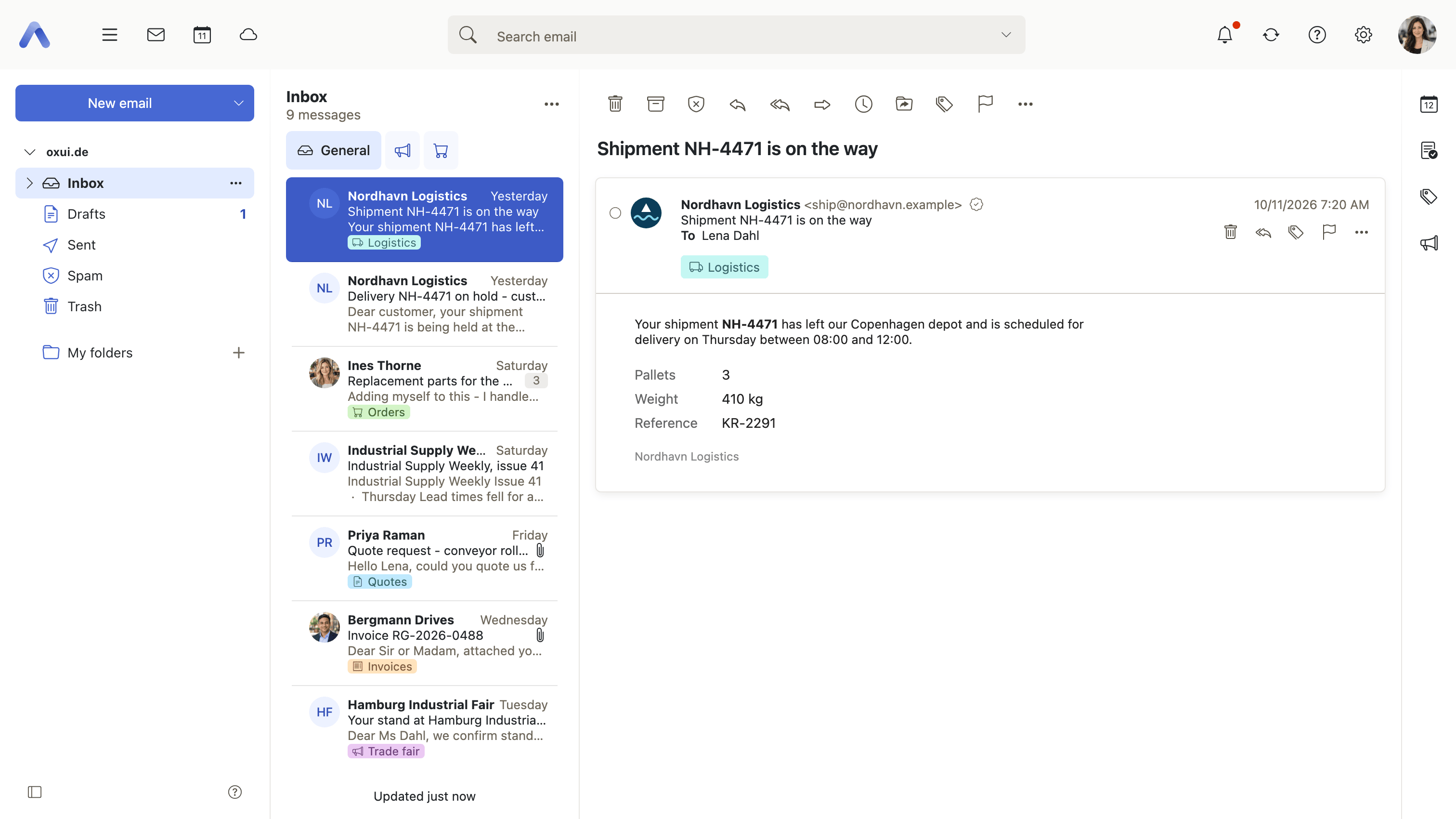
Why it matters Most of what arrives in an inbox is mail the user agreed to receive but does not need to read today — newsletters, notifications, announcements — and it buries the handful of messages that genuinely need an answer. Tabs separate the two without deleting anything and without asking the user to write filter rules. Teaching the tabs by moving one message is what makes this practical: the inbox gets quieter with each correction, instead of demanding setup work up front.
Description
- A row of category tabs sits above the message list, with unread counts and icons
- Move a message to a category, and optionally move every message from that sender too
- Configure which categories are shown from the mail settings dropdown
Availability Since 7.10.6 or earlier. Requires webmail and mail_categories. Feature toggle inboxCategories. Available on smartphones since 8.39.
Archive messages
Summary Moves messages out of the Inbox into a dated Archive folder structure with one action, from the toolbar, the context menu or a keyboard shortcut, with a toast offering to undo it. At folder level, Archive old messages does the same for everything older than a chosen age.
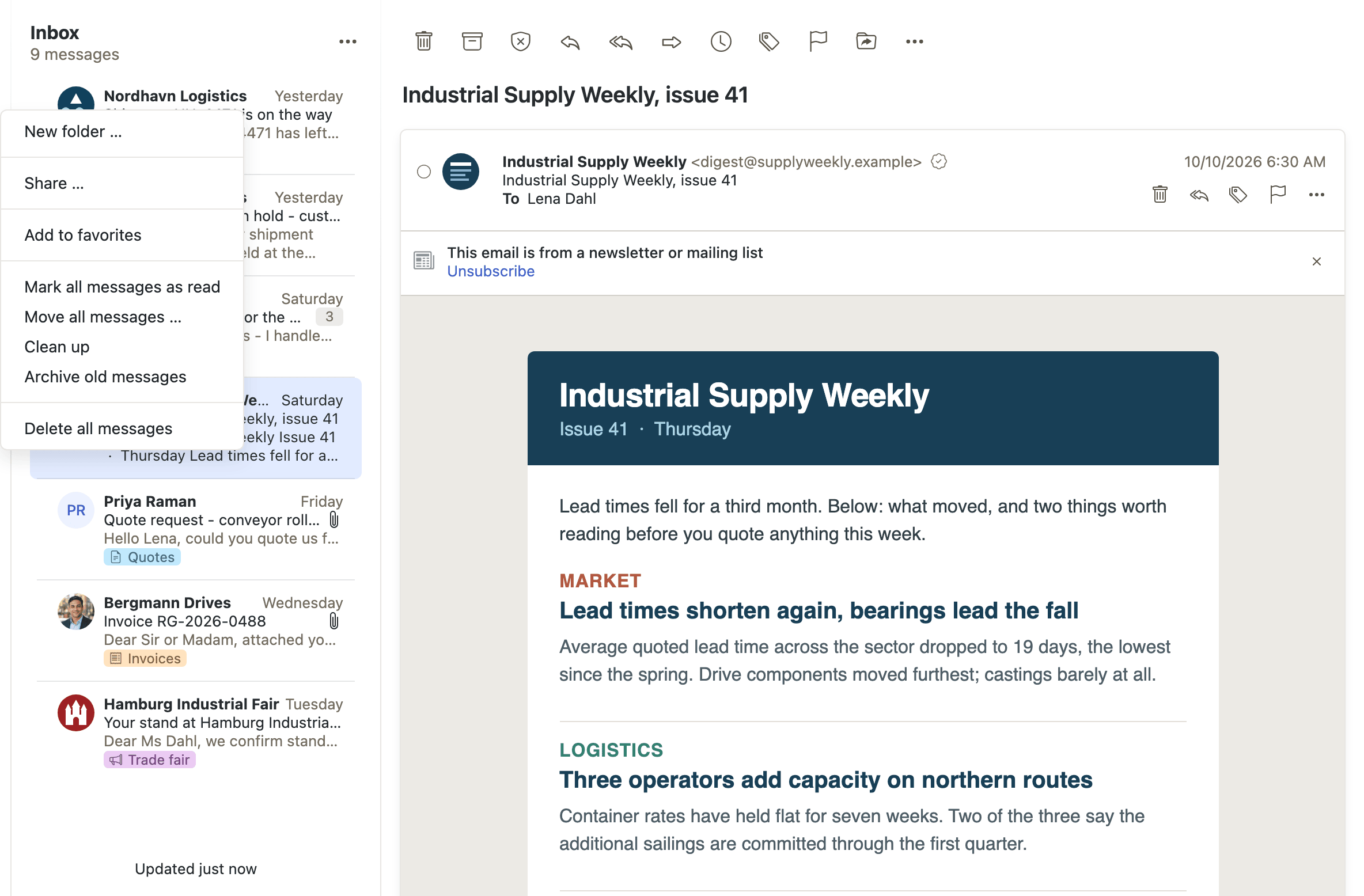
Why it matters Inboxes grow not because users want to keep everything in them, but because filing means deciding where a message goes, and that decision is slower than leaving it where it is. Archiving removes the decision: one action takes the message out of sight without deleting it, and the dated folder structure keeps it findable afterwards. An empty inbox becomes reachable, and because nothing is deleted, a message that turns out to matter later is still there.
Description
- Archive from the toolbar, the context menu or a keyboard shortcut
- A toast offers to undo the archive
- Archive old messages on a folder archives everything older than a chosen age
Availability Since 7.10.6 or earlier. Requires webmail and archive_emails. Archiving from secondary accounts can be switched off by the operator.
The Unread and Flagged folders
Summary Two virtual folders below the Inbox: Unread, which collects every unseen message across all folders, and Flagged, which collects every flagged one. Nothing is moved into them. Each is switched on by the operator, and can then be hidden again by the user.
Why it matters Once mail is spread across a folder tree, "what is still open?" is a question no single folder answers, and the user has to walk the tree to be sure. These two folders answer it in one click. The Unread folder is also what feeds the unread counter in the top bar, so the number the user sees and the list they open agree with each other. Leaving spam and trash out keeps the view to mail that is genuinely waiting on someone.
Description
- Unread lists all unseen messages and carries the unread counter used in the top bar
- Flagged lists all flagged messages
- Spam and Trash messages are left out of the Unread folder
- Sorting, grouping and folder actions are not offered inside these folders
Availability Since 7.10.6 or earlier. Requires webmail. Each folder is switched on by its own operator toggle, and the Unread folder needs a backend-provided all-messages or all-unseen folder (an IMAP virtual folder).
Snooze a message
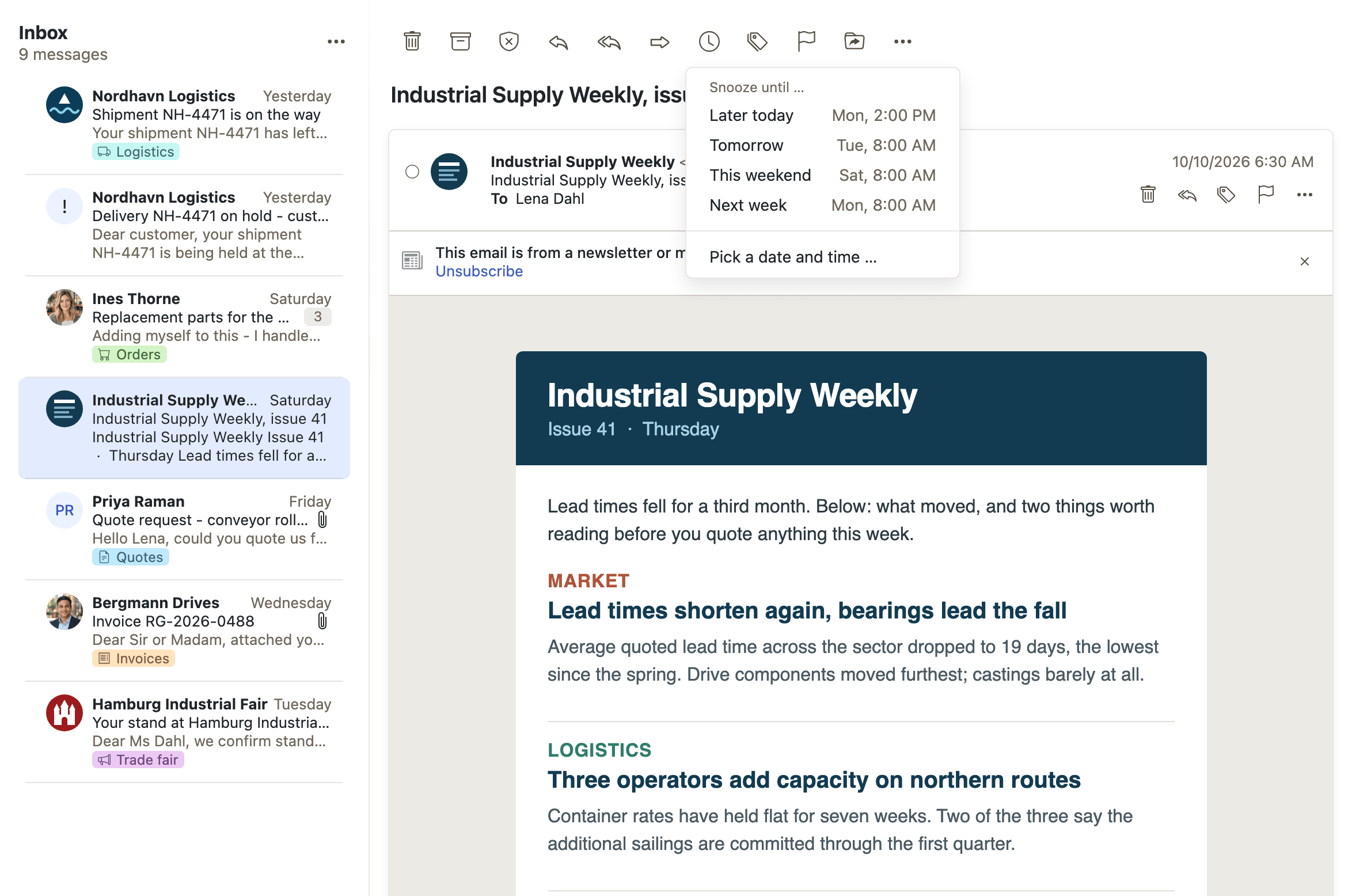
Summary Puts a message aside until a chosen time, when it returns to the Inbox. The Snooze button offers preset times or an exact date and time. Until it comes back, the message lives in its own folder and carries a banner saying when it is due, with an Unsnooze button.
Why it matters A message that needs an answer next week has nowhere good to go: left in the inbox it competes for attention every time the list is opened, and filed away it is forgotten. Snoozing gives it a time instead of a place, so the inbox holds what is actionable now. The message comes back on its own, which means the user does not have to keep a reminder somewhere else for the arrangement to work.
Description
- Pick a preset time or an exact date and time from the Snooze button
- A banner in the message says when it comes back, with an Unsnooze button
- Snoozed messages live in their own folder and can be snoozed again
- Not offered for secondary accounts, unified folders, or the Drafts, Trash, Spam, Sent, Archive and Scheduled folders
Availability Since 8.45. Requires webmail and snoozed_mail. Feature toggle snooze, on by default.
Mailbox statistics
Summary A dialog that summarizes the selected folder: its top ten senders, or top ten recipients in Sent folders, and the share of messages falling on each weekday and each hour of the day. It is opened from the mail settings dropdown.
Why it matters Users have an impression of where their mail comes from, and it is usually wrong — the senders responsible for most of the volume are rarely the ones that feel most present. Seeing the actual top ten is what turns a vague sense of being overwhelmed into something to act on: leaving a mailing list, setting up a filter, or sorting a sender into a category. The weekday and hour distribution says the same thing about timing, for a user deciding when it is worth opening the mailbox at all.
Description
- Statistics in the mail settings dropdown opens it for the selected folder
- Top 10 senders, or top 10 recipients in Sent folders
- Messages per weekday and messages per hour, in percent
- Only the most recent messages are counted when the folder is large
Availability Since 7.10.6 or earlier. Requires webmail. Feature toggle mailStatistics, on by default. Not offered on virtual folders.
Choose which IMAP folders are shown
Summary Subscribes to and unsubscribes from the folders that exist on the mail server. Change IMAP subscriptions, in the Folders section of Mail settings, opens a tree of all server folders with a checkbox on each.
Why it matters A mailbox that has been in use for years, or that is also served by other systems, can carry dozens of folders its owner never opens, and every one of them competes for room in the folder tree with the handful that are actually used. Unsubscribing hides them without touching anything on the server, so no mail is lost and no administrator has to be involved. The folders stay where they are, which means a user who unsubscribed too eagerly can bring one back.
Description
- Change IMAP subscriptions opens a tree of all server folders with checkboxes
- Reached from Mail settings, Folders section
Availability Since 7.10.6 or earlier. Requires webmail.
Give a folder an icon
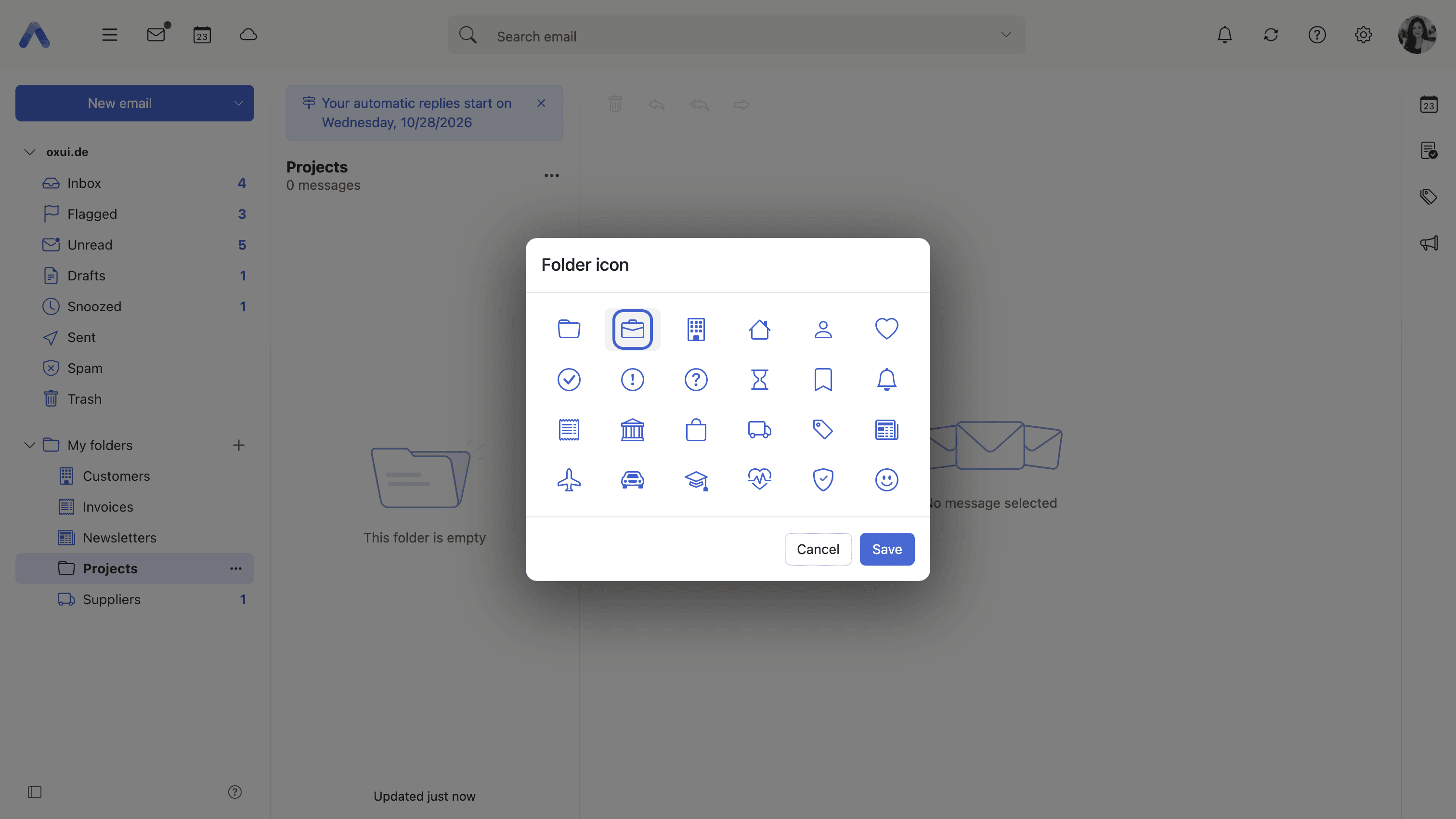
Summary Gives a mail folder one of 23 icons in place of the plain folder icon - a briefcase, a receipt, an airplane. Folder icon sits in the folder's context menu, and Default in the same dialog takes the icon away again.
Why it matters Inbox, Sent and Trash are told apart at a glance because each has an icon of its own, while every folder a user created looks the same and is found by reading. An icon carries that pattern over to the user's own folders: Invoices gets a receipt, Travel an airplane, Waiting for an hourglass. The icon stays in the user's own settings because it is a personal landmark, not a property of the folder.
Description
- Folder icon in the folder's context menu, in the mail folder view
- 23 icons for senders, status, money and everyday life, and a Default entry that restores the plain folder icon
- Drawn as outlines in the folder view's own color, like the icons of Inbox, Sent and Trash
- Not offered for folders that already carry an icon of their own - Inbox, Sent, Drafts, Trash, Spam, Archive and the other standard folders, account roots, and virtual folders
- The icon is stored in the user's own settings, so it does not travel to other people or to other email programs
- It follows the folder when it is renamed or moved in App Suite. A folder renamed or moved in another email program - a desktop client, a phone - is a new folder as far as App Suite can tell, and shows the plain folder icon again
Availability Since 8.55. Requires webmail. Stored in io.ox/mail//folderIcons.
Print an email
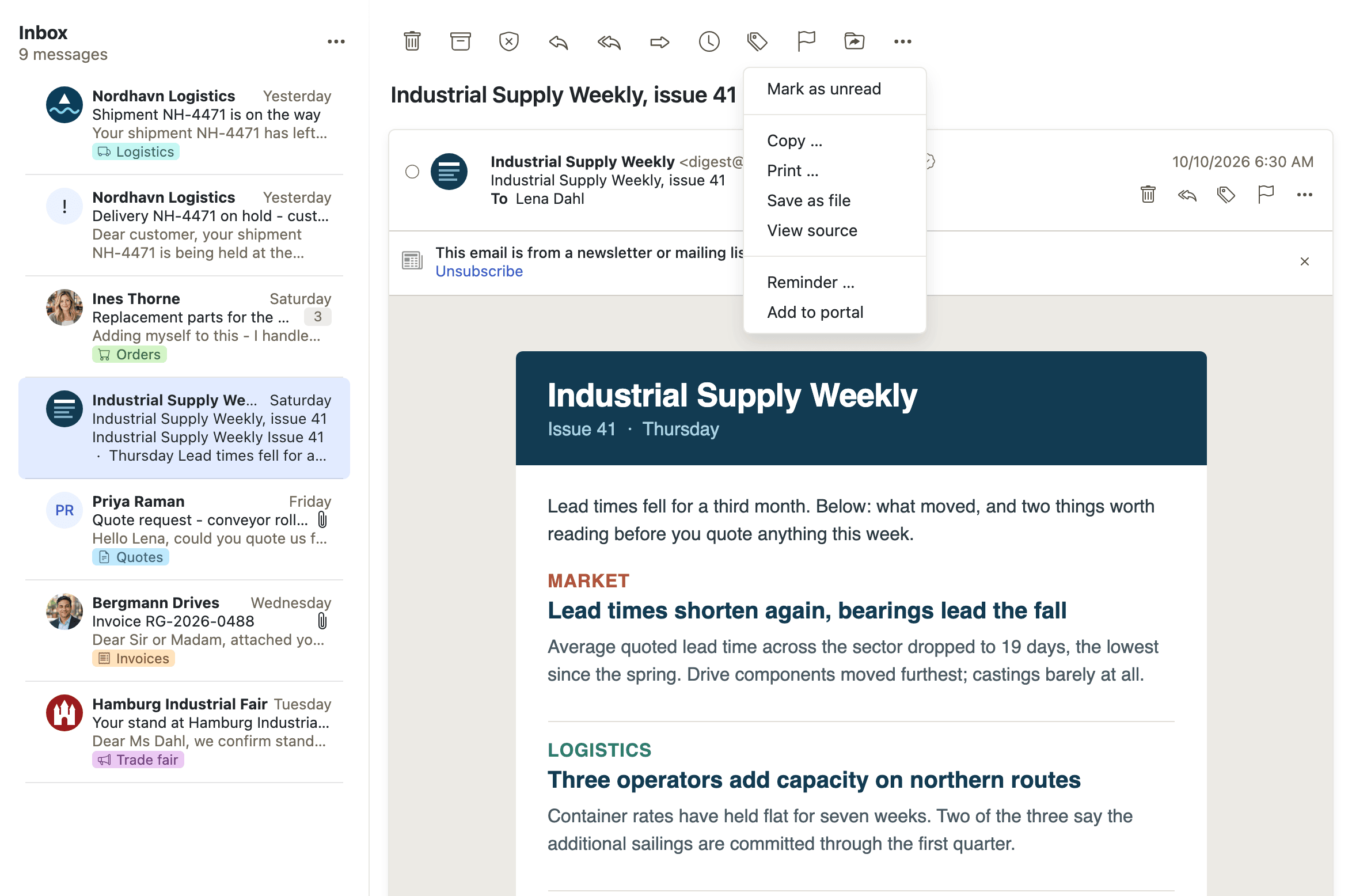
Summary Opens a print-ready rendering of one message, or of several at once, from the toolbar or the context menu. A multiple selection is printed as a single document. On smartphones the browser's own print dialog is used instead.
Why it matters Mail still has to leave the client on paper or as a PDF — for a record, for an archive outside the mailbox, or for someone who will not receive it electronically. A view built for printing produces a readable page, rather than the browser's rendering of an application window. Printing a selection as one document matters for the same reason: what has to be kept is usually a set of related messages, not one of them. Blocked external images stay blocked in the print view, so printing does not quietly undo that protection.
Description
- Print from the toolbar or the context menu
- Several selected messages are printed in one document
- On smartphones the browser's own print dialog is used
- External images stay blocked in the print view unless they were revealed
Availability Since 7.10.6 or earlier. Requires webmail.