Working with files
What happens to a file once it has arrived in Drive: the everyday verbs that move it, rename it and get rid of it again, the ways work in progress is protected from being overwritten, the record of earlier states a file builds up as people keep changing it, and the conversions that turn a document into a PDF.
Everyday file actions
Summary Uploading files into a folder, downloading them again, creating folders, renaming, moving, copying, sorting and deleting — the handful of actions that account for most of the time anyone spends in a file store. Each of them is reachable from the toolbar and the context menu, and the ones that involve a target folder can also be done by dragging.
Why it matters These are the actions a file store is judged on, and every one of them is performed hundreds of times a year by every user, so an awkward one is paid for over and over. The detail that saves the most trouble is the quietest: when somebody uploads a file whose name is already taken, something has to decide whether that is a new version of the existing file or a different file altogether. Guessing wrongly either buries a colleague's work under an unrelated upload, or scatters near-identical copies through the folder until nobody knows which one is current.
Description
- Upload files and folders into the folder being viewed, from the file picker or by dropping them onto the file list
- Download the selection, or a whole folder as a zip archive
- Create a folder inside the folder being viewed, or under a folder picked from the tree
- Rename a file or a folder, with a confirmation step when the change would alter or drop the file extension
- Move and Copy the selection into another folder — through a folder dialog, through a recently used target, or by dragging it onto a folder
- Sort the list by name, date or size, ascending or descending, remembered per folder
- Delete files and folders into the trash, empty the trash, and put a deleted item back where it came from
- Add a free-text description to a file and read it again in the details sidebar
- Decide what an upload of an existing name does: Add new version, Add new version and show notification, or Rename automatically and keep both files separately
Availability Since 7.10.6 or earlier. What happens to a name that is already taken comes from io.ox/files//uploadHandling, offered under Settings > Drive; the sort order of each folder is remembered in io.ox/files//viewOptions.
Lock a file while you work on it
Summary Marks a file as in use. Everybody else who can reach it sees (Locked) after its name, and the actions that would change it are withheld from them. Lock and Unlock sit in the toolbar's More actions menu, and the lock is lifted again by the person who set it or by the person who created the file.
Why it matters A shared folder has no queue. Two people can open the same spreadsheet in the same minute, and neither has any way of knowing about the other until one uploads and the other's afternoon quietly becomes an earlier version. A lock is the cheap signal that prevents the whole situation: it is visible in the file list before anyone downloads anything, and it actually withholds the dangerous actions rather than relying on everyone noticing a note. Limiting who can lift it keeps a lock from being shrugged off by whoever happens to be in a hurry.
Description
- Lock and Unlock in the toolbar's More actions menu, not in the file's context menu
- A locked file carries (Locked) after its name
- The actions that would change a locked file are withheld from everyone else
- Only the person who locked the file, or the person who created it, can unlock it
- Not offered for files held in an external file storage
Availability Since 7.10.6 or earlier. Not offered to accounts with nobody to share with (alone). Not on smartphones.
Keep and restore earlier versions of a file
Summary Every upload over an existing file becomes a new version of it instead of replacing it. The details sidebar lists the versions newest first, with who uploaded each one and when, and each entry can be viewed, downloaded, promoted back to being the current version, or deleted.
Why it matters The case this exists for is the shared file that two people worked on. One of them uploads, the other uploads twenty minutes later, and an afternoon's work is now sitting underneath somebody else's. Without a version history there is nothing to be done about it — the file is simply gone, and the only recovery left is asking around whether anyone still has a copy in their downloads folder. With one, it is a click in the sidebar. The same history answers the slower question too: which change broke the document, and when.
Description
- Upload a new version from the toolbar, from the sidebar, or by dropping a file onto the sidebar
- A comment can be recorded with a new version where the folder supports extended metadata
- The Versions panel lists file name, author, date, size and comment per version, newest first
- Per version: View this version, Open in pop out viewer, Download, Make this the current version, Delete version and Delete all previous versions
- The panel appears only once a file has more than one version
- Deleting a version is withheld for external storages that authenticate with a user name and password
Availability Since 7.10.6 or earlier. Requires infostore. Version comments can be switched off with io.ox/files//features/comments, on by default.
Automatic cleanup of old versions
Summary A retention limit on version history. Versions older than a chosen period, or beyond a chosen count, are deleted automatically after the next sign-in. The operator decides the limits and whether the user may change them under Settings > Drive.
Why it matters Version history is the one part of a file store that only grows. A document edited every week ends the year as fifty-two copies of itself, all of them charged against the quota, and almost none of them of any interest once the next revision exists. Left alone, the feature that protects people's work becomes the reason they run out of room, and the first anyone hears of it is an upload that fails. A retention limit keeps the recent history that is actually used and drops the rest, without anyone having to remember to tidy up.
Description
- A retention period of unlimited, 1, 7, 30, 60 or 90 days, or 1 year
- A maximum version count of unlimited, or 1 to 100 versions
- Where the capability is absent, any configured limits are shown as read-only text instead of controls
- The controls can additionally be locked by the operator, so the limits are visible but not changeable
Availability Since 7.10.6 or earlier. Requires autodelete_file_versions for the controls to be offered at all. The limits themselves are io.ox/files//features/autodelete/retentionDays and io.ox/files//features/autodelete/maxVersions, and io.ox/files//features/autodelete/editable decides whether the user may change them.
Create and edit text notes in Drive
Summary A built-in editor for plain-text file types. New note in the Drive menu creates one in the folder being viewed, and Edit opens an existing text file in the same editor. What goes in is ordinary text — a note for a team, a snippet of configuration, a scratch list.
Why it matters A one-line note does not deserve a word processor, and in a file store without an editor it tends not to get written down at all: it goes into a message somebody sends themselves, or it stays in one person's head. Changing an existing text file is the sharper problem, because the alternative is download, open in a desktop editor, upload again, and hope nobody touched the file in between. Editing it where it lives removes three steps of that round trip and the risk in the middle of it.
Description
- New note in the Drive menu creates a text file in the current folder
- Edit opens
csv,txt,js,css,md,tmplandhtmlfiles;pgpis added where Guard is available - Only the current version of a file can be edited, and not a file somebody else has locked
- Not offered in the trash, or when Drive is opened from mail compose
Availability Since 7.10.6 or earlier. Requires infostore.
Edit an office document
Summary Where Documents is licensed, a text document, spreadsheet or presentation opens for editing rather than only for viewing: the viewer gains an Edit action, and the file opens in the Documents editor in the same browser tab. Without the licence the same files still open in the viewer, read-only.
Why it matters A file that can only be read is a file that leaves the product to be changed - downloaded, edited somewhere else, uploaded again as a second copy, and from then on two versions exist and nobody is sure which is current. Editing in place is what keeps one file one file. It is also the difference people check first when comparing suites, so the catalog saying nothing about it reads as the product not having it.
Description
- Text documents, spreadsheets and presentations open for editing from Drive and from the viewer
- An attachment can be edited the same way once it has been saved into Drive
- Without the Documents licence the files still open in the viewer, read-only
- Editing, co-authoring and the editors themselves are documented with Documents, not here
Availability Requires Documents, which is licensed separately and grants the text, spreadsheet and presentation capabilities - one per document type, so a deployment can license them individually.
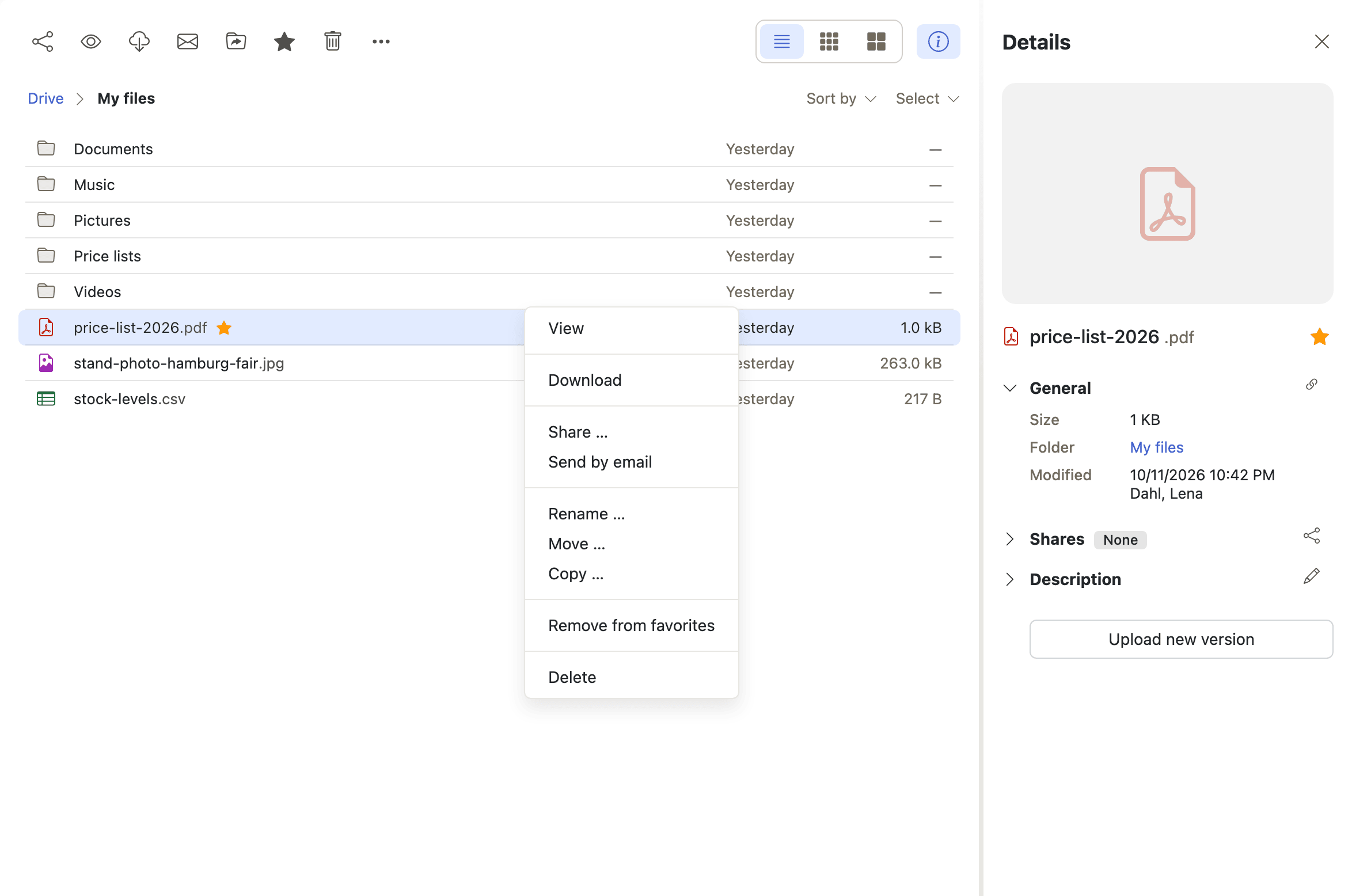
Mark files and folders as favorites
Summary Pins a file or a folder to a Favorites section that collects them from anywhere in Drive, including from storages other than the primary one. Favorites are personal — they belong to the user who set them and are not shared with the people an item is shared with.
Why it matters Most people work out of a handful of places and reach them by walking the same three or four clicks of folder tree every morning. The folders that matter are rarely near the top, because the tree is organized for the whole deployment rather than for one person's current project. Favorites give each user a short list of their own laid over that structure, and because the list is per user it can change when the project does, without anybody having to renegotiate where things are filed.
Description
- Add to favorites and Remove from favorites from the toolbar, the context menu and the folder tree
- A Favorites node in the folder tree, and a Favorites button when the tree is collapsed
- Favorites can hold items from any storage, so the node is shown whenever any storage is visible
- Favorites are stored per user and are not shared with anyone the item is shared with
- Favorite folders in the other apps work the same way and are described under Working with content
Availability Since 7.10.6 or earlier. Not available to guest users or to anonymous link recipients. The lists are kept in io.ox/core//favorites/infostore and io.ox/core//favoriteFiles/infostore.
Show a file in its folder
Summary Jumps from a curated list — Favorites, Shared with others, a Portal widget — to the folder the item actually lives in, with the item already selected. The folder tree offers the same step from its context menu as Show in Drive.
Why it matters A curated list is useful precisely because it ignores where things are filed, and that is also what it costs: a file found in Favorites or in a Portal widget arrives without any of its neighbors. What the user wants next is almost always the rest of the folder — the other drafts, the files that belong with it, somewhere to put the new one. Without this, the only way back is to remember the path and walk it, which is exactly the work the curated list was supposed to save.
Description
- Offered from Favorites, from Shared with others and from Portal
- Also in the folder tree's context menu as Show in Drive, which works across browser tabs
Availability Since 7.10.6 or earlier. Requires infostore. Not on smartphones.
Print a file as PDF
Summary Opens the server's PDF rendering of a file in a new browser tab, where the browser's own print dialog takes over. It sits in the overflow menu of the viewer toolbar, and is offered for attachments in the other apps as well as for files in Drive.
Why it matters Printing from a browser normally prints whatever the preview happened to put on screen, which is not the document: page breaks land in the wrong places, fonts are substituted, and a spreadsheet comes out as the first screen of itself. Converting on the server first means the pages being printed are the same fixed-layout pages anybody else would get. It also drops the assumption that whoever needs the paper copy has the application that made the file, which for a presentation or a spreadsheet is often not true.
Description
- An entry in the overflow menu of the viewer toolbar
- Also offered for attachments in Mail, Calendar and the other apps
- Offered for office documents, PDFs, images other than TIFF, text and XML
- Withheld when the server's conversion of the file has failed
- Previewing the file itself is the shared viewer's job, described under Working with content
Availability Since 7.10.6 or earlier. Requires document_preview.
Save a document as PDF into Drive
Summary Converts an office or text document to PDF and stores the result as a new file in Drive, asking for a file name and a target folder along the way. The original document stays where it is, unchanged.
Why it matters A document handed on as the file that made it is a document that can still be edited, reflowed, or opened into a dialog about a missing font. Whoever receives a quote or a signed policy should see the pages the sender saw, and that is what a PDF is for. Doing the conversion inside App Suite means it does not depend on anyone having the right desktop application installed, and the result lands in Drive, where it can be shared by link like any other file.
Description
- In the toolbar and in the context menu for office and text files
- Asks for a file name and a target folder
- The PDF is stored as a new file; the original document is left untouched
- Not offered in the trash, or from Favorites
Availability Since 7.10.6 or earlier. Requires document_preview. Not available to guest users or to anonymous link recipients.
Prepare previews when a document is uploaded
Summary When an office document is uploaded, or a new version of one is added, the PDF conversion that a preview needs is requested there and then rather than the first time somebody opens the file. There is nothing to see and nothing to switch on; the only sign of it is that the first preview appears straight away.
Why it matters The first preview of a freshly uploaded document is the slow one, because the conversion has not happened yet — and it is also the one most likely to be watched, since somebody has just put the file there and is about to tell a colleague where it is. A wait at that exact moment reads as the file store being slow rather than as a cost paid once. Converting while the upload is still in hand moves the wait to a point where nobody is waiting for it.
Description
- Runs on upload, and again when a new version is added
- Covers word processing and presentation files, and spreadsheets where the Spreadsheet app is not available
- Invisible to the user except as the speed of the first preview
- The operator can switch it off
Availability Since 7.10.6 or earlier. Requires document_preview. It runs unless io.ox/core//pdf/enablePreconversionOnUpload is set to false.