Address books
Where the contacts in the Address Book come from. Some books belong to the user, one belongs to the organization and is maintained for everybody, some belong to colleagues who have shared them, and some are fed from an account held at another provider. Most of them, sooner or later, also have to reach the address book app on a phone.
Organize contacts in address books
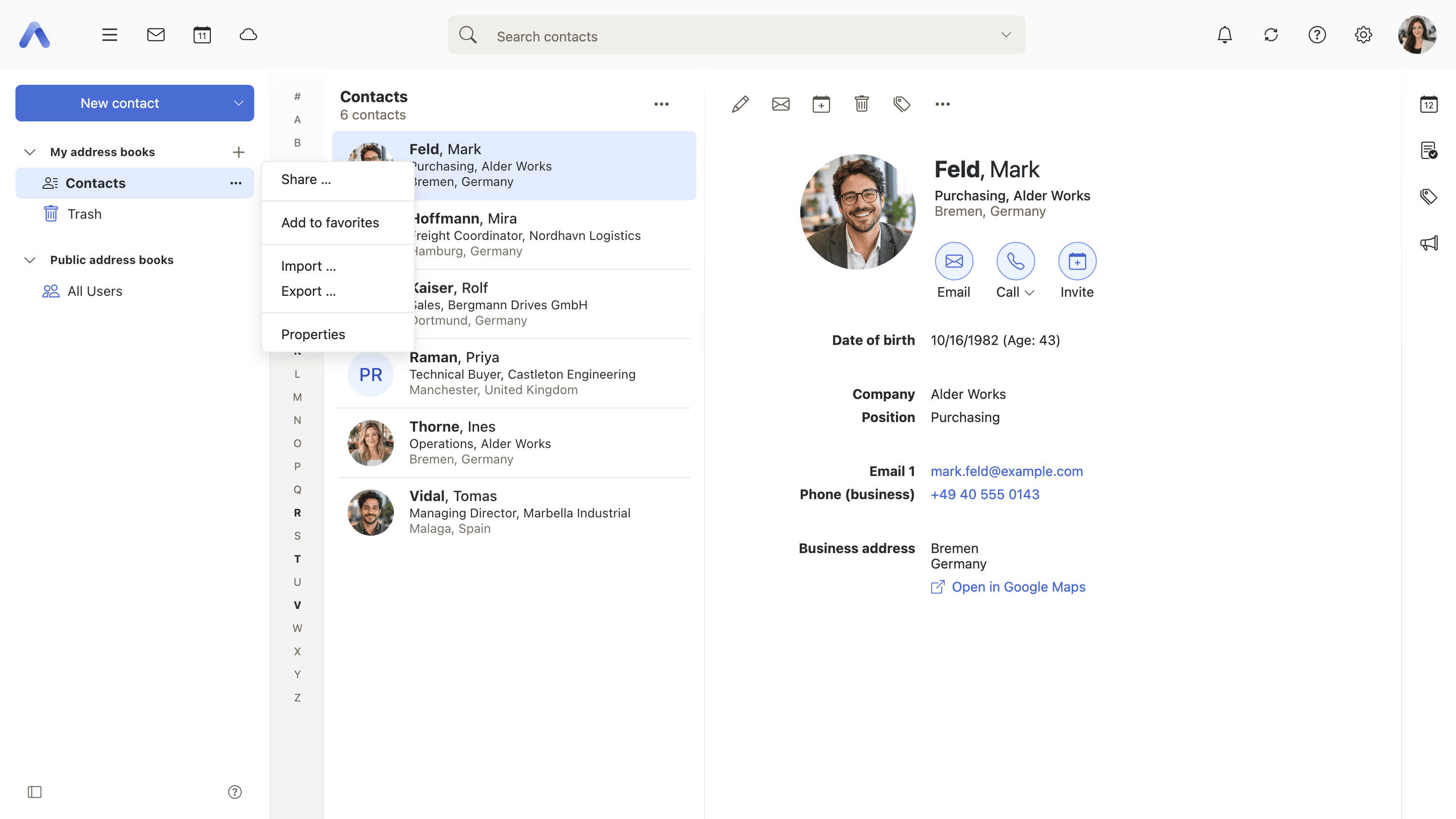
Summary The address books are listed in the side panel: the user's own, any they create themselves, the organization's directory and the ones other people have shared. A new book is created from the heading above the list rather than from a folder's own menu, and every book carries a menu for renaming it, granting permissions on it, marking it a favorite, hiding it, moving data in and out of it, and deleting it.
Why it matters The book, not the entry, is the unit of nearly every decision about a contact. Permissions are granted on a book, subscription and synchronization are decided per book, and import and export run on a whole book at a time. One undivided pile of contacts therefore has a single answer to every one of those questions: a user who keeps their family's numbers beside the department's supplier list cannot share the second without the first, and the usual response is to share nothing. Deciding where a contact goes is what keeps the later choices open.
Description
- A new address book is created from the heading above the list, not from a folder's context menu
- The folder menu holds Share, Rename, show and hide, Import, Export and Delete; the default book offers only sharing, import, export and properties
- An address book can be marked a favorite, and hidden from the list without unsubscribing from it
- Icons mark out the default address book, the collected-addresses folder, the trash and a directory of users
Availability Since 7.10.6 or earlier. Requires contacts. The icons beside the entries follow the folderIcons feature toggle, on by default.
Browse the global address book
Summary The organization's own directory, shown as an address book of its own. It is not a personal book and nobody adds entries to it: it is assembled from the user accounts of the context, so every colleague is in it with the details the administration maintains. The Address Book app can be set to open here rather than in the user's own book.
Why it matters Without a directory, everybody keeps a private copy of the staff list, and a private copy is wrong from the first day somebody joins, changes department or leaves. The error is a quiet one — a message goes to an address that no longer exists, or to the predecessor in a role, and nobody finds out until an answer fails to arrive. Maintaining the list once, centrally, makes it right for everyone at the same moment, and it is the same list the recipient fields in Mail and Calendar look people up in.
Description
- Appears in the address book list like any other book, but is filled from the user accounts of the context
- Start in global address book in Address Book settings decides which book the app opens in
- That setting is not offered where the global address book is the only one the user has
- Context administrators are left out of the list unless the deployment asks for them
Availability Since 7.10.6 or earlier. Requires gab. io.ox/contacts//startInGlobalAddressbook is on by default, and io.ox/contacts//showAdmin off. Looking somebody up in a directory far too large to browse is described under Finding people.
Share an address book with others
Summary Gives colleagues access to one of the user's own address books, to read or to edit, from Share in the folder menu. The dialog is the one used for calendars, task folders and Drive folders, so there is nothing particular to address books to learn, and access is withdrawn again from the same place.
Why it matters What a team reaches for instead is sending the contacts around: everybody imports the same file, and from that moment holds a private copy. The copies drift within weeks — a phone number is corrected in one of them, a new customer added to another — and nobody can say which is current, so whichever colleague keeps theirs tidiest quietly becomes the directory. A shared book has one copy, one correction, and no question about which version is the real one.
Description
- Share in the folder's context menu opens the standard sharing dialog — labeled Permissions where the book cannot be shared
- Access is granted per person, to read or to edit
- Offered only where the deployment permits shared or public folders
Availability Since 7.10.6 or earlier. Requires read_create_shared_folders or edit_public_folders. Permissions, deputies and the rest of sharing are described under Sharing and delegation.
Subscribe to shared and public address books
Enterprise
Summary A dialog listing the address books other people have shared, the public ones, the user's own and the ones currently hidden, each with a checkbox deciding whether it appears in the list at all. It is offered as Subscribe to shared address books from the secondary menu, from the list options and from Address Book settings.
Why it matters Being given access to an address book and wanting it in front of you every day are different things. Sharing in a large context is generous — a department shares its book with everybody, a project shares one for a month and then forgets it — and a user ends up with a list in which the three books they actually use are hard to find. Unsubscribing hides a book without touching anybody's sharing, so nothing has to be renegotiated with the person who shared it, and the book can be brought back whenever it is wanted.
Description
- Sections for public, shared, private and hidden address books, with a checkbox each
- Where CardDAV is available, a second checkbox per book decides whether it also reaches devices
- Reached from the secondary menu, from the list options menu and from Address Book settings
- Unsubscribing changes only what this user sees; the contacts and other people's access are untouched
Availability Since 7.10.6 or earlier. Requires edit_public_folders, read_create_shared_folders or carddav. The same dialog in the other apps is described under Sharing and delegation.
Subscribe to an external address book
Summary Creates an address book fed from an account held somewhere else — a Google account, for instance — through the subscription services the server offers. The contacts arrive as a book of their own in the list, and the server keeps it up to date, so nothing is copied across once and left to age.
Why it matters The alternative is export and import, which produces a photograph: the file is correct on the day it is written and starts drifting the same afternoon, because the numbers added at the other end never make the trip. People then go on checking both address books, which is exactly the habit the import was meant to end. A subscription leaves the other account as the place the contacts are maintained and makes this one a view of them.
Description
- Subscribe to address book in the secondary menu
- Offered only when the server advertises at least one contacts source; the entry is withdrawn again when the check finds none
- Where the capability is missing, the entry becomes an upsell trigger instead
- A subscription that has stopped working is reported in a dialog, which offers to recreate it
Availability Since 8.3. Requires subscription. Signing in to the external account is the general business of connecting a third-party account, described under Onboarding and devices.
Sync an address book over CardDAV
Summary An address book can be marked for CardDAV, so that it appears in the address book app of a phone or in a desktop client. The book's properties dialog shows its CardDAV URL with a button to copy it, and a checkbox beside it decides whether that particular book is offered for synchronization at all.
Why it matters A phone set up over CardDAV works on the same contacts rather than on a copy of them, so a number corrected on the train is corrected here too, and an incoming call shows a colleague's name instead of a number nobody recognizes. The per-book switch is what keeps that usable: somebody who has subscribed to a dozen shared books does not want all twelve on their phone, and without the choice the usual answer is to synchronize nothing at all.
Description
- The properties dialog of an address book shows its CardDAV URL, with a button to copy it
- Enable CardDAV synchronization for this folder decides whether the book reaches devices
- The subscription dialog carries the same switch per book, labeled Sync via DAV
- The switch is hidden entirely where the deployment does not offer CardDAV
- The flag is held on the folder itself, so the choice follows the book rather than the device
Availability Since 7.10.6 or earlier. Requires carddav. Setting the device itself up — which server names to type, or a configuration profile to download — is done by the wizard described under Onboarding and devices. The calendar equivalent is described under Calendars and subscriptions.