On a phone
App Suite UI is one application, served to a phone as it is to a laptop. There is no separate mobile product to buy, deploy or keep in step: the same deployment answers both, and a user who signs in on a phone gets a shell built for that screen rather than a shrunken desktop.
It runs in the phone's own browser — Safari on iOS, Chrome on Android — and can be installed to the home screen as a progressive web app, which is a web page the browser agrees to treat like an installed application: its own icon, its own window without browser chrome, and a launch that goes straight to the account. Nothing is downloaded from an app store, so nothing has to be approved, updated or version-matched on the device; the deployment serves one version and every phone has it the next time it opens.
All six applications are there — Mail, Calendar, Address Book, Tasks, Drive and Portal. Not every feature is: the screen that holds a folder tree, a message list and a reading pane side by side on a laptop can hold one of them at a time on a phone, and the features that exist to arrange that space have nothing to arrange. What a phone is for is reading, answering and checking, and that is what the mobile shell is built around.
A short tour
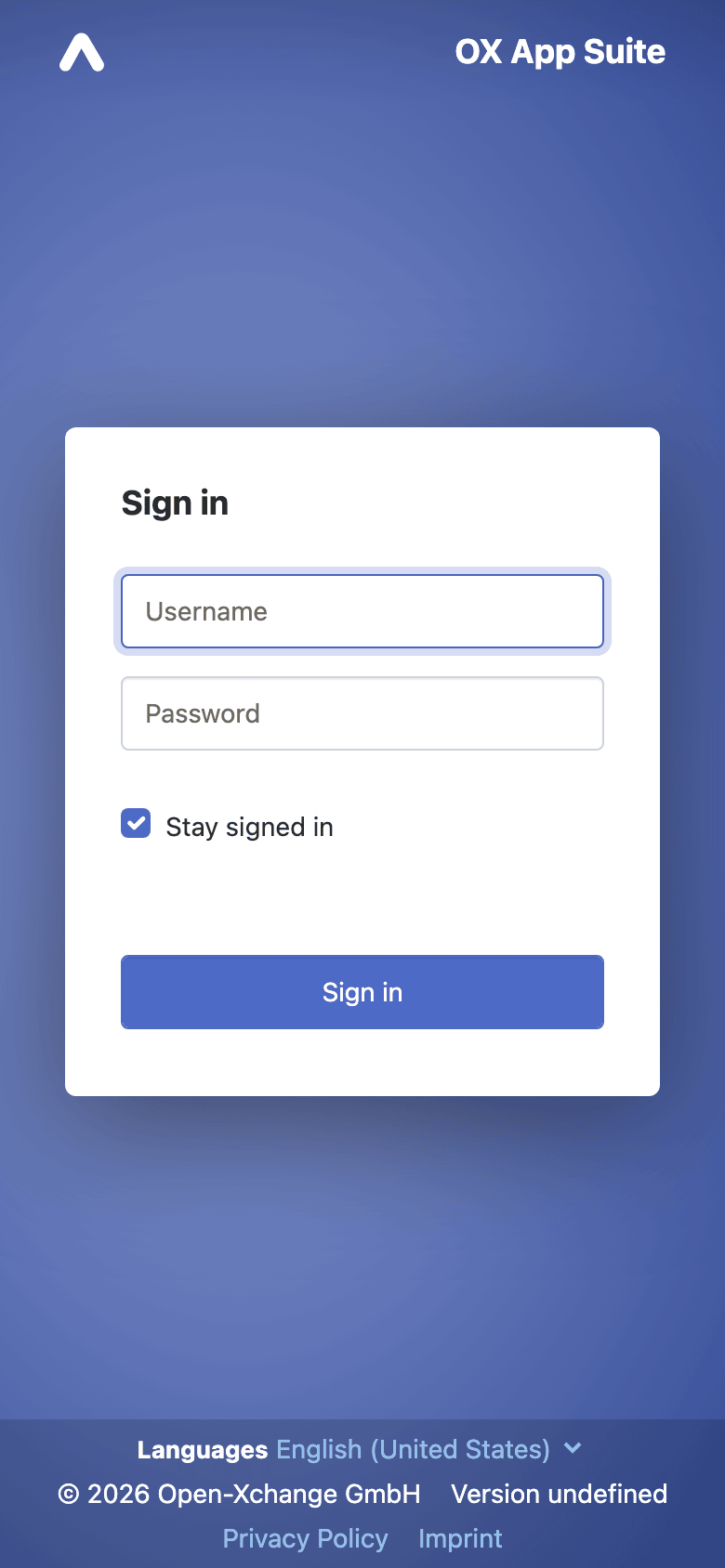
The sign-in screen, which is also where a branded deployment shows its own logo and colors.
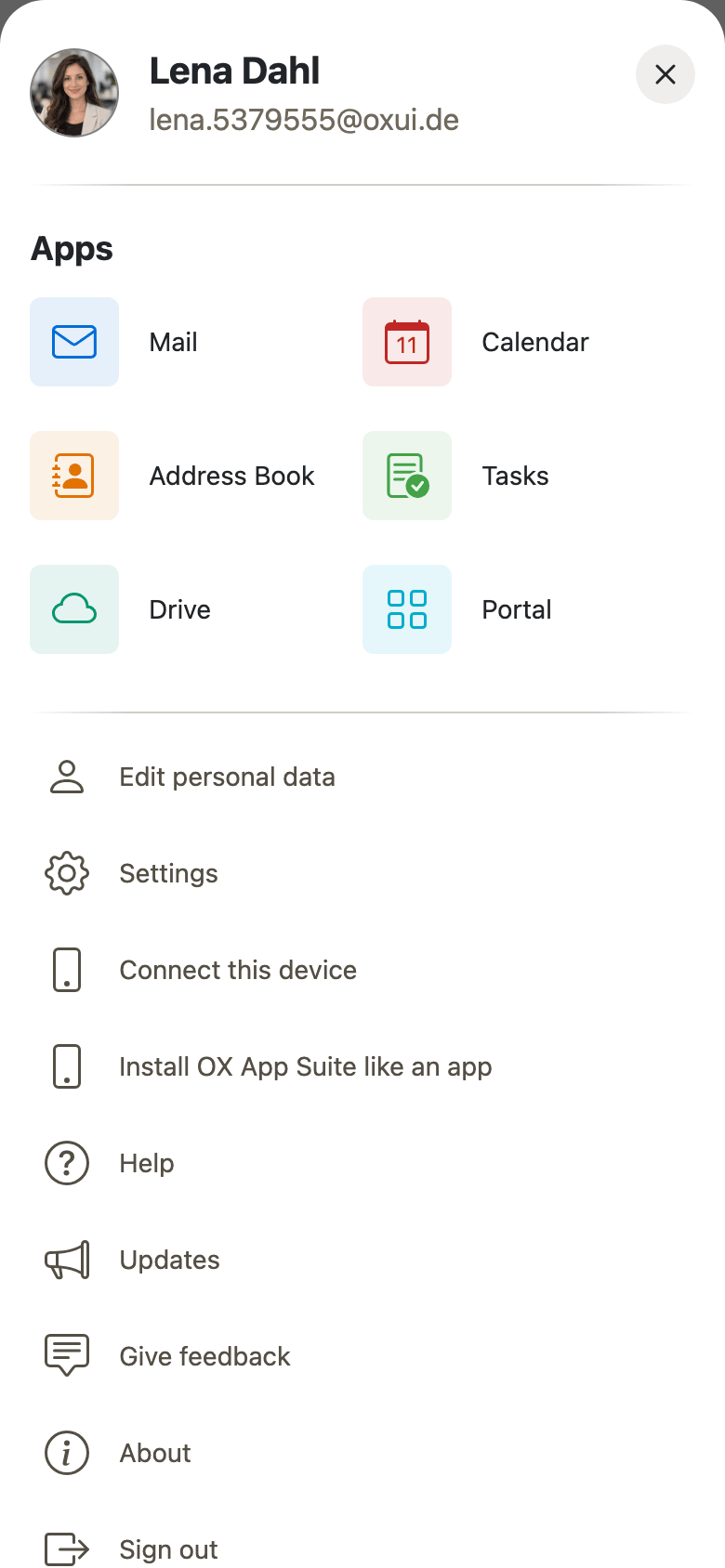
The Menu button in the bottom bar opens the full list of applications, the account it is signed in as, and the entries that have nowhere else to live on a small screen — settings, help, and Install OX App Suite like an app, which is how the home-screen install is started.
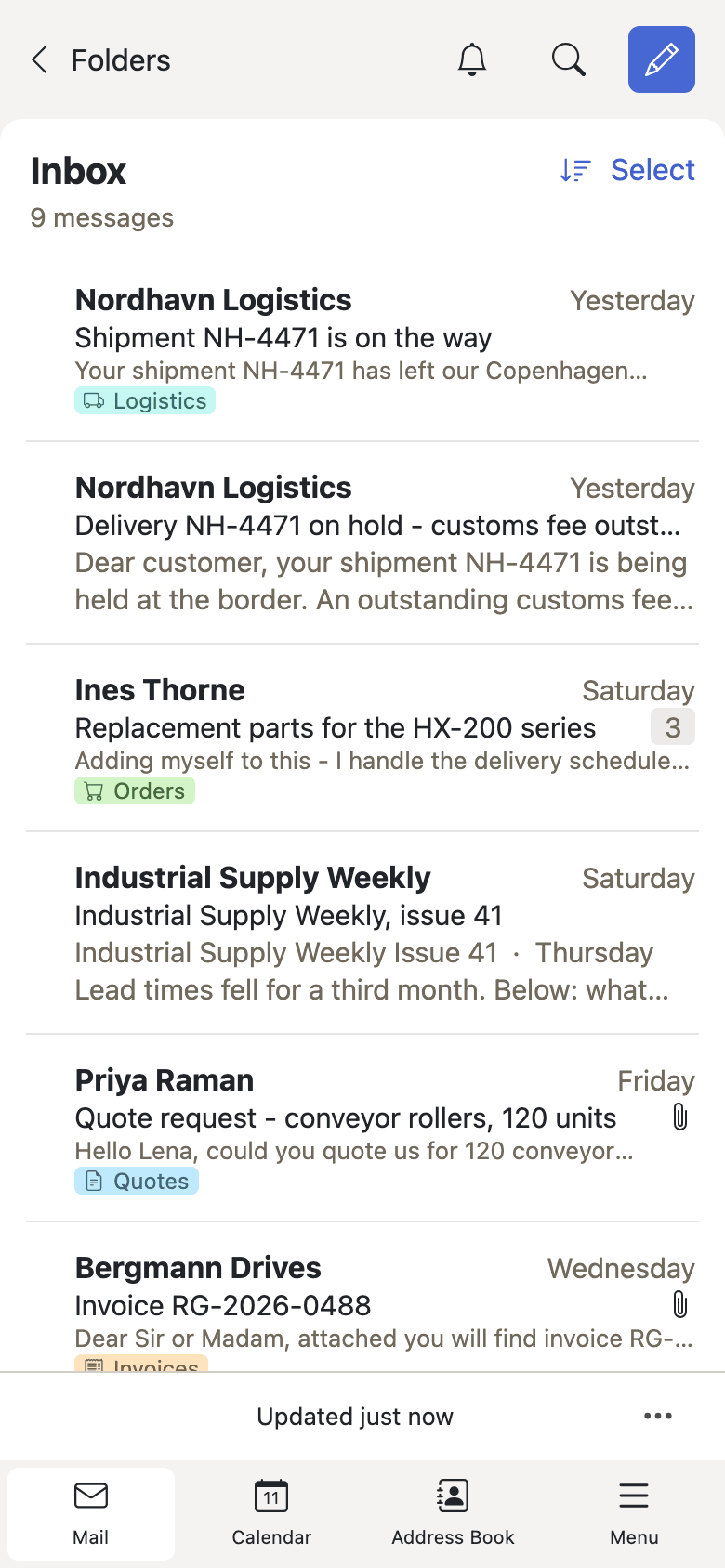
Mail opens on the message list. The bottom bar carries the apps, the back button goes up to the folders, and the pencil opens a new message.
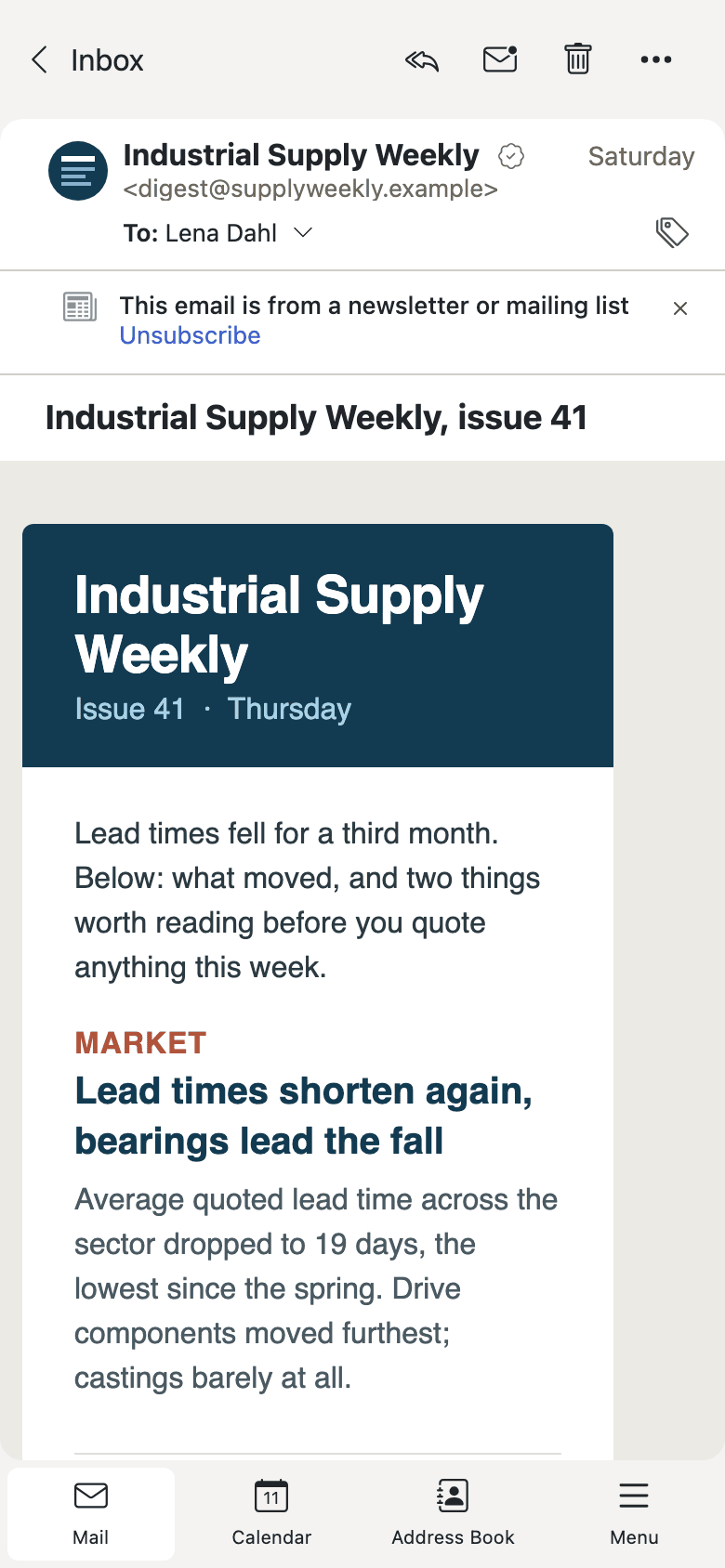
Opening a message replaces the list rather than sitting beside it, which is the pattern throughout: screens are a stack of pages, not a set of panes.
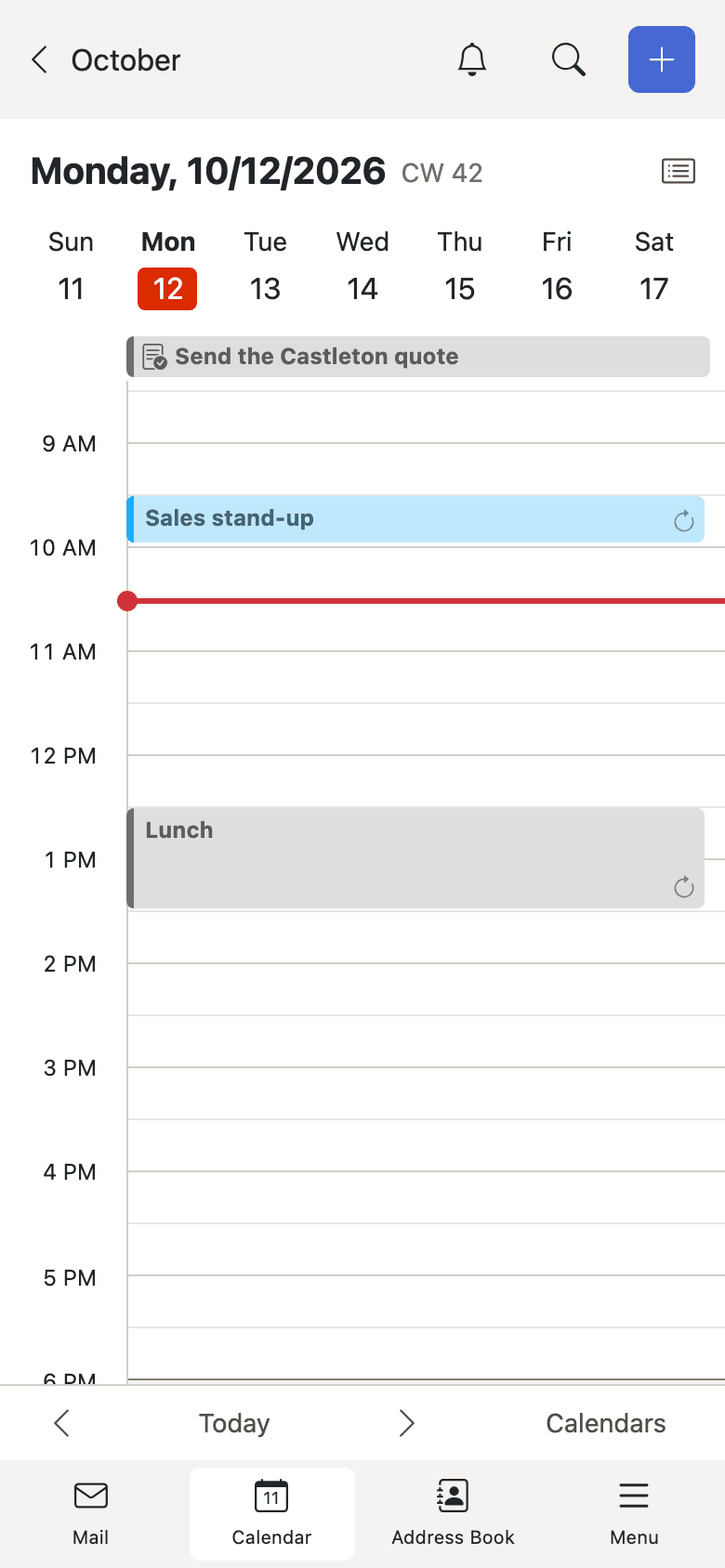
The calendar opens on the day, which is the view a phone has room for.
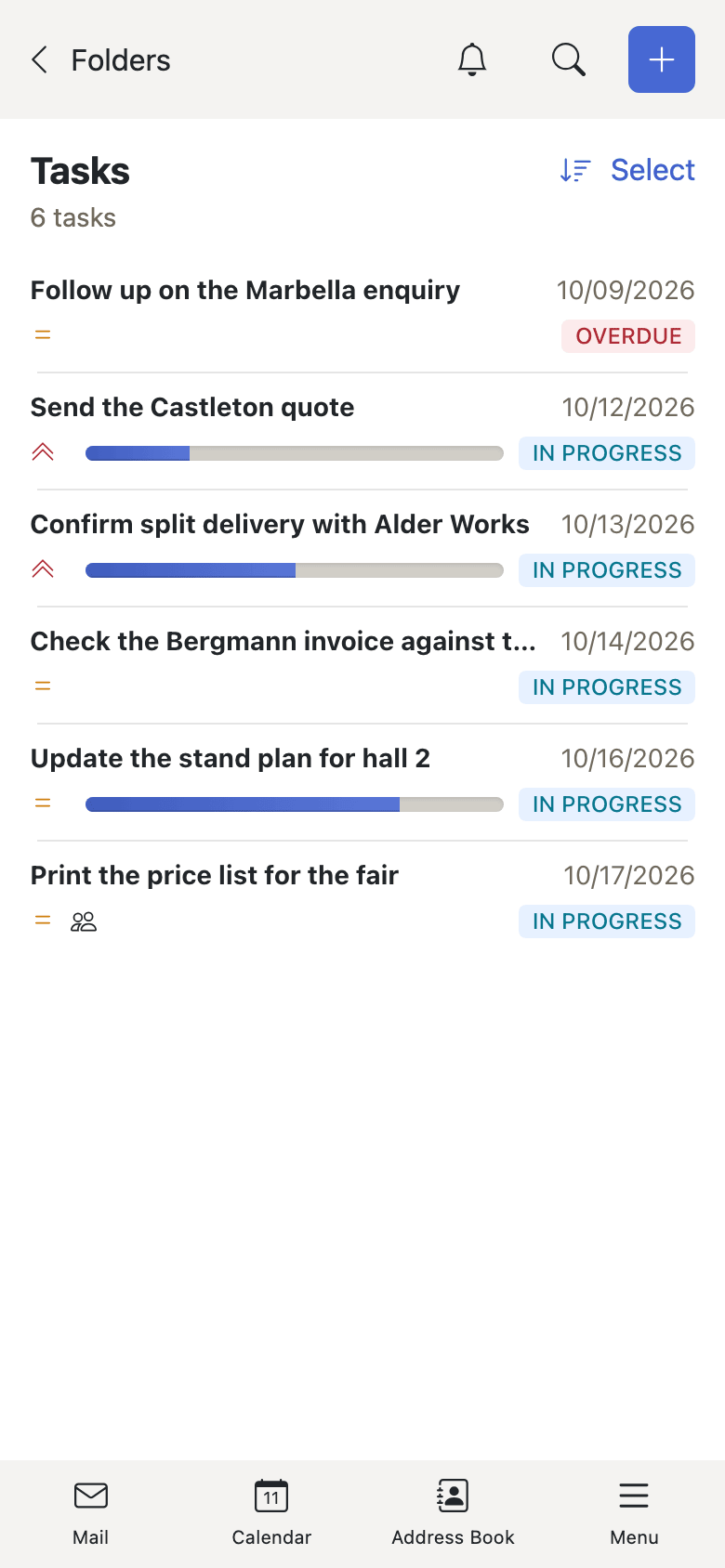
Tasks, with due dates and progress, in the same one-column shape.
What this is documented under
The shell itself, the bottom bar and the page stack are described under Mobile navigation. Installing to the home screen, and the QR code that signs a phone in without typing a password, are under Onboarding and devices. Where a feature behaves differently on a phone, its own entry says so in its Description, and where it is not offered at all, its Availability line says Not on smartphones.
Serving the manifests that make the install possible is operator setup, and is described under Progressive Web App in the Deployment Guide.