Seeing your day
What the calendar shows without being asked: the shapes a week can take, the hours and days it treats as the user's own, the entries it leaves out, and the alerts that reach out of the calendar to say that something is about to start.
Calendar views
Summary The same appointments are drawn six ways — a single day, the workweek, the full week, a month, a whole year, and a plain list. Day, workweek and week are time grids where an appointment takes up the space it actually occupies; month and year trade that detail for range; the list view is a scrollable agenda with a detail pane beside it.
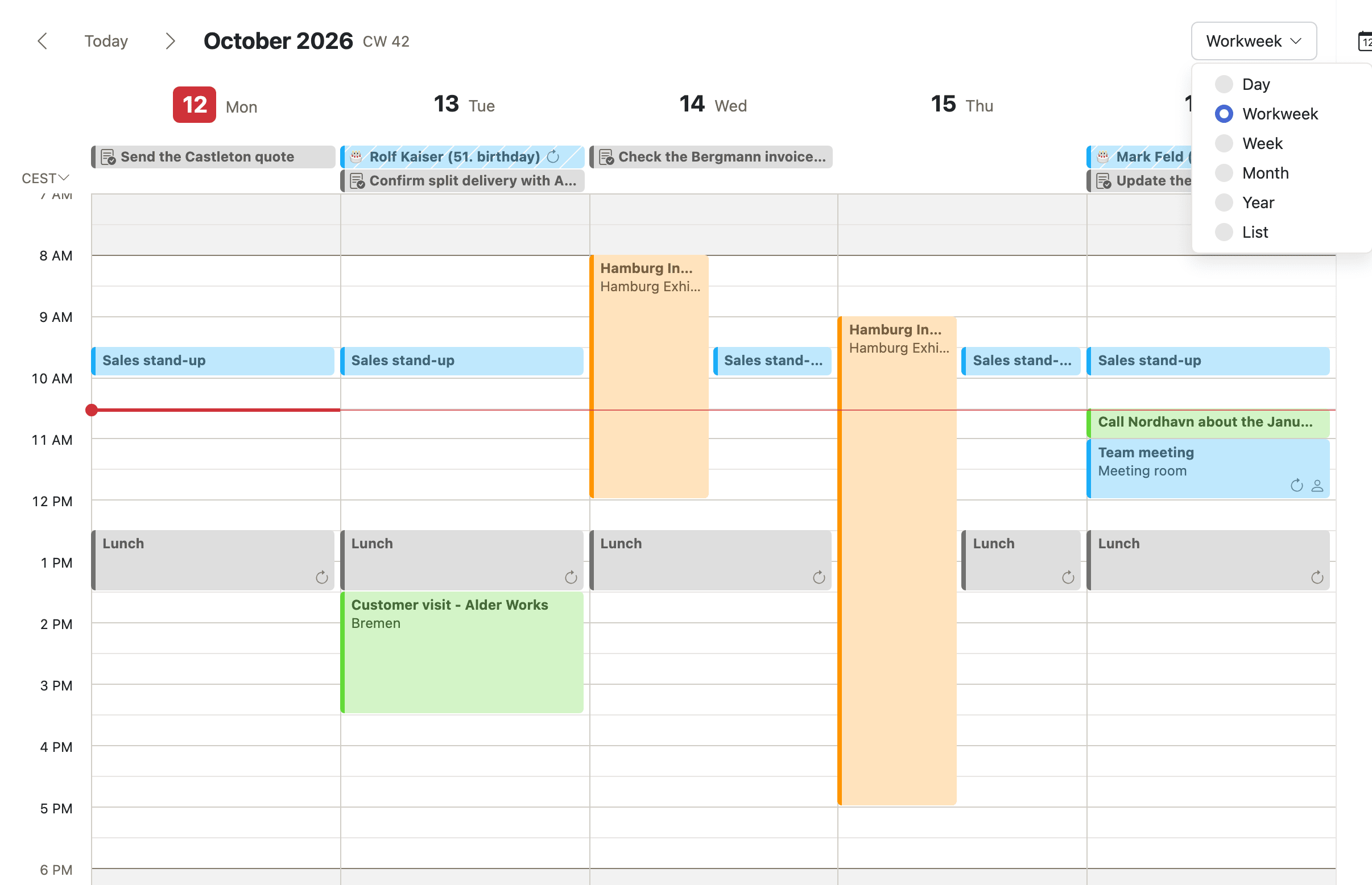
Why it matters "When am I free on Thursday?" and "how heavy is November?" are different questions, and no single drawing answers both. An afternoon that reads as empty in a list turns out, on the grid, to be three half-hour fragments with nothing usable between them — which is the difference between accepting a meeting and having to move two. The grid is also where the calendar is edited: an appointment is dragged to its new time in the same picture that showed it was wrong, rather than through a form.
Description
- Switch between Day, Workweek, Week, Month, Year and List from the view switcher or with a keyboard shortcut
- Working hours are highlighted in the time grids, and the length of the workweek and the day it starts on follow the user's settings
- Drag an appointment to move it, drag its edge to change its length, or drag across empty time to create one
- All-day appointments sit in a row of their own above the grid, which can be enlarged by dragging
- A current-time indicator marks now
- Month view lays a month out as a grid of days, each cell holding that day's appointments
- Year view shows all twelve months side by side and marks the days that have something on them
- List view is a scrollable list of upcoming appointments with a detail pane
Availability Since 7.10.6 or earlier. Requires calendar. The chosen view is remembered in io.ox/calendar//layout. Switching view from the keyboard is part of the shortcut sets described under Getting around.
Meeting countdown
Summary A small window that opens a set number of minutes before a meeting and counts down to it, changing color and caption as the start approaches and sounding an alarm when it arrives. It can be minimized out of the way, snoozed, or closed, and several run beside each other when appointments overlap.
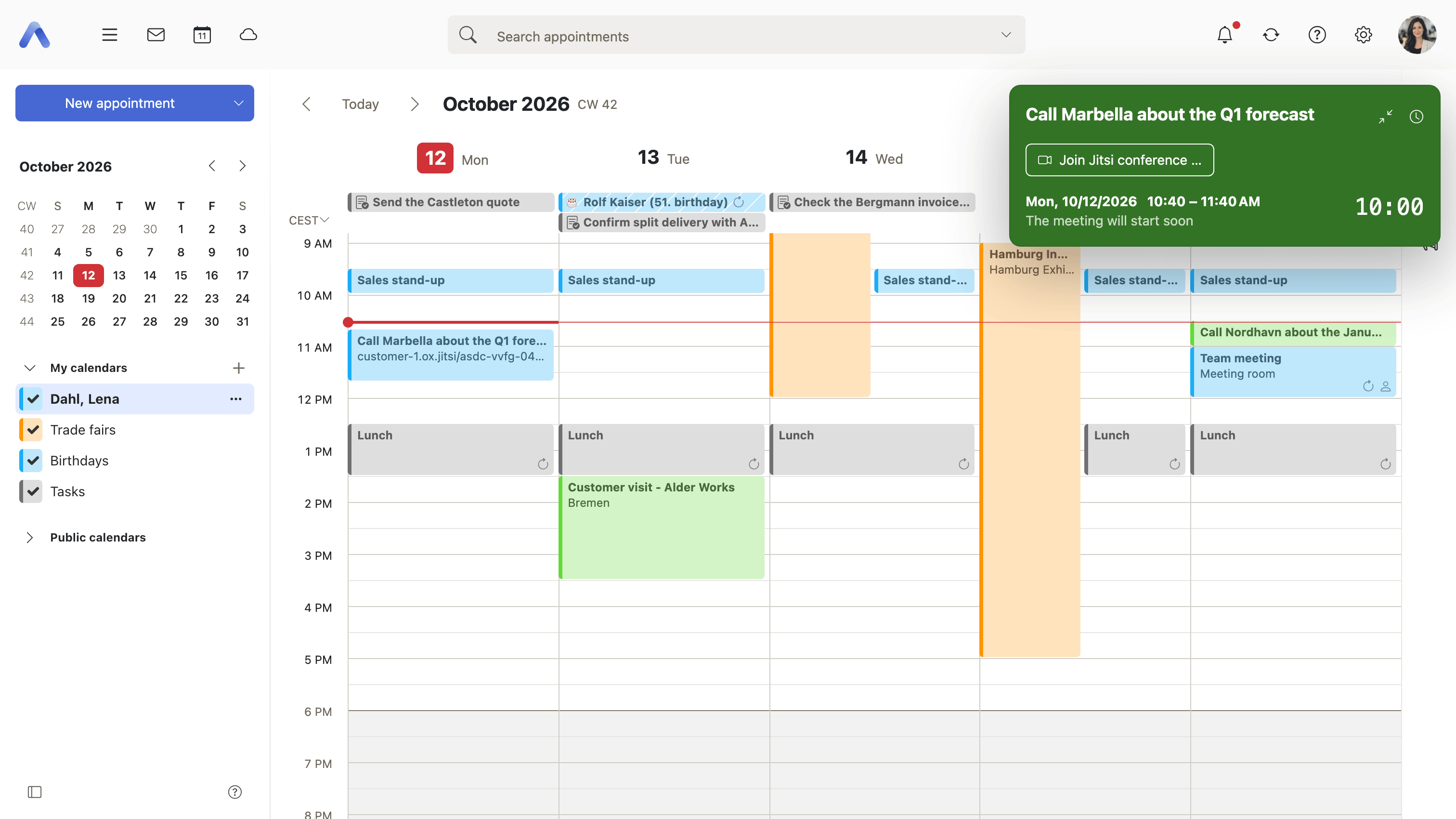
Why it matters The meeting people miss is rarely one they forgot. It is one they remembered twenty minutes earlier, went back to what they were doing, and surfaced from four minutes late — and every one of those costs a dozen other people the start of their meeting. A notification is a single moment that can be missed; a countdown stays on screen and gets more insistent, which is why it earns its place for the kind of day that is back-to-back. It stays a personal choice, because a window that refuses to go away is exactly the wrong thing for somebody who did not ask for it.
Description
- The window opens a configurable number of minutes before the appointment starts
- It carries the appointment's title, time and location, and a link to join where the meeting is online
- Color and caption change as the start approaches, and a sound and a desktop notification mark the moment it begins
- It can be minimized, snoozed while the meeting is still ahead, or closed
- It can be limited to appointments with several participants or a link to an online meeting
- Several countdowns run side by side for appointments that overlap
- Each user switches it on or off for themselves
Availability Since 8.8. Requires calendar. Not on smartphones. Feature toggle countdown, on by default, with a user-level switch of the same name under Settings > Notifications > Calendar that is off until the user turns it on. The lead time and the restriction to meetings are stored as io.ox/calendar//countdown/leadTime and io.ox/calendar//countdown/meetingsOnly.
See your tasks in the calendar
Summary Tasks that have a due date show up in the calendar on the day they are due, gathered into a Tasks calendar that can be switched off like any other. Selecting one opens its details.
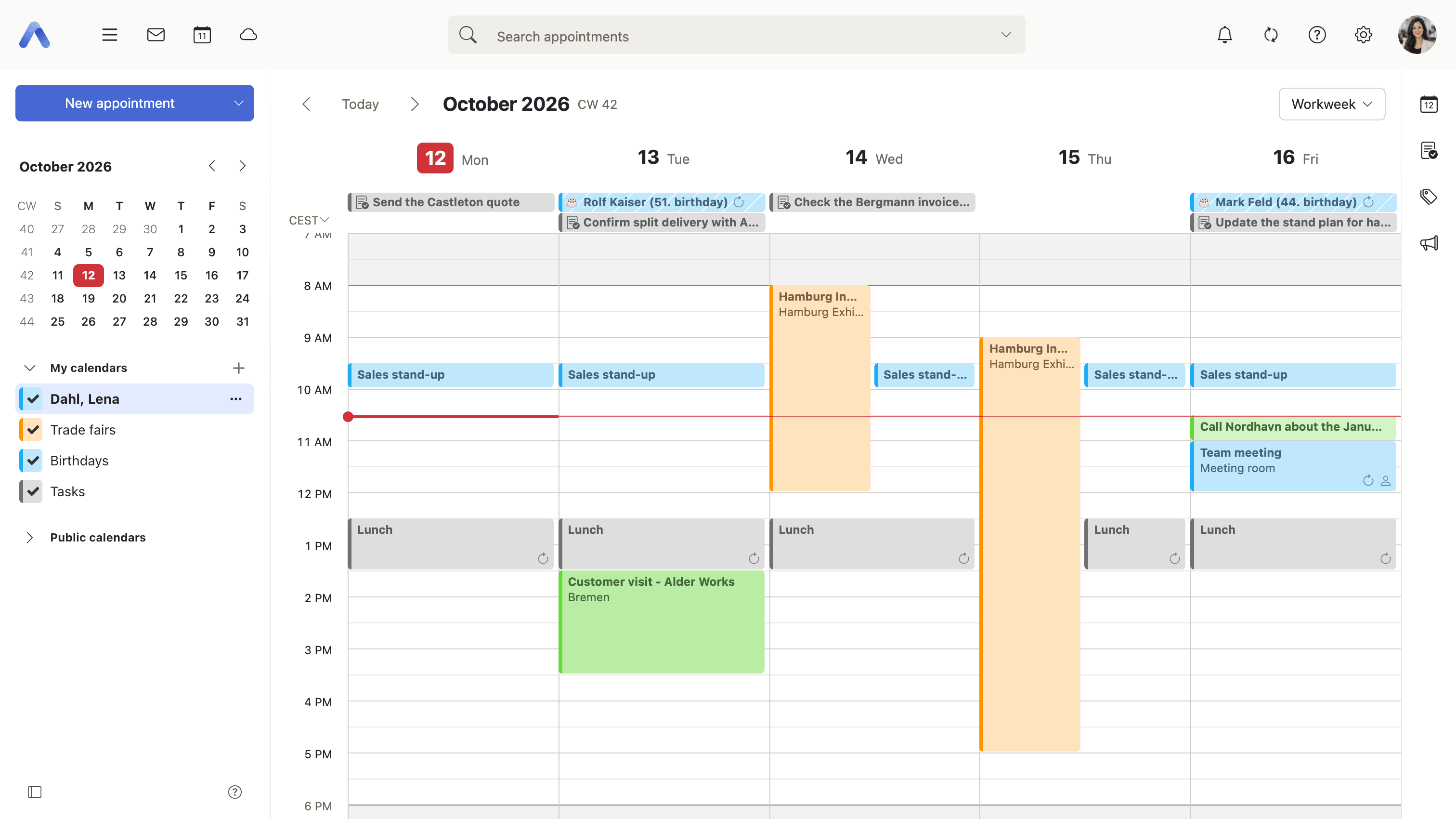
Why it matters A deadline and a meeting consume the same afternoon, but they normally live in two different applications, so the calendar reads as emptier than the day really is — and a task due at five is agreed away in a meeting booked at four. Putting both into one grid is the only place the collision is visible before it happens. Everything else about tasks — creating them, completing them, handing them to somebody else — stays in the Tasks app.
Description
- A Tasks calendar shows tasks that have a due date in the day, week and month views and in the side panel
- Selecting a task opens its details
- The calendar is switched off again from the calendar settings
Availability Since 8.51. Requires calendar together with tasks. Feature toggle showTasksInCalendar, on by default, with a user-level switch of the same name under Settings > Calendar > Advanced settings, also on by default. The Tasks app itself is covered under Tasks.
Scheduling view
Summary A timeline that puts several people, groups and resources on one shared grid and shades in the times they are already busy. It opens from the calendar's secondary menu, or out of the appointment editor through Find a free time, and a slot picked on it becomes an appointment directly.
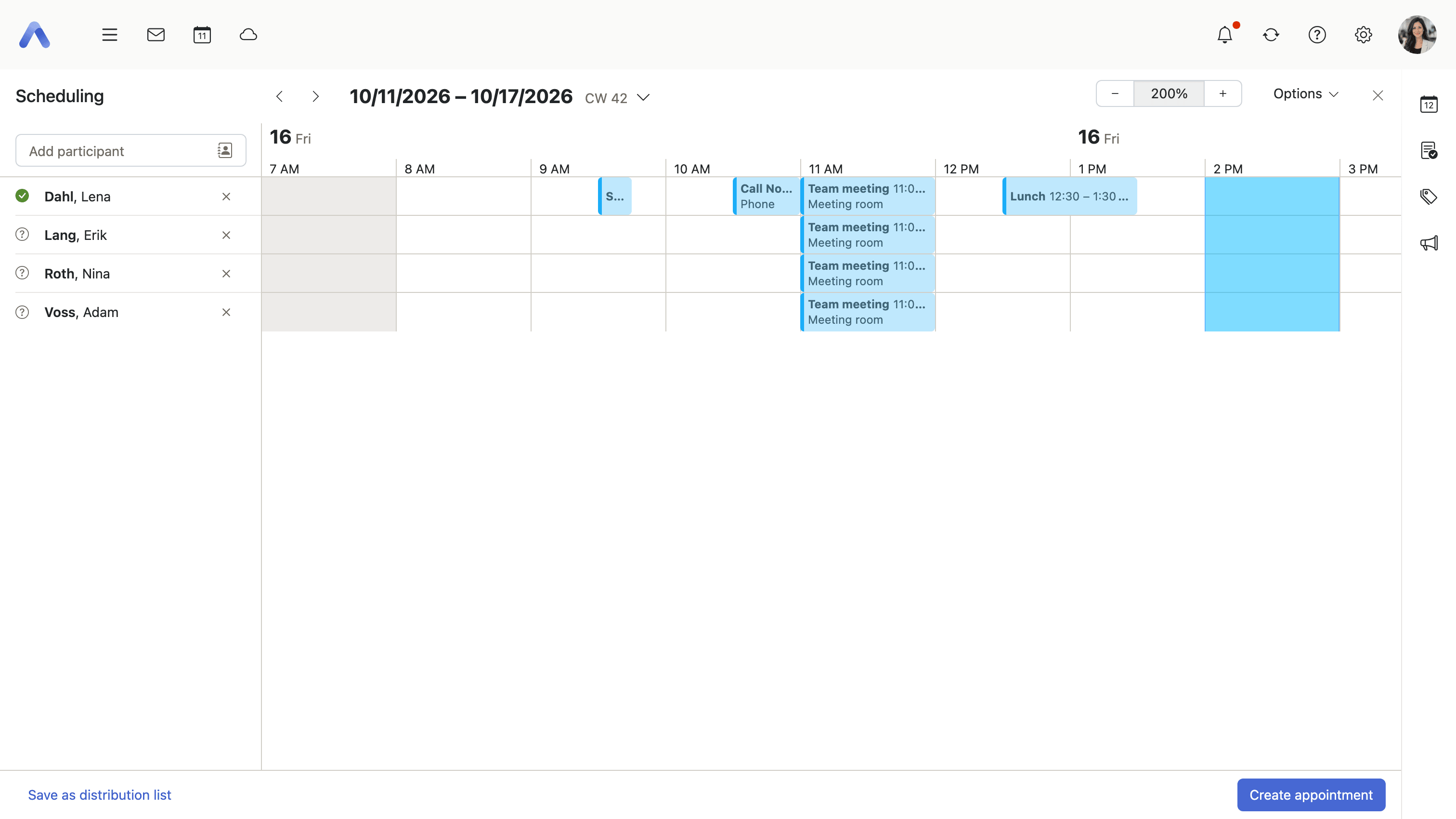
Why it matters Arranging a meeting between five people by asking each of them when they are free costs a round of email per person, and the answers are stale by the time the last one arrives — so the time finally chosen is the one nobody objected to loudly enough. Reading the busy blocks off one timeline turns that into a few seconds, and it works the same way for a room or a piece of equipment. Nothing of what those people are doing is revealed, only that the time is taken, which is what makes it acceptable to look in the first place.
Description
- Opens from the calendar's secondary menu, or from the appointment editor through Find a free time
- Add people, groups and resources, and see their free and busy times on one shared timeline
- Zoom in and out, switch the range between a week and a month, hide non-working time, and filter by appointment type
- Select a slot on the timeline and create the appointment from it
- The people gathered for one lookup can be saved as a distribution list
Availability Since 7.10.6 or earlier. Requires freebusy; not available to guest users, nor to accounts that have nobody to compare against (alone). Not on smartphones. Zoom level, range and filters are remembered under io.ox/calendar//scheduling. Booking the rooms and equipment that appear on the timeline is described under Rooms and resources.
Working time and workweek
Summary The hours that count as the working day, the day the workweek starts on and how many days it runs, and how finely the grid is divided. These few numbers are what the day, workweek and week views are drawn from.
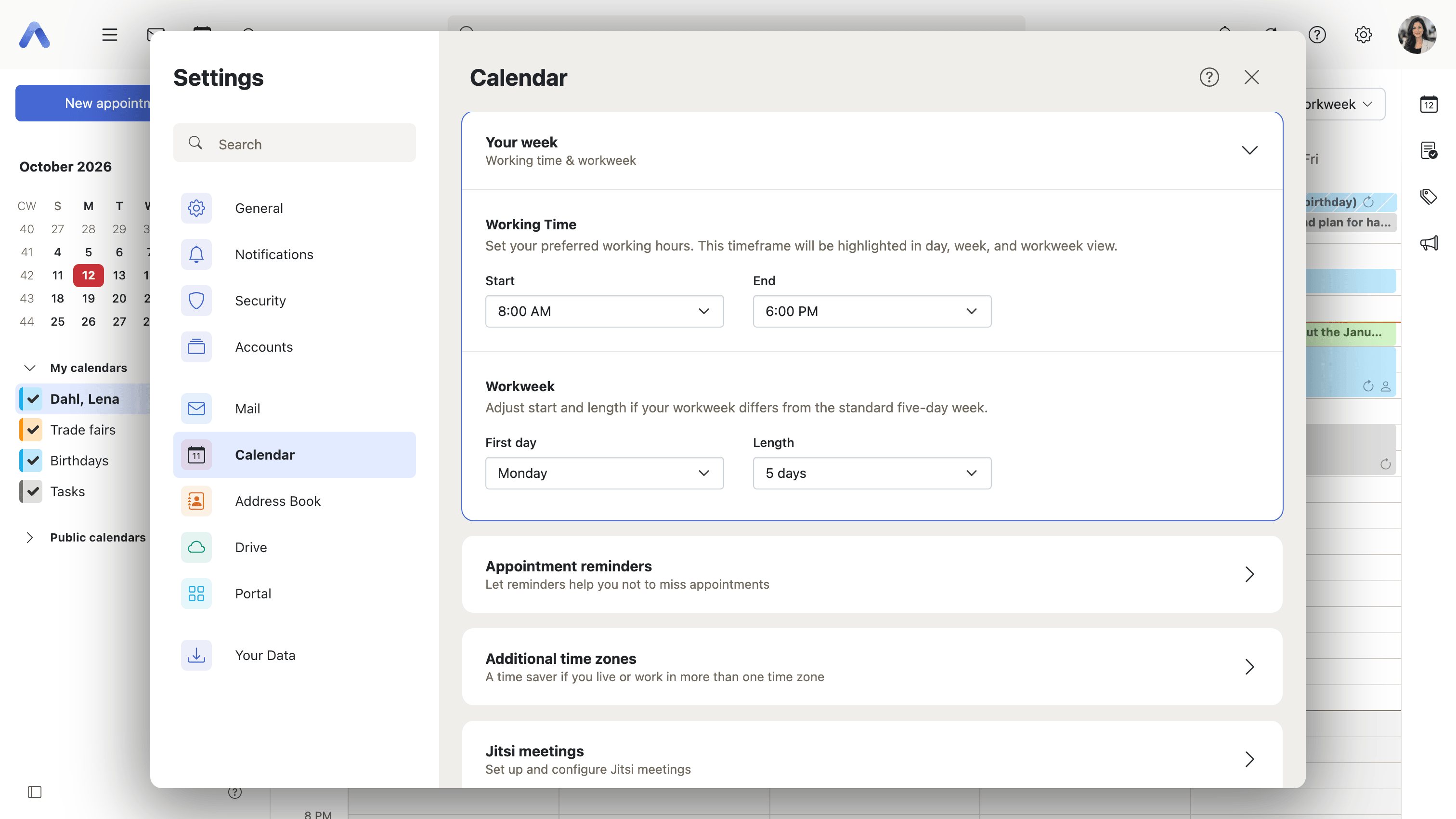
Why it matters A calendar that assumes Monday to Friday, nine to five, is wrong for a large share of the people using it: shift work, a four-day week, a week that runs Sunday to Thursday, a region whose weekend falls elsewhere. Where the assumption is wrong the highlighting works against the reader — the hours they actually work are the dim ones — and part of the week they care about sits outside the workweek view altogether. The time scale is the same argument at a different zoom: a day of fifteen-minute slots and a day of two meetings do not want the same grid.
Description
- Set the start and the end of the working day; those hours are highlighted in day, workweek and week view
- Set the first day of the workweek and how many days it runs
- Set the time scale, which acts as the zoom level of the grid
Availability Since 8.36. Requires calendar. Under Settings > Calendar > Your week, stored as io.ox/calendar//startTime, endTime, workweekStart, numDaysWorkweek and interval.
Show or hide declined appointments
Summary One checkbox, deciding whether appointments the user has declined still appear in their calendar or disappear from it.
Why it matters Declining a meeting is not the same as forgetting it. Someone who turned down a workshop may still want to know it is running, because half the team will be unreachable; someone who declined a recurring call wants that hour back as clean, bookable time. The two wants are genuinely opposite, and whichever behavior is chosen as the default will be wrong for the other half — so it is left as a choice rather than a decision.
Description
- A single checkbox, Show declined appointments, in the calendar's advanced settings
Availability Since 8.36. Requires calendar. Stored in io.ox/calendar//showDeclinedAppointments, under Settings > Calendar > Advanced settings.
Additional time zones
Summary Extra columns of hours drawn beside the time scale in day, workweek and week view, each labeled with a time zone the user picked. Favorite zones are kept as a list in the calendar settings, and any of them can be switched into the view.
Why it matters Working across regions means doing the same arithmetic several times a day, and doing it from memory is how an invitation ends up at seven in the morning for half its recipients. Daylight saving makes it worse, because the offset someone memorized stops being true twice a year without announcing itself. A second column of hours next to the grid turns the conversion into reading rather than calculating, and that is also where a mistake of a whole day gets caught.
Description
- Keep a list of favorite time zones in the calendar settings
- Choose which of them are drawn next to the time scale in day, workweek and week view
- A single appointment can be given an explicit time zone for its start and its end, separate from the user's own
Availability Since 7.10.6 or earlier. Requires calendar. Not on smartphones. The list of favorites is io.ox/calendar//favoriteTimezones, and the zones drawn in the view are io.ox/calendar//renderTimezones.
Default reminders
Summary What reminder a new appointment carries when nobody chooses one, set separately for appointments with a time, for all-day appointments and for birthdays. An individual calendar can carry its own defaults, and the reminders on one appointment can be changed without opening the editor.
Why it matters A reminder only helps if it is there, and the moment it would have to be set is the moment the user is busy typing a title and chasing a free room. Left to be added by hand it gets added to the appointments that were already going to be remembered. A default makes the ordinary case free and leaves the user to intervene only where the ordinary case is wrong — which is why all-day entries and birthdays get their own setting: a fifteen-minute warning is useless for something that needs a day's notice.
Description
- Separate defaults for appointments with a time, for all-day appointments, and for birthdays
- A single calendar can be given its own default reminders from its context menu
- The reminders of one appointment are changed from its context menu, without opening the full editor
Availability Since 7.10.6 or earlier. Requires calendar. Under Settings > Calendar > Appointment reminders, stored as io.ox/calendar//chronos/defaultAlarmDateTime, io.ox/calendar//chronos/defaultAlarmDate and io.ox/calendar//birthdays/defaultAlarmDate.
Appointment reminders in the notification area
Summary When a reminder falls due it appears in the notification area, alongside invitations that are still waiting for an answer, with a sound and a desktop notification. A reminder can be put off again with Remind me again, and an invitation can be answered from the notification itself.
Why it matters A reminder that only exists inside the calendar reaches nobody who is not currently looking at the calendar — which, for most of the working day, is everybody. Surfacing it in the notification area means the alert arrives in the inbox, in Drive, anywhere the user happens to be. Being able to put it off is half the feature: "not now" is the honest answer to most reminders, and one that cannot be deferred is one people learn to dismiss unread.
Description
- Due reminders are listed in the notification area under Reminders, invitations under Invitations
- A reminder plays a sound and raises a desktop notification
- Remind me again defers a reminder for a chosen period
- An invitation is answered from the notification, without opening the appointment
- Reminders for appointments that have already passed can be kept or suppressed
Availability Since 7.10.6 or earlier. Requires calendar. Whether reminders for past appointments appear is io.ox/calendar//showPastReminders, under Settings > Notifications > Notification area. The notification area itself is described under Notifications and What's New.