Appointments
What goes into a single appointment and what the appointment carries with it: the everyday work of creating one, changing it and getting rid of it, the rule that decides how often it comes back, and the properties — color, categories, attached files, visibility, editing rights — that decide how it looks in the grid, who is allowed to change it, and how much of what it says other people get to read.
Everyday appointment actions
Summary Creating an appointment, changing it, deleting it, and moving through the calendar to find it again. The editor holds a title, a time, the calendar the appointment belongs to, a location, a description and the participants. The same appointment can also be changed without opening anything, by dragging it to another slot or pulling its edge to make it longer.
Why it matters Most calendar work is a handful of actions repeated all day, and the cost of each one is paid hundreds of times a year. Dragging an appointment half an hour later instead of opening a form, or unticking a calendar instead of deleting it, is the difference between a calendar people keep accurate and one that quietly drifts out of date. Drawing several calendars at once matters for the same reason: a user who has to switch calendars to see their own week will eventually stop looking.
Description
- Create an appointment opens an editor with a title, time, calendar, location, description and participants
- An appointment is edited in the same editor, or by dragging it to a new slot and pulling its edge to change how long it lasts
- Deleting removes one appointment or a whole series, with a confirmation step
- The view steps forward and back, jumps to Today, or follows a date picked in the mini calendar
- Calendars themselves are created, renamed, colored, shared and deleted from the folder list
- Checkboxes in the folder list decide which calendars are drawn in the current view
- An appointment can be marked as all-day, so that it lasts whole days rather than a time range
- Create follow-up appointment copies an existing appointment into a new one, proposed for a later date
- Where a user has more than one address, the one that appears as the organizer on invitation emails can be chosen
Availability Since 7.10.6 or earlier. The color new calendars start with comes from io.ox/calendar//defaultFolderColor, and the address last picked as organizer is remembered in io.ox/calendar//chronos/preferredAddress.
Recurring appointments
Summary Repeats one appointment on a rule instead of entering it again and again: daily, on workdays only, weekly, monthly or yearly, at an interval of every so many days or weeks, on chosen weekdays, and ending never, after a number of occurrences, or on a particular date. The rule is built in its own dialog and then summarized in a line in the editor.
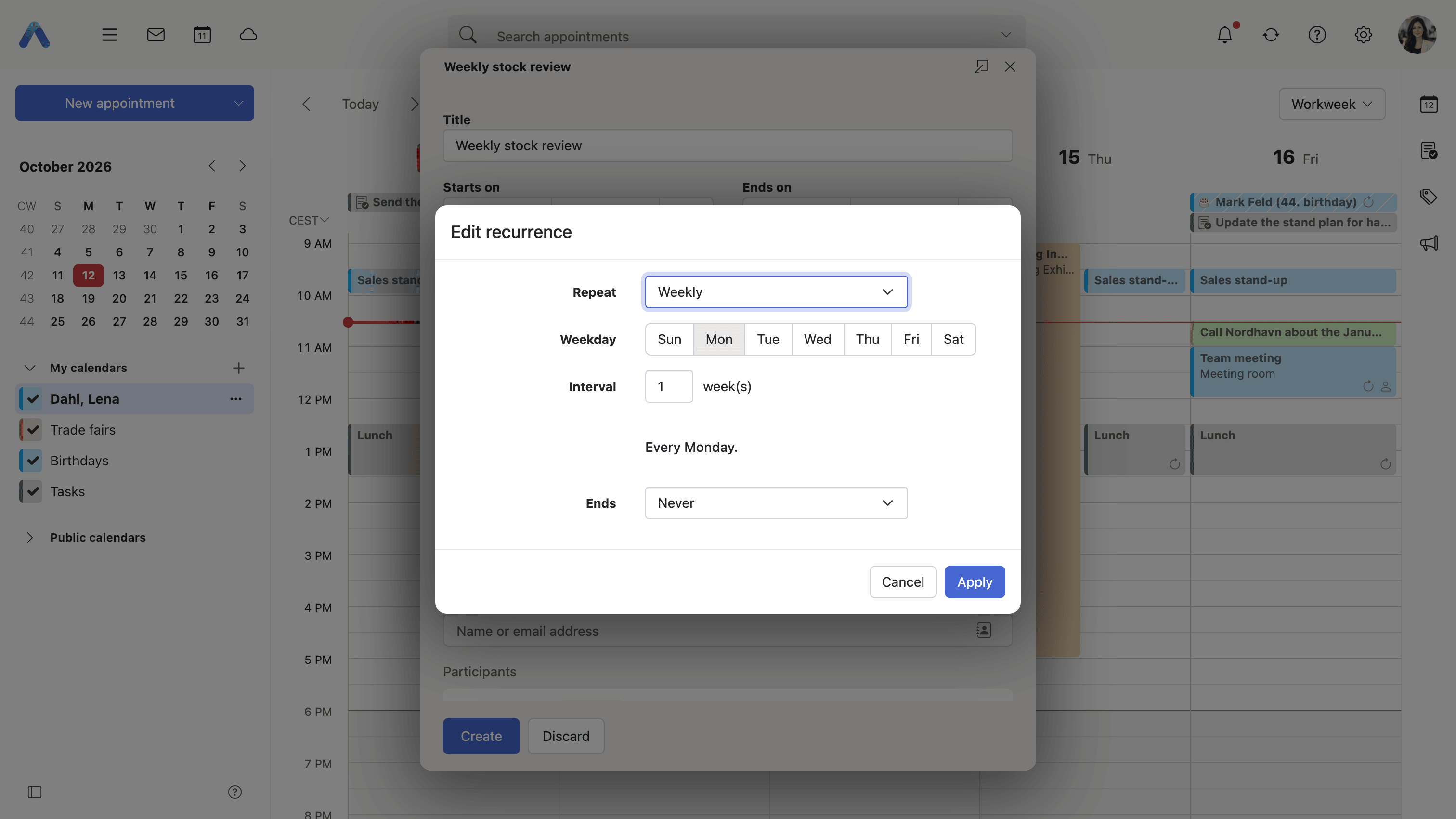
Why it matters A weekly meeting entered by hand is fifty appointments a year, and it is the fiftieth where the mistakes live. The harder half is what happens afterwards, because real series are never clean: one week the meeting moves an hour, another week it is canceled, and from some point onward it is in a different room. A calendar that can only change the whole series leaves the user choosing between an entry that is wrong and rebuilding the series by hand, so being able to change this one occurrence, this and all future ones, or all of them is what keeps a series usable past its first exception.
Description
- Repeat Daily, Daily on workdays, Weekly, Monthly or Yearly, with an interval of every so many days, weeks, months or years
- Weekly rules pick the weekdays; monthly and yearly rules repeat either by date or by weekday
- Ends is Never, after a number of occurrences, or on a specific date
- The rule is checked against the start date — one that does not fit is corrected automatically and a notice says so, and one that still does not fit is flagged as a warning
- Editing an occurrence asks first whether to change this appointment, this and all future appointments, or the whole series; which choices are offered depends on whether the occurrence is the first one
- Deleting asks the same question, offering Delete this appointment against Delete all appointments or Delete all future appointments
- Changing a single occurrence turns it into an exception that keeps its own values from then on
- While a single occurrence is being edited, the recurrence rule and the visibility setting are not offered, because both belong to the series rather than to the occurrence
Availability Since 7.10.6 or earlier. Requires calendar.
Move an appointment to another calendar
Summary Transfers one or more appointments into a different calendar, through a folder picker that offers only the calendars the move is actually allowed into.
Why it matters Appointments land in the wrong calendar routinely — a personal entry created while a shared calendar happened to be selected, a team meeting filed under someone's own calendar. Without a move, correcting that means deleting the appointment and typing it again, which loses the participants and the answers they have already given. The picker is limited to permitted targets for the same reason: otherwise the save fails afterwards, with an error the user has no way to act on.
Description
- A folder picker offers the possible targets, with the calendars the move is not allowed into shown as unavailable
- Several appointments can be moved in one step
- Recurring appointments cannot be moved
Availability Since 7.10.6 or earlier. Requires calendar.
Appointment colors
Summary Gives one appointment its own color instead of the color of the calendar it sits in. The color is picked from a fixed palette in the editor and can be cleared again, at which point the appointment goes back to taking its calendar's color.
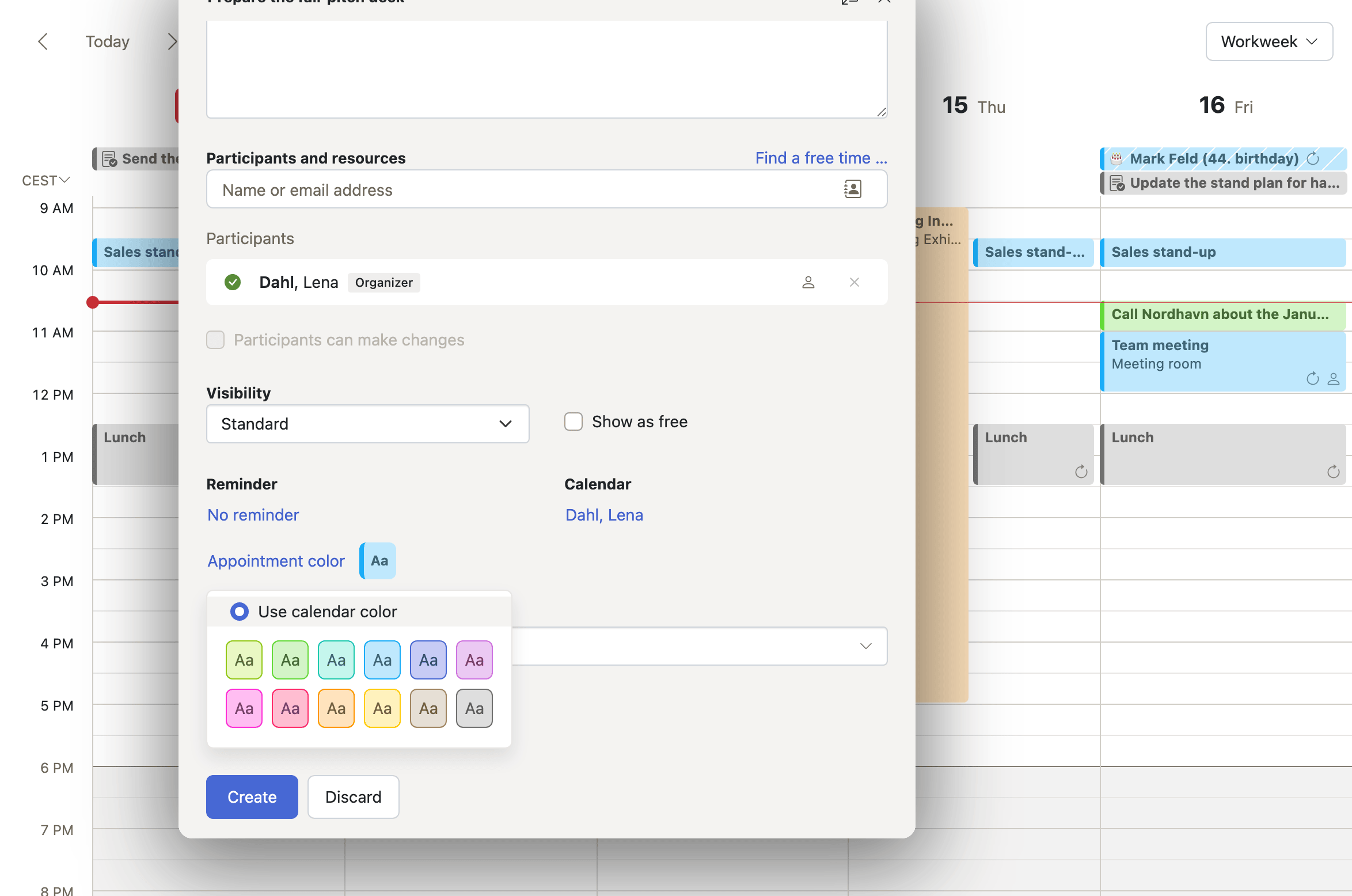
Why it matters A full week is a wall of identically colored blocks, and finding the one that matters should not require reading every title. Calendar color cannot help, because everything in the work calendar is the same color by definition. A color set on the appointment itself is what lets someone mark the two or three things in a week that are actually fixed, so that the movable ones can be seen around them. Where categories are in use, letting the category's color win keeps a week consistent without anybody recoloring appointments by hand.
Description
- Pick from a fixed palette in the editor, or clear the color so that the calendar's color applies again
- On an existing appointment, only the organizer can change the color
- Where categories are in use, a setting lets the first category's color take precedence over the appointment color, and the color picker is disabled for as long as it does
Availability Since 8.8. Requires calendar. Whether a category's color wins over the appointment's own is set in io.ox/calendar//categoryColorAppointments.
Categories on appointments
Summary Tags an appointment with the named, colored categories that are shared across the apps. Categories are set in the appointment editor or from a dropdown in the detail toolbar, shown as badges in the detail view, used to color the appointment in the grid, and searched for.
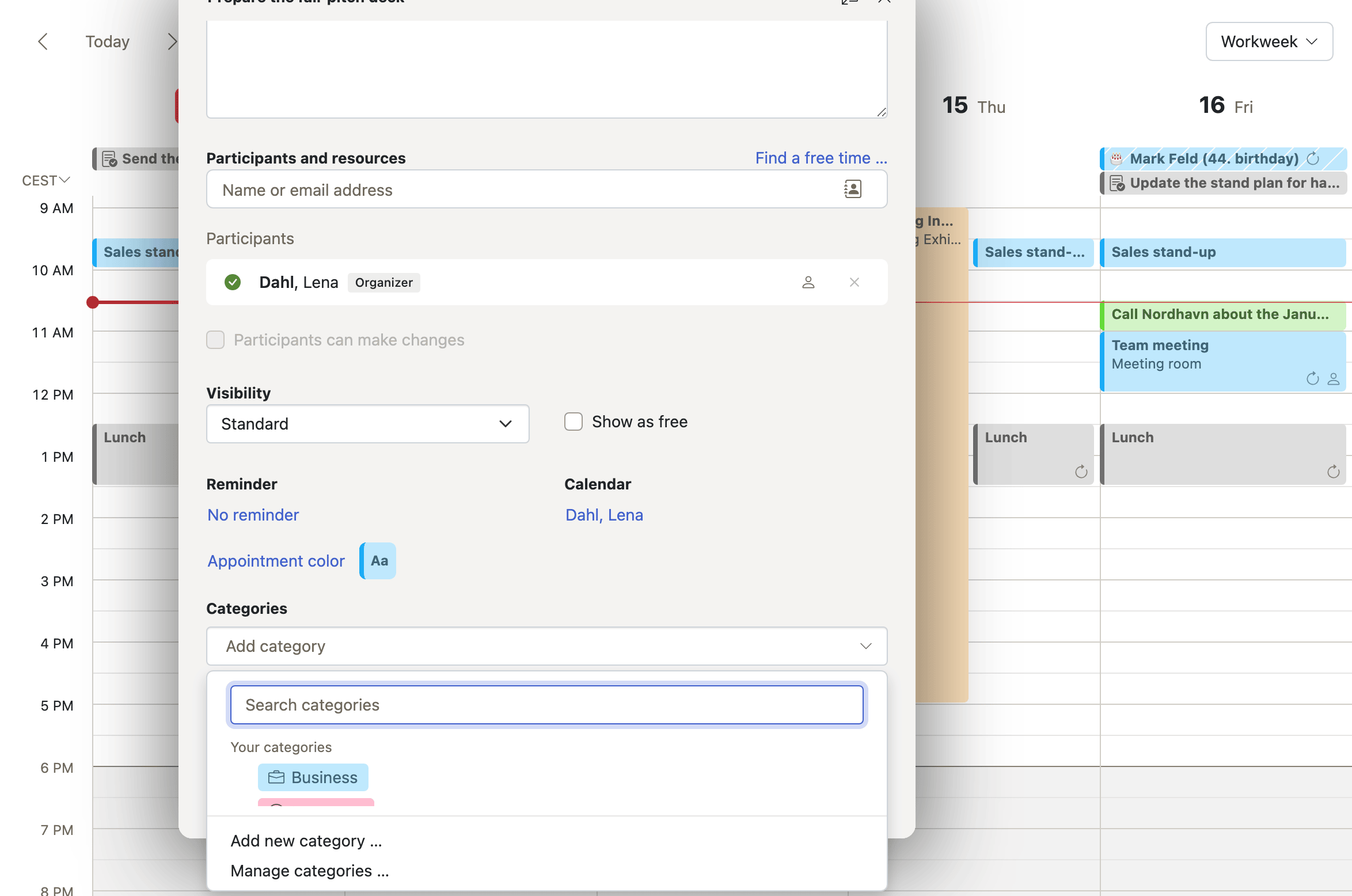
Why it matters A calendar files appointments on one axis only: the calendar they are stored in. That is the wrong axis for most of the questions people ask of their own time — how much of this month went to one customer, which of these are interviews — because the answer is spread across a personal calendar, a shared team calendar and a project calendar at once. Categories cut across all of them, and because the category list is the same one the other apps use, an appointment, a message and a task about the same thing can carry the same tag.
Description
- Set categories in the appointment editor, or from a Set categories dropdown in the detail toolbar
- Categories appear as badges in the detail view and can color the appointment in the grid
- Search filters appointments by category
- Moving an appointment to a calendar in another account drops the categories that do not apply there
- The shared category system itself is described under Working with content
Availability Since 8.20. Requires calendar and Middleware 8.19 or newer. Feature toggle categories, off by default. Whether categories color appointments is set in io.ox/calendar//categoryColorAppointments.
Attachments on appointments
Summary Files travel with the appointment rather than beside it — the agenda, the floor plan, the slides. They are added in the editor by picking files or by dropping them onto it, and anyone who can see the appointment finds them listed in its detail view.
Why it matters The alternative is a separate email sent with the invitation, and that is only correct for about a day. People are added to the meeting later, the agenda is revised, and somebody ends up searching their inbox during the meeting for a message sent three weeks ago by a person whose name they cannot remember. A file attached to the appointment is where the meeting is, found by opening the entry in the calendar, and it stays findable for anyone invited afterwards.
Description
- Upload files in the editor, or drop them onto it
- Attachments are listed in the detail view and can be downloaded one by one or all at once as a zip
- An appointment that carries attachments is flagged as such in the calendar
- Attachment handling is shared with contacts and tasks and is described under Working with content
Availability Since 8.39. Requires filestore. Feature toggle PIMAttachments, on by default.
Private and secret appointments, and free/busy status
Summary Decides how much of an appointment other people see when they look at the user's calendar, and whether it counts as busy time. Visibility is one of Standard, Private or Secret, chosen in the editor, and a separate Show as free option keeps an appointment from blocking the user's time at all.
Why it matters A calendar opened to colleagues is opened completely: the doctor's appointment, the interview, the name of the person being met. What the visibility setting buys is the ability to leave the time blocked without saying what it is for, so a colleague sees that the slot is taken and not why. Getting the choice wrong is not a cosmetic mistake — it is an entry on a shared calendar telling a whole team something personal about a colleague.
Description
- Visibility is one of Standard, Private or Secret
- Private and secret appointments carry their own icon in the grid, in the list and in the detail view
- The detail information of a private appointment is withheld from other users looking at it in a shared or public calendar
- The setting is only offered in the user's own calendars, and not while a single occurrence of a series is being edited
- Show as free keeps an appointment from blocking the user's time
- One setting makes new appointments private by default; another marks new all-day appointments as free
Availability Since 7.10.6 or earlier. Requires calendar. Being able to default new appointments to private arrived later, in 8.51: the defaults come from io.ox/calendar//markAppointmentsAsPrivate and io.ox/calendar//markFulltimeAppointmentsAsFree, both offered under Settings > Calendar.
Let participants change the appointment
Summary A Participants can make changes checkbox in the editor hands the participants of an appointment the right to edit it, which otherwise belongs to the organizer alone. Only the organizer can set it, and it can be switched on by default for new appointments.
Why it matters Without it, every correction has to be routed through one person. The organizer of a weekly team meeting becomes the only one who can move it, add the room or fix a clash — which in practice means the change waits until they are back at their desk, or the meeting goes ahead at the wrong time. Letting the people in the meeting fix the meeting removes a bottleneck that was never about authority in the first place.
Description
- Participants can make changes turns the privilege on for one appointment
- Only the organizer can change the setting
- A setting turns it on by default for new appointments, except in public calendars
Availability Since 7.10.6 or earlier. Requires calendar. The default comes from io.ox/calendar//chronos/allowAttendeeEditsByDefault, offered under Settings > Calendar.
Conflict detection
Summary Before an appointment is saved, it is checked against what is already booked. Where something overlaps, a Conflicts detected dialog lists the appointments it collides with and waits for the user to decide rather than saving quietly.
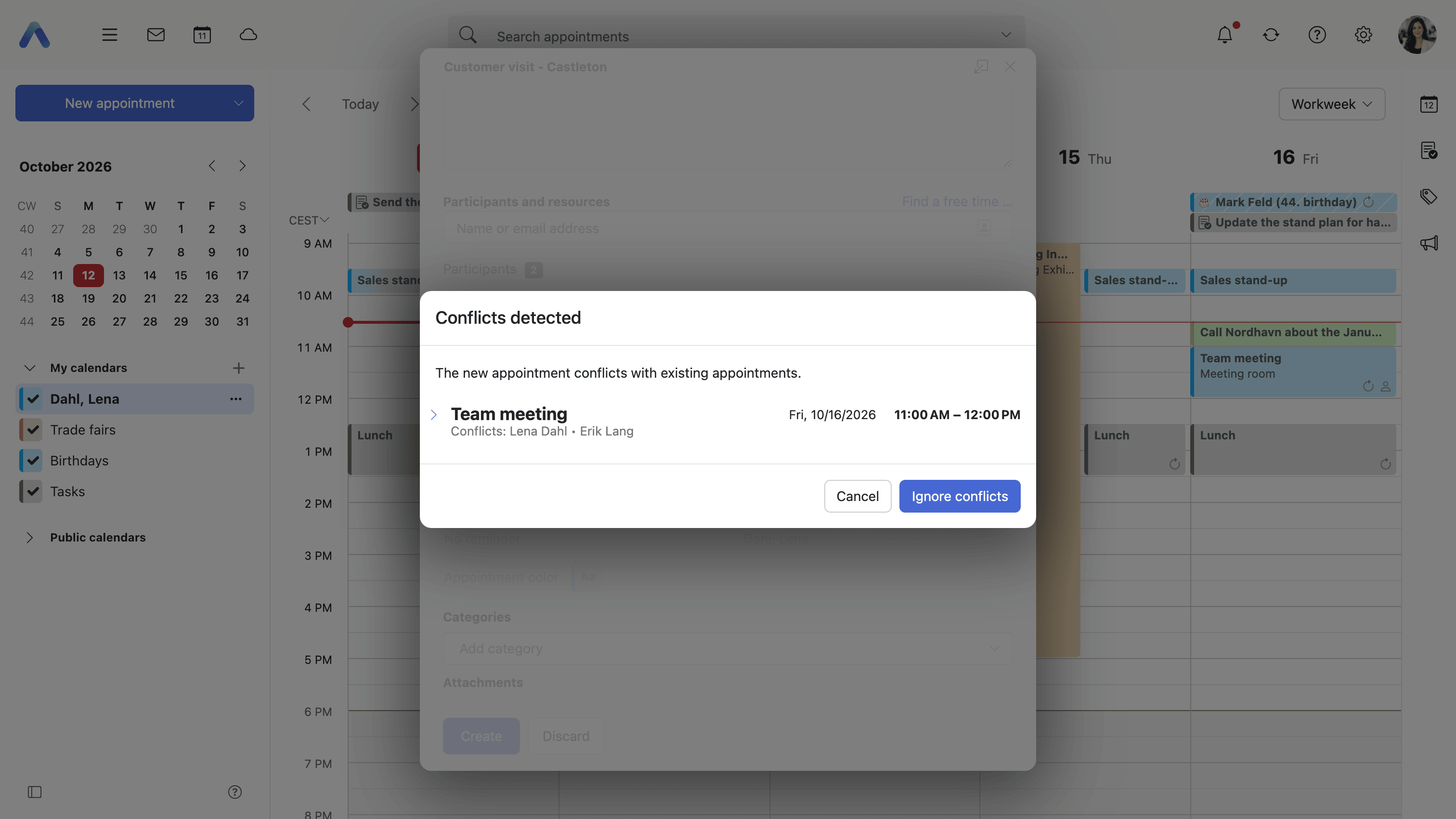
Why it matters A double booking is not noticed when it is made; it is noticed on the morning it happens, by two sets of people in two places. By then the cost is not the appointment, it is everyone's time. Checking at the moment of saving puts the information in front of the person making the decision, while the alternative slot is still free. The exception carries the same weight: an overlap a user is willing to live with can be waved through, but a room that is already booked cannot be, because a resource does not double-book.
Description
- A dialog lists the conflicting appointments with their details
- Ignore conflicts accepts the overlap and saves the appointment as it stands
- Conflicts caused by a resource are hard conflicts and cannot be ignored
- The check runs when an appointment is created or edited, and also when one is dragged to a new time in the calendar
Availability Since 7.10.6 or earlier. Requires calendar.