Accounts and automation
The mailboxes a user can reach beyond their own — additional accounts, shared team mailboxes, and addresses they are allowed to write from — together with the rules that act on mail while nobody is watching, and the two routes by which a message arrives from outside the client.
Add another email account
Summary An Add email account entry sets up a further mailbox alongside the user's own. Where the deployment offers providers, they appear as a list and the account is connected by signing in to the provider. Otherwise the user enters an address and a password and the settings are detected automatically, with a manual dialog as the fallback when detection does not succeed.
Why it matters Few people have only one email address, and the usual consequence is a second client, a second tab, or mail that goes unread for days because checking it is a separate errand. Bringing the other mailbox into this client means one place to look and one set of habits for reading, filing and answering. The deployment gets a say as well: sending through external accounts can be forbidden, so the additional mailboxes can be read without becoming a second path by which mail leaves the organization.
Description
- Automatic configuration from the address and password, with a manual fallback dialog when detection fails
- OAuth providers appear as a list where the deployment offers them
- The new account can be included in the unified inbox at creation time
- A deployment can forbid sending through external accounts; they are then read-only and their addresses are not offered as senders
- Accounts can be disabled and re-enabled, and a disabled account's address is refused as a sender
Availability Since 7.10.6 or earlier. Requires multiple_mail_accounts. Separate settings decide whether sending through external accounts is permitted and whether the unified inbox option is offered when an account is created.
Work with a shared mailbox
Enterprise
Summary A shared mailbox can be written from, not only read. Its drafts, its signatures, its Sent folder and its sending permissions are handled separately from the user's own mailbox, so working in it stays distinct from working in theirs, and what the user may do there follows the permissions they hold on it.
Why it matters An address such as support@ is answered by several people, and the usual ways of arranging that are poor ones: a second login to keep switching to, or a single password passed around the team. Treating the mailbox as an account inside the user's own session removes both. For the deployment this keeps access tied to each person's own credentials and permissions, so it can be granted and withdrawn per user, and keeping the account's signatures and Sent folder with the account keeps its correspondence together instead of scattered across whoever happened to answer.
Description
- Drafts of a shared account can be edited and sent when the user has author permission on its mail folders plus send as or send on behalf
- Signatures can be kept per shared account, including one marked as the default for all users of that account
- A setting per shared account decides whether sent copies land in the shared account's Sent folder or in the user's own
- Adding signatures to a shared account needs its writeSnippets permission; the button says why when it is missing
Availability Since 8.48. Requires shared_accounts, and is not available to guest users. Feature toggle sharedAccounts, on by default.
Send on behalf of someone else
Enterprise
Summary Addresses a user has been granted — through a deputy arrangement or through a shared account — appear in the From dropdown next to their own. The permission that comes with the address decides how the message is addressed: sent under the other address outright, or sent under it with the user's own address named as the actual sender.
Why it matters An assistant answering for a manager otherwise has to pick between two bad options: write from their own address, which leaves the recipient dealing with the wrong person, or use the manager's credentials, which is impersonation and leaves no trace of who really wrote. The distinction between send as and send on behalf lets the arrangement be stated in the message itself, so a recipient can see both names. The line under the From field means the user knows which of the two is happening before the message goes out, rather than discovering it afterwards.
Description
- Deputy addresses and shared-account addresses are added to the sender list
- With send as permission the message is sent under the other address; with only send on behalf the user's own address is put in the Sender header
- A line under the From field explains that the email will be sent by one person on behalf of another
- Without either permission the sender falls back to the user's own address
Availability Since 8.48. Requires deputy or shared_accounts. The shared-account half sits behind the sharedAccounts feature toggle.
Mail filter rules
Summary Rules the mail server applies to incoming messages. A rule is assembled from conditions — on sender, recipient, subject, a header, size or date — and actions such as filing the message in a folder, flagging it, redirecting it or discarding it. Rules are ordered, can be switched on and off individually, and can be applied to mail that has already arrived.
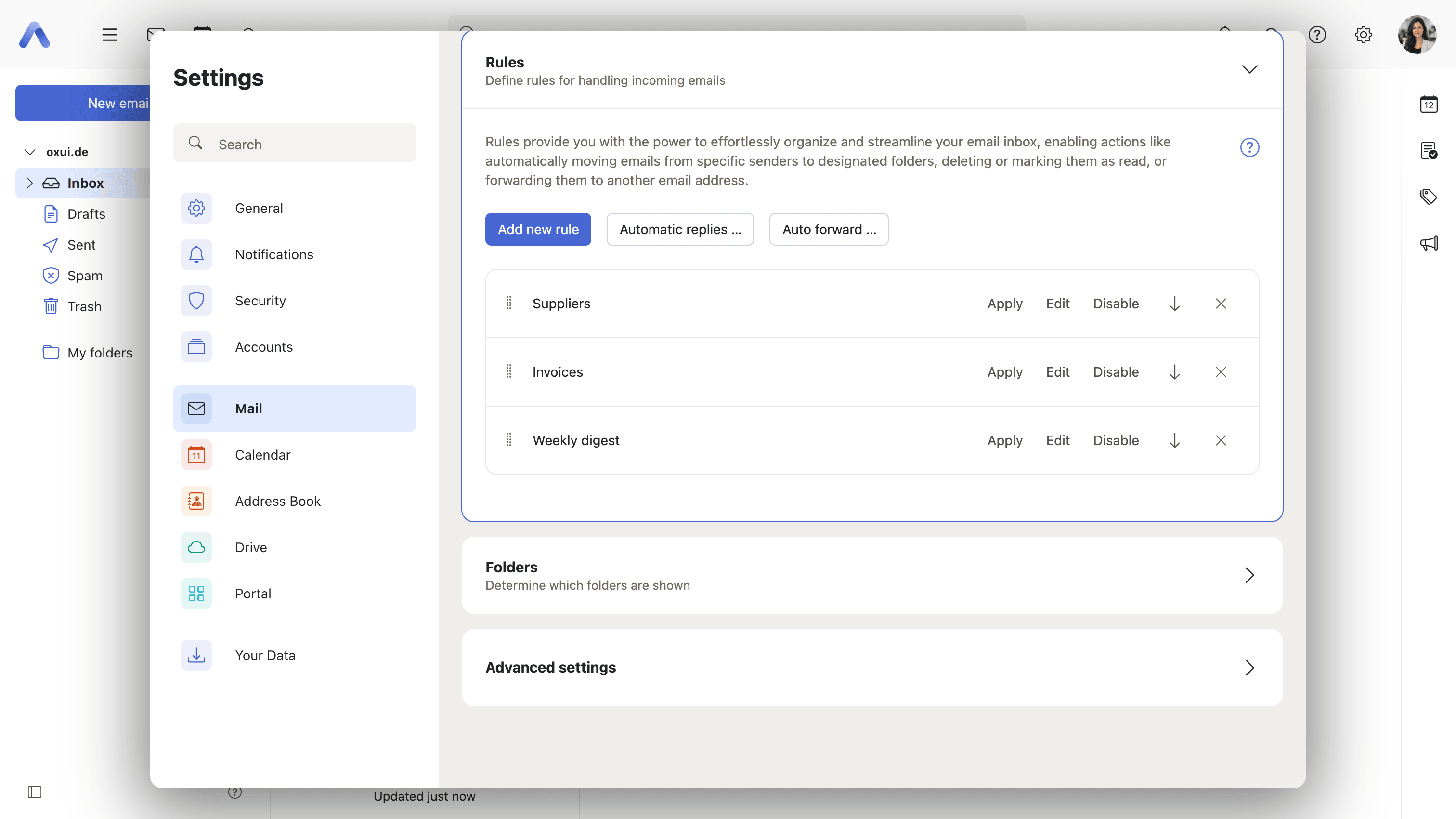
Why it matters Sorting mail by hand is work that never ends, and the part of it that follows a clear pattern — newsletters, notifications, mail from one project — is exactly the part a machine can take over. Because the rules run on the mail server, they keep working while the user is logged out and they apply to every client that reads the mailbox, not only this one, so an inbox is already in order by the time anyone opens it. Operators have a say in what is possible: the set of conditions and actions on offer comes from the mail server, and individual ones can be withheld.
Description
- Build a rule from conditions: From, To, Cc, Any recipient, Mailing list, Subject, Body, Email address, Envelope, Header, String, Size, Sent date, Current date, nested conditions, PGP signature
- Choose a comparison per condition — contains, is exactly, matches, regex, starts or ends with, exists, and their negations
- Pick actions — File into, Copy into, Redirect to, Notify, Mark email as, Add, Set or Remove IMAP keyword, Set color flag, Discard, Reject with reason, Keep, Encrypt
- Apply the rule if all, or if any, of its conditions are met
- Reorder rules by dragging, enable or disable a rule, and decide whether later rules still run
- Apply an existing rule to the mail already in a folder, where the mail server supports it
- Create a rule straight from a message, or from the move dialog
Availability Since 7.10.6 or earlier. Requires webmail and mailfilter_v2. Which conditions and actions appear is decided by the mail server, and an operator can block individual ones.
Automatic replies (vacation notice)
Summary An automatic reply to anyone who writes during a period of absence, with its own subject and message text. It can be worded differently for senders inside and outside the organization, and limited to a time frame so that it switches itself off once the end date has passed. A banner above the message list says so while it is active.
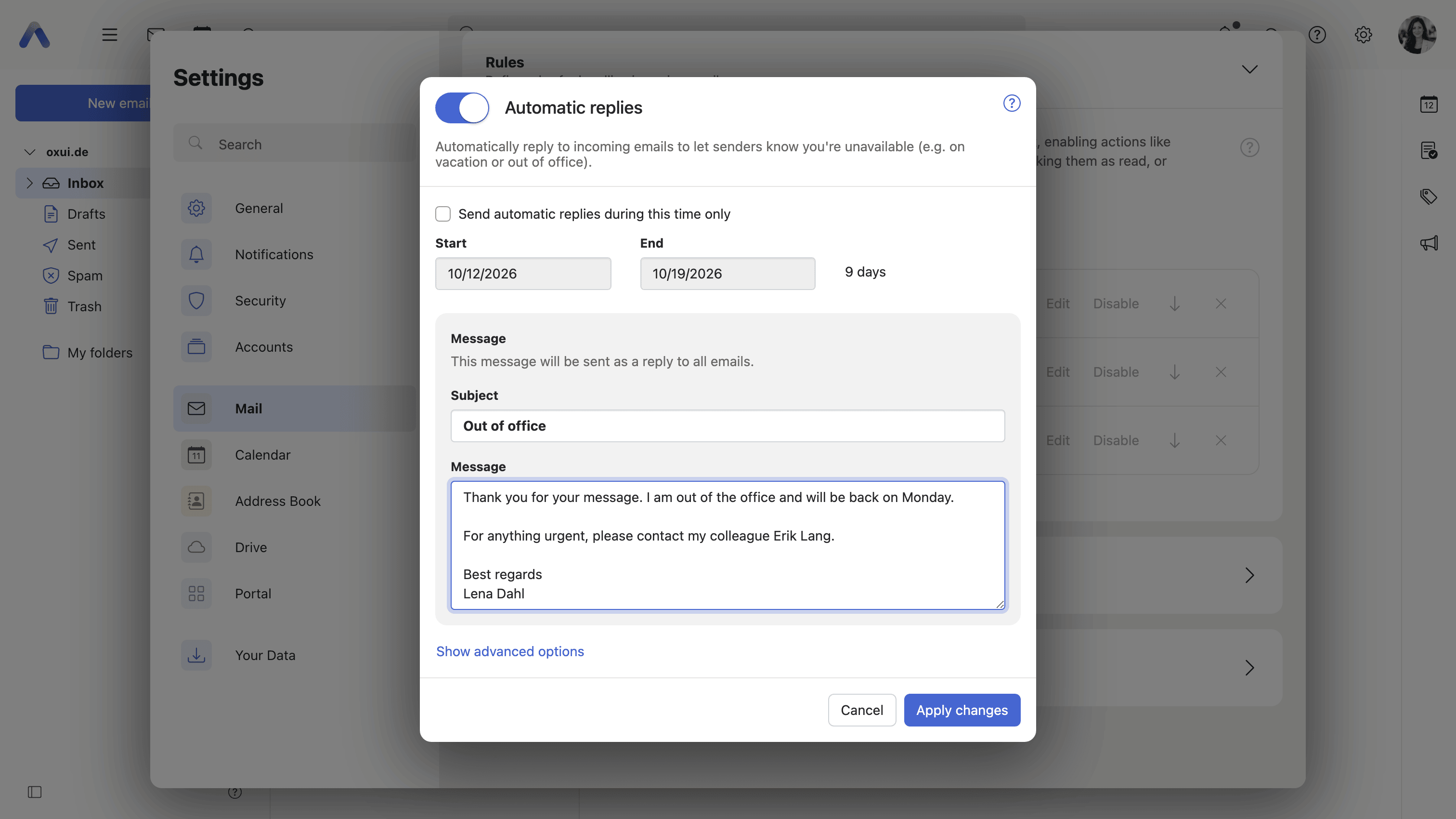
Why it matters Silence is ambiguous: a sender who gets no answer cannot tell whether the message arrived, whether it is being worked on, or whether the person is away for three weeks, so they follow up, escalate, or wait. One sentence removes all of that and points them somewhere else. The time frame and the banner address the other half of the problem — notices that stay on after the return, which is how an organization ends up telling customers it is on holiday in February.
Description
- Switch automatic replies on and off, with subject and message text
- Use the same message for everyone, different messages for internal and external senders, or reply to internal senders only
- Limit it to a time frame with a start and end date; it switches itself off once the end has passed
- Set how many days pass before the same sender gets another reply, or reply to every message
- Choose the sender address and additional recipient aliases, where the operator allows it
- A dismissible banner above the message list says automatic replies are active, and, in the days before they start, when they will start
Availability Since 7.10.6 or earlier. Requires webmail and mailfilter_v2. Whether the sender address and the additional aliases can be chosen is decided by two settings.
Auto forward
Summary Sends every incoming message on to another address. A copy can be kept in the mailbox, and whether the remaining filter rules still run afterwards is a choice. A banner above the message list says so while forwarding is active.
Why it matters People regularly end up working out of a mailbox other than the one their mail is addressed to — a role that changed, an account being wound down, a long absence covered by someone else. Without forwarding, the only options are to keep checking a mailbox nobody uses, or to miss what arrives there. The copy and the banner keep it honest: the mail stays where it was sent, and the person can see at a glance that it is leaving, which is what stops a forward set up one autumn from running unnoticed for years.
Description
- Switch auto forwarding on and off, with the target address
- Keep a copy of the forwarded message
- Decide whether later filter rules still run
- A dismissible banner above the message list says auto forwarding is active
- The mail server caps how many redirect actions exist in total, and the dialog says when the cap is reached
Availability Since 7.10.6 or earlier. Requires webmail and mailfilter_v2.