Signatures and templates
Standard text that is written once and then used again: the sign-off at the foot of a message, and the wordings a user types over and over. Both can be personal, and both can be supplied centrally for a whole organization.
Signatures
Summary Named blocks of text that are added to the message body, created and edited in mail settings with a preview of each. One signature can be set as the default for new messages and another for replies and forwards, per sending address, and the signature of the message being written can be switched from the compose options menu.
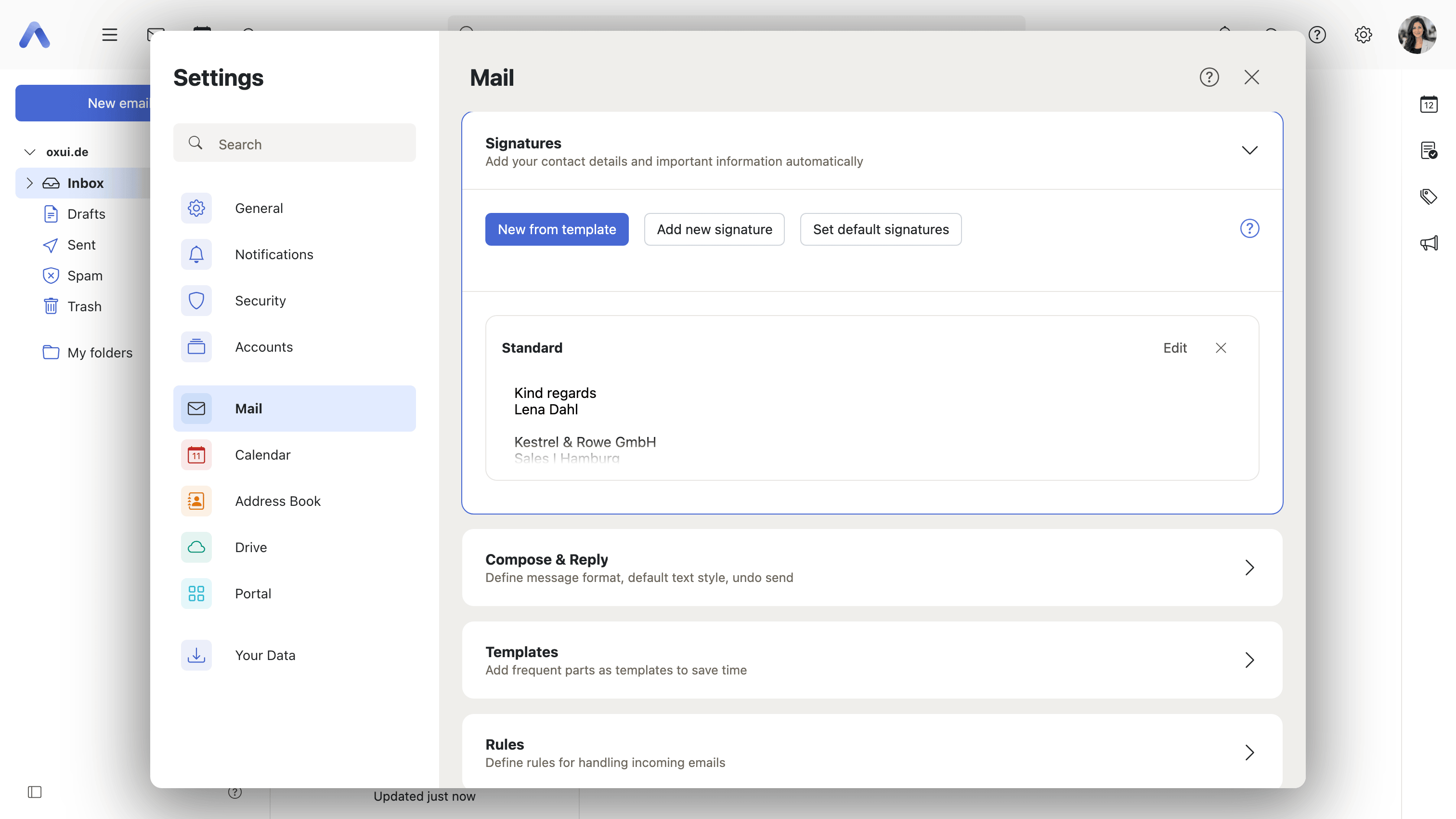
Why it matters Almost every message ends with the same few lines — name, role, phone number, and whatever a legal department requires — and typing them out again each time is tedious enough that it is the first thing people drop when they are in a hurry. Separating the reply signature from the one on a new message matters too: a full set of contact details under every turn of a long exchange is noise. Defaults per sending address cover people who write from more than one address and need each to look like itself.
Description
- Create, edit and delete signatures in mail settings, with a preview of each
- Place a signature above or below the quoted text
- Assign defaults per sending address, separately for new messages and for replies and forwards
- Switch the signature of the open message from the compose options menu; the old one is replaced in place unless it was edited
- The compose dropdown shows a limited number of signatures and links to settings for the rest
- Signatures and templates can carry
{{ }}placeholders, which are filled in when the text is inserted into a message; the editable text in settings keeps the placeholder itself. The fields are listed under Mail assets
Availability Since 7.10.6 or earlier. Requires webmail.
Administrator-provided signatures
Enterprise
Summary Signatures defined centrally appear in every user's signature list, above their own and marked Predefined. They are read-only: a user can pick one and set it as a default, but cannot change its text or delete it. The definitions are read from the mail assets directory that the deployment mounts into the container.
Why it matters A corporate signature is only corporate if everybody actually has it. Mailing round the agreed wording and asking people to paste it into their settings produces about as many variants as there are users, and the one line the legal department cares about is the line that gets dropped. Defining it once makes it appear in every mailbox, already formatted. This is also why placeholders exist: a single definition carries each user's own name, role and phone number, so one signature can serve the whole organization.
Description
- Read from the mail assets directory (default
/etc/mail-assets), mounted from a ConfigMap - Listed above the user's own signatures, in definition order, with a Predefined badge
- Users cannot edit or delete them, but can set one as their default
- They support the same
{{ }}placeholders as personal signatures - A missing or malformed file yields an empty list rather than an error
Availability Since 8.51. Not available to guest users. Feature toggle managedSignatures, off by default. The file and the placeholder fields are described under Mail assets.
Signature Designer
Summary A wizard that builds a branded HTML signature from a gallery of templates, pre-filled with the user's own contact data. It opens from a New from template button next to Add new signature and leads through template, text, links, images and a theme, showing a live preview of the result as an email.
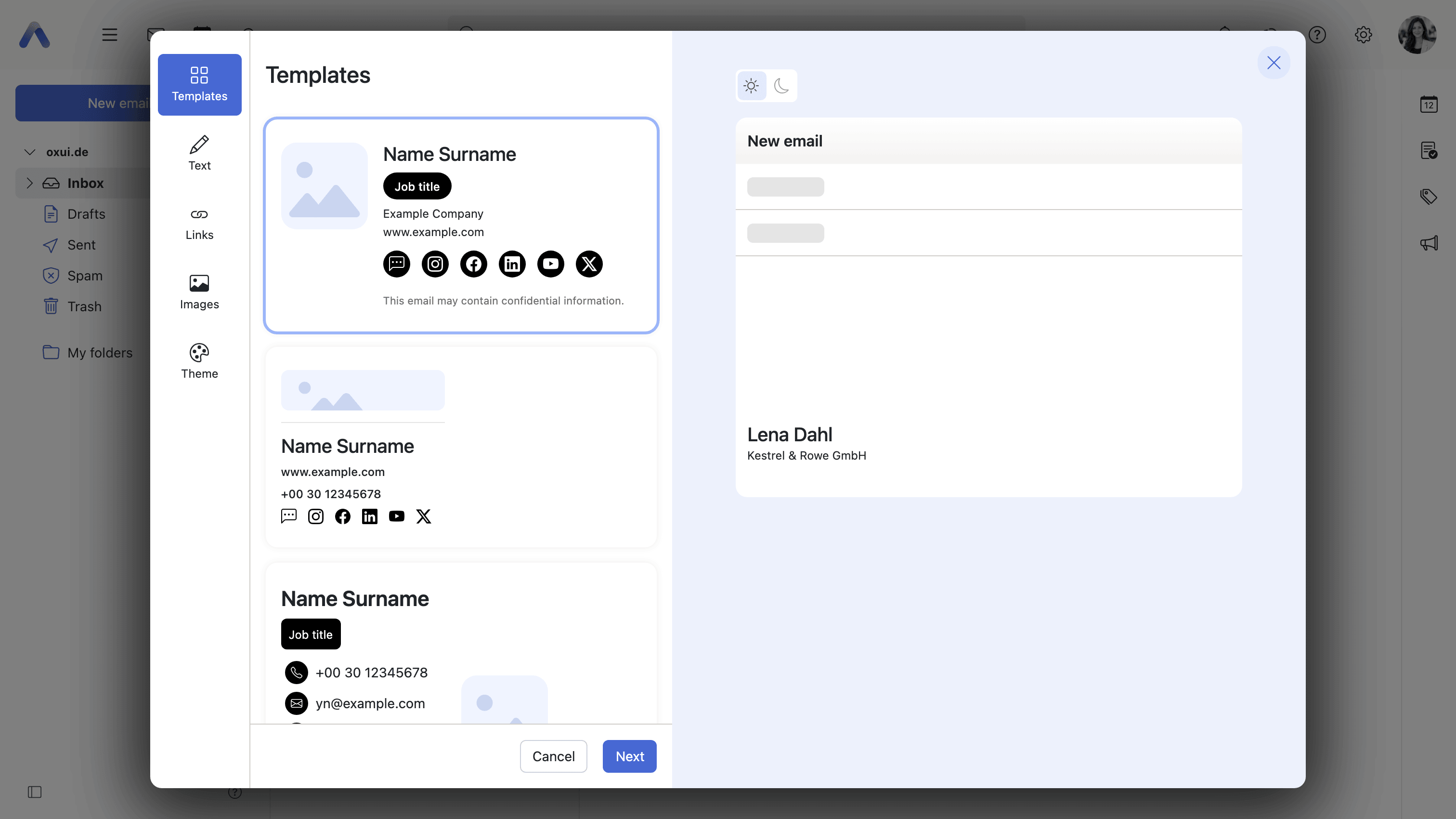
Why it matters A designed signature — a logo, the right typeface, a row of links — is a small HTML table, and the usual routes to one are poor. Pasting from a word processor produces markup that falls apart in other mail clients, and asking IT for one turns every new hire into a ticket. The wizard reduces it to a few choices. The preview is the part that earns its keep, because a signature is otherwise only ever seen once it has already been sent, and it has to survive dark mode as well as daylight.
Description
- A New from template button in the signature settings, next to Add new signature
- Steps for template, text, links, images and theme, with a live email preview that includes dark mode
- Six templates ship by default; operators can add their own HTML templates and control their visibility, order, custom fields, default values and labels
- Only personal signatures are created, so the button steps aside while a shared account is selected
Availability Since 8.41. Not available to guest users, and not on smartphones. Feature toggle signatureDesigner, off by default. It is also hidden unless io.ox/mail//snippet/maxImageLimit is 0 — a configured signature image limit takes the button away. Operator-supplied templates are described under Mail assets.
Text templates
Summary Reusable pieces of text that can be dropped into the message being written. A templates button in the compose toolbar lists them with a preview of their text, and they are created and edited in a settings section of their own.
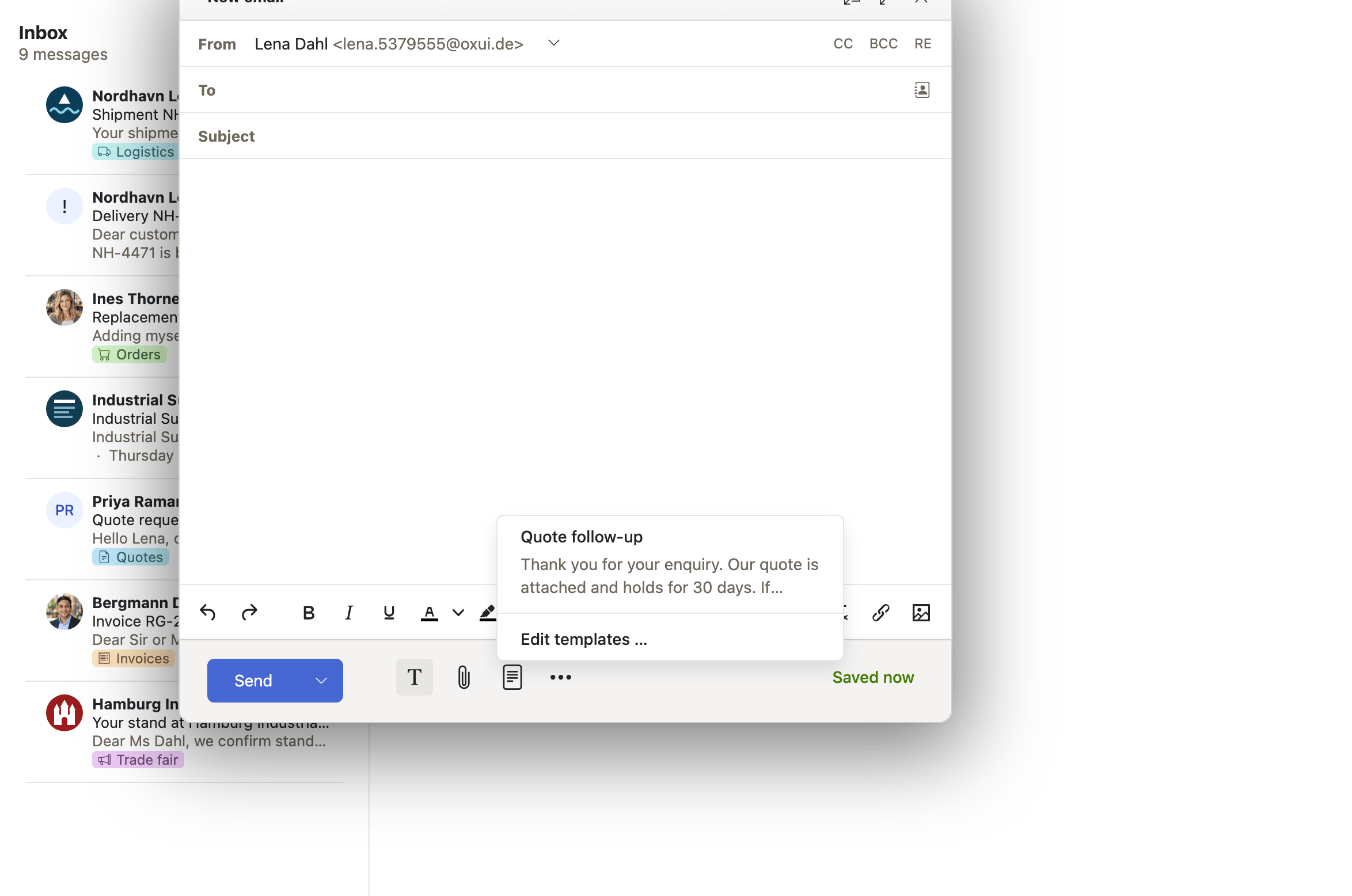
Why it matters Anyone who answers the same kind of mail all day writes the same paragraphs all day: the directions to the office, the explanation of the returns policy, the standard reply to a request that cannot be granted. Retyping them is slow, and each retelling comes out slightly different from the last. Keeping them as templates means the wording is settled once, by whoever words such things best, while inserting one still leaves the text editable for the case at hand.
Description
- A templates button in the compose toolbar lists the templates with a preview of their text
- Inserting a template renders its
{{ }}placeholders, and converts the text to plain text in plain-text mode - Create, edit and delete templates in mail settings; a link in the dropdown jumps there
Availability Since 8.15. Requires webmail. Feature toggle templates, off by default.
Administrator-provided templates
Enterprise
Summary Templates defined centrally appear in every user's template list and in the compose dropdown, above their own and marked Predefined. They are read-only, they come from the same mail assets directory as administrator-provided signatures, and their placeholders are rendered when the template is inserted.
Why it matters Organizations have wordings they would rather everybody used — how a complaint is acknowledged, what is said about data protection, the sentence legal approved last spring. Left on a wiki page, such wordings get copied once, drift, and are eventually quoted from memory. Supplying them as templates puts the approved text in the compose window at the moment it is needed, and keeps one copy of it instead of a copy in every user's own settings.
Description
- Read from the same mail assets directory as administrator-provided signatures
- Listed above the user's own templates, in definition order, with a Predefined badge
- Read-only; placeholders are rendered when the template is inserted
Availability Since 8.51. Not available to guest users. Feature toggle managedTemplates, off by default. The file is described under Mail assets.