Working with the other apps
Tasks are rarely entered as tasks. The work arrives as an email, it has to be found again weeks later, printed for a meeting, carried into or out of another program, and pushed back into the user's day by something that is not the task list. These are the places where Tasks meets Mail, the Calendar and the notification area.
Search tasks
Summary A search field that looks for words in tasks, scoped either to the current task list or to all of them, with a date range and — where categories are in use — a category filter.
Why it matters The whole point of keeping separate lists is that a user does not have to hold all of them in view, and the price of that is not knowing, months later, which list a particular task went into. A task that cannot be found again might as well not have been written down. Searching across every list answers that in one step, where the alternative is opening each list in turn and reading it. The category filter changes the kind of question that can be asked at all: not a word somebody remembers typing, but everything tagged for one customer, wherever it happens to be filed.
Description
- A Search in selector switches between Current list and All lists
- Search for words, within a date range
- A category filter with autocomplete, offered only where categories are enabled
- The search bar itself is described under Getting around
Availability Since 7.10.6 or earlier. Requires tasks.
Print tasks
Summary Prints the selected tasks.
Why it matters Paper still goes where a screen does not — a workshop, a site visit, a handover to somebody who does not have an account, a meeting where the laptops stay shut. A printed list is also the simplest way to take a list of jobs somewhere and tick them off, which is what task lists were before they were software.
Description
- Prints the selected tasks
- Not available on smartphones
- Printing across the product is described under Getting around
Availability Since 7.10.6 or earlier. Requires tasks. Not on smartphones.
Import and export tasks as iCalendar
Summary Reads tasks out of an .ics or .ical file into a task list, and writes a selection or a whole list back out in the same format. Import is started from the folder context menu, export from a selection or from the list itself.
Why it matters Nobody starts with an empty task list. People arrive from another program, and without an import the first day means retyping everything that was already written down somewhere — which in practice means it is not carried over at all, and the new list is trusted less than the old one for months. Export answers the other direction and a different worry: a backup is worth taking only if another task or calendar program can read the file, and that same file is the difference between being able to leave and not. Together they are why the data feels like the user's.
Description
- Import is started from the folder context menu, and can be told to ignore items that already exist
- Export offers iCalendar, on a selection or on a whole task list
- The shared import and export is described under Working with content
Availability Since 7.10.6 or earlier. Requires tasks.
Turn an email into a task reminder
Summary Reminder on a message opens a Remind me dialog that makes a task out of it, prefilled with the subject and the sender and given one of the same relative reminder times the task editor offers. The task's description carries a link back, so the original message is one click away.
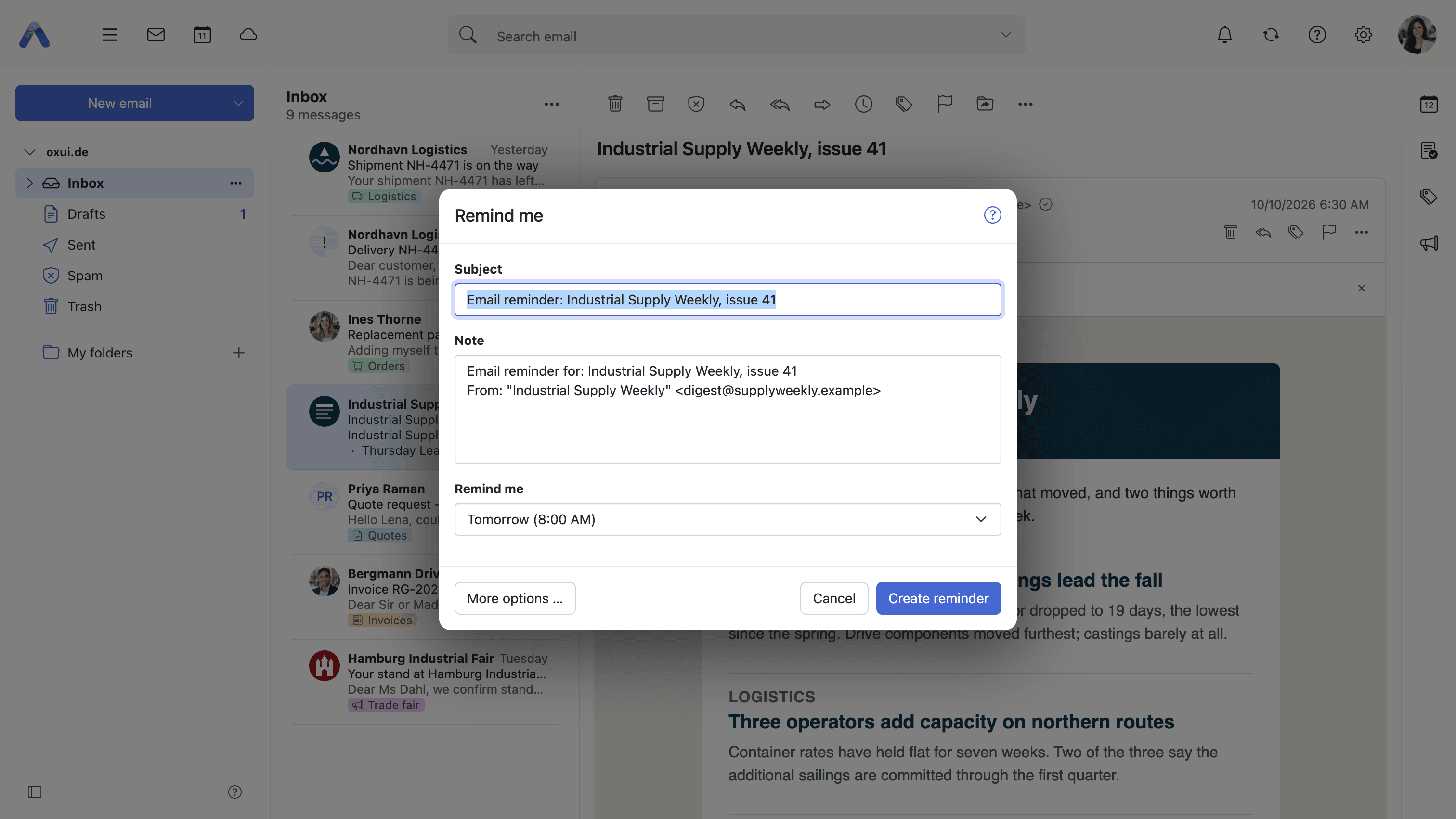
Why it matters An inbox is a poor to-do list. A message that needs work looks exactly like one that only needs reading, and the only way to keep it visible is to leave it unread or near the top, which stops working the moment the next morning's mail arrives. Turning it into a task moves the obligation to where the user already tracks work, and frees the message to be filed or archived without the work being archived with it. The link back makes that safe: the task is the obligation, the message is still the evidence, and nobody has to copy the one into the other.
Description
- Reminder on a message opens the Remind me dialog
- The subject and the sender are carried into the new task
- The same relative reminder times as the task editor, with More options to open the full task editor instead
- The created task's description carries a link that reopens the original email
- The mail side is described under Working with the other apps
Availability Since 7.10.6 or earlier. Requires tasks together with webmail. The task list the reminder is created in comes from io.ox/core//folder/tasks.
See task reminders, invitations and overdue tasks
Summary Three kinds of task entry in the notification area: a task whose reminder has come due, a task invitation waiting for an answer, and a task that is past its due date. Each can be dealt with there, without opening the app. Separate settings decide which task emails the server sends.
Why it matters A task list only works if something fetches the user back to it, and the notification area is the one place they look whatever app they are in. The overdue category is what earns it: the characteristic failure of a to-do list is not a task entered badly, it is a task sitting quietly past its date in a list nobody opened this week. Being able to answer an invitation or pushing a reminder back from the notification itself stops the area from becoming a column of things to dismiss. The email switches matter for the mirror-image reason — somebody on twenty shared tasks who is mailed about every change to every one of them stops reading any of it, and the one message that mattered goes with the rest.
Description
- Task reminder entries, with a Remind me again dropdown that reschedules the reminder
- Task invitation entries, which can be accepted, declined or marked tentative, with a comment
- Overdue task entries, listing the status and the due date
- Three switches under Settings > Notifications decide whether the server emails the user about task changes, and about participants accepting or declining
- The notification area itself is described under Notifications and What's New
Availability Since 7.10.6 or earlier. Requires tasks. The email switches are io.ox/tasks//notifyNewModifiedDeleted, io.ox/tasks//notifyAcceptedDeclinedAsCreator and io.ox/tasks//notifyAcceptedDeclinedAsParticipant.