Video meetings
How a video conference becomes part of an appointment rather than a link pasted into its description, and the two providers that can supply one — a commercial service the user connects their own account to, and a server the deployment runs itself.
Attach a video meeting to an appointment
Summary A Conference field in the appointment editor offers whichever meeting providers the deployment has set up. Pick one, and a meeting is created for this appointment; everyone who opens it afterwards finds a join button with the meeting's details in the appointment.
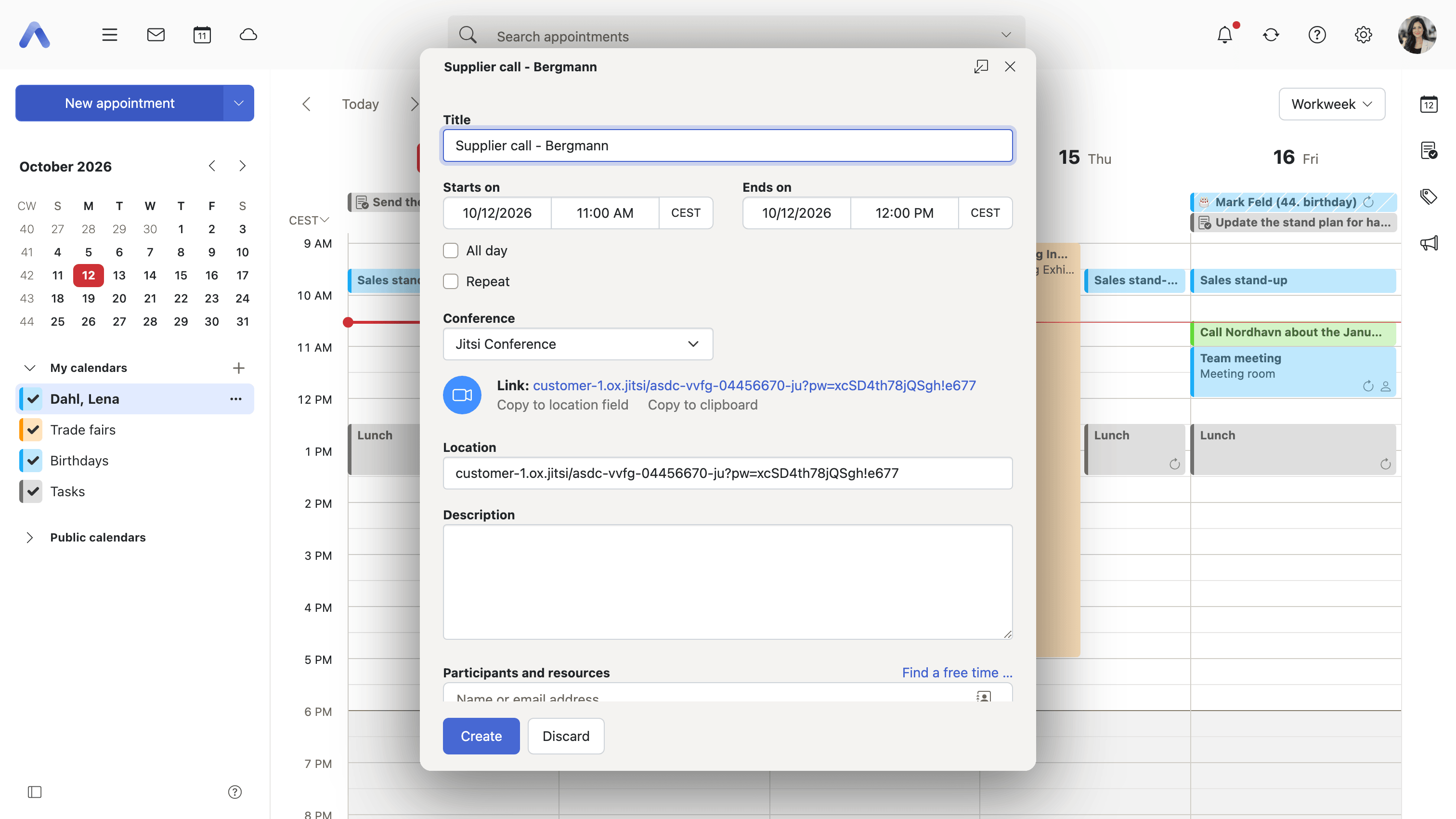
Why it matters For an online meeting, the link is the meeting. Kept as a line of description text it gets lost in the agenda, mangled by a reply, or left behind when the appointment is copied — and at five past the hour one person is sitting in an empty room while everyone else waits elsewhere. Holding the conference as part of the appointment means the link is created, carried and withdrawn together with it, and that the people invited need to find exactly one thing: the button where the location would otherwise be.
Description
- A Conference field in the appointment editor lists the providers the deployment has configured
- The detail view shows a join button with the meeting's details, above the location
- Choosing None removes the meeting again, and lets the provider clean up what it created
- Before saving, a meeting link in the location or description that differs from the scheduled conference raises a dialog offering to keep everything, remove the conflicting links, or drop the scheduled conference
Availability Since 8.0. Requires calendar. The field is only shown where the deployment has configured a provider — Zoom or Jitsi, below.
Zoom meetings
Summary Creates a Zoom meeting for an appointment from the user's own connected Zoom account. Signing in happens once, in settings; after that the meeting is created with the appointment, and its join link can be copied into the location field automatically.
Why it matters Done by hand this is the same work twice: schedule the meeting in Zoom, copy the link, paste it into the appointment, and set the time in both places. What is pasted then goes stale, because moving the appointment does not move the meeting. The case that breaks most often is the series — splitting one, or following an occurrence up with another appointment, is exactly where a hand-copied link ends up pointing at the wrong meeting. Creating the meeting from the appointment keeps one of the two authoritative and carries it through those edits.
Description
- Connect a Zoom account once in settings; the meeting is then created with the appointment
- The join link can be copied into the appointment's Location field automatically
- Splitting a series, or creating a follow-up appointment, carries the meeting over correctly
Availability Since 8.0. Requires calendar. Part of the Provider Edition. Feature toggle zoom, on by default, and the deployment must switch the integration on in io.ox/zoom//enabled. Connecting the account is described below.
Jitsi meetings
Summary Creates a meeting on the deployment's own Jitsi server. There is no account to connect and nothing to sign in to: the provider appears in the conference field as soon as a Jitsi host is configured, and picking it produces the meeting.
Why it matters Every commercial meeting service means an account per user, a contract, and a third party that learns who meets whom and when. A Jitsi server the organization runs itself answers all three at once, and for that to pay off the client side has to stay simple — nobody signs in and nobody connects anything, so there is no per-user state to go wrong or to support. It is also what makes the conference field useful at all in a deployment that has not bought into a commercial provider.
Description
- Offered in the conference field as soon as a Jitsi host is configured; no user sign-in is needed
- The join link can be copied into the appointment's Location field automatically
- The name the service is offered under is configurable, so it can match what the deployment calls it
Availability Since 8.0. Requires calendar. Feature toggle jitsi, on by default, and effective only where io.ox/jitsi//enabled is set and a host is configured.
Connect and disconnect a Zoom account
Summary The settings page where a Zoom account is linked to the product and unlinked again. It names the linked account and its personal meeting ID, with a Remove account button, and holds the per-user options for Zoom meetings and for incoming-call notifications.
Why it matters Linking an account to a third party is exactly the kind of thing people want to be able to see and undo. Someone who changes their Zoom account, or leaves the team that needed one, otherwise keeps creating meetings against an account nobody watches, with a support ticket as the only way out. The page is also what answers the other common question — why there is no Zoom option in the appointment editor — because it states plainly when the integration service cannot be reached, instead of silently offering nothing.
Description
- Connect with Zoom runs an OAuth handshake against the Zoom integration service, offered both from settings and from the appointment editor
- The linked account is shown with its name, address and personal meeting ID, and a Remove account button
- Calendar options: always add a random meeting password, copy the join link to the appointment's location, copy comprehensive dial-in information to the description
- Notification options: desktop notifications and a ringtone for incoming calls
- A link out to the Zoom profile, where the list of dial-in countries is edited
- A warning states plainly when the Zoom integration service is unavailable
Availability Since 8.15. Part of the Provider Edition. Feature toggle zoom, on by default. Requires switchboard with the Zoom integration service. Connecting third-party accounts in general is described under Onboarding and devices.