People and invitations
What happens once an appointment stops being one person's note to self: inviting the people it concerns, the answers that come back, the emails that carry both in and out of calendars that are not this one, and how much of a working day everybody else is allowed to see.
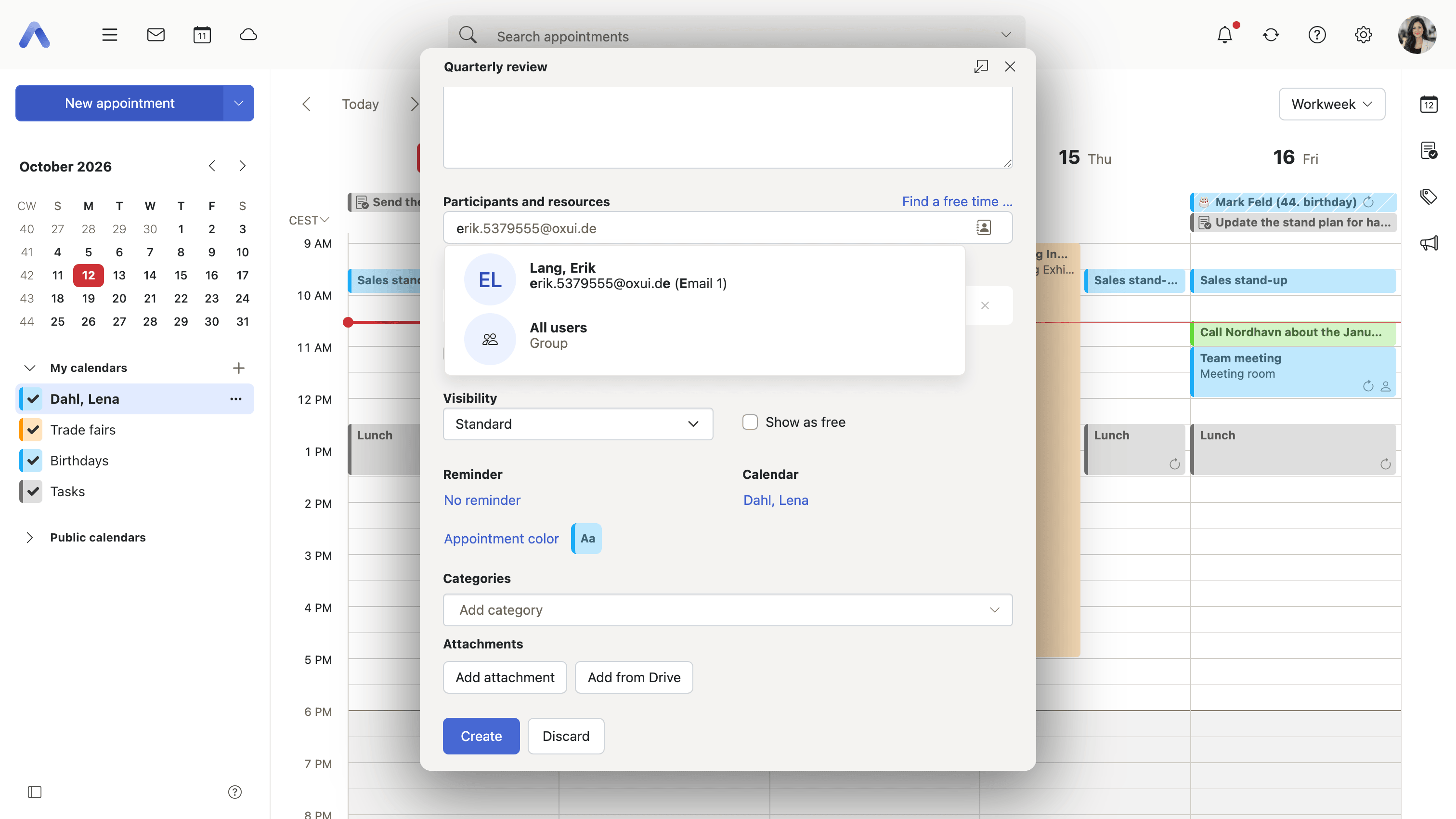
Invite people, groups and resources
Summary Adds the other people to an appointment — colleagues inside the organization, plain email addresses outside it, groups that resolve into their members, and bookable resources such as meeting rooms. Each one can be marked required or optional, and from then on the participant list shows what every one of them has answered.
Why it matters An appointment with participants is a different object from an appointment without them: it exists in everybody's calendar, it follows the organizer when the time moves, and it can be reasoned about when somebody looks for a free hour. The alternative is a date agreed in a mail thread, which nobody's calendar knows about and which quietly stops matching reality the first time it is rescheduled. The blocklist matters for a smaller but costly accident: a large mailing list added as a participant sends an invitation to everyone on it.
Description
- Type a name or an email address, or pick from the address book; a group is resolved into its members
- Internal users, external addresses, groups and resources all go into the same Participants and resources field
- A participant can be marked optional rather than required, and is labeled Optional in the detail view
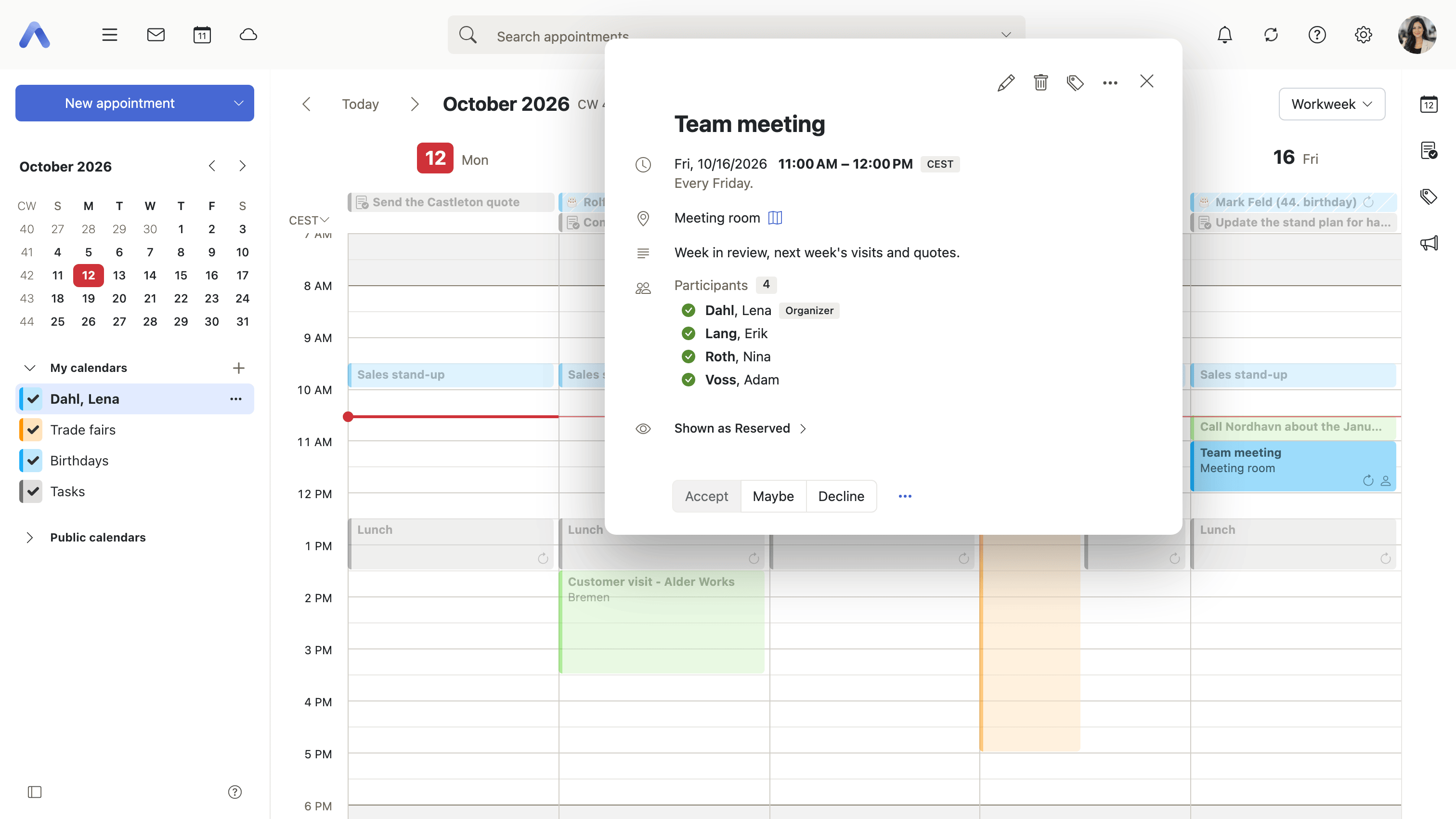
- The participant list shows each person's response, and marks who the Organizer is
- Add me to this appointment joins an appointment in a public calendar that the user is not yet a participant of
- Send email to all participants opens a new email to everyone, with the appointment title as the subject
- Invite to new appointment starts a new appointment pre-filled with the same participants
- Operators can keep specific addresses from being added at all
- Booking a room or a piece of equipment happens by adding it here as well; what resources themselves can do is described under Rooms and resources
Availability Since 7.10.6 or earlier. Requires calendar. Addresses that may not be added as participants are listed in io.ox/calendar//participantBlacklist.
Accept, decline or tentatively accept
Summary Answers an invitation with Accept, Maybe or Decline, optionally with a comment for the other participants. The three buttons are in the same place everywhere an invitation can be met: the appointment's detail view, the notification area, and the invitation email itself.
Why it matters What the organizer actually needs to know is how many people will be in the room, and without a participation status that number has to be assembled by hand out of replies sitting in a mailbox — where "I'll try to make it" and silence look much the same. The cost shows up as rooms booked for twelve when four come, and as catering ordered from a guess. A status is also the only form of this answer the rest of the calendar can use: it is what the scheduling view reads, and what tells the organizer that a time no longer works for half the invitees.
Description
- Accept, Maybe and Decline are offered in the detail view, in the notification area and on the invitation email
- A Your Comment field sends a note to the other participants along with the answer
- Answering one occurrence of a series asks whether it applies to Change appointment or Change series
- Accepting an appointment also applies the user's default reminder to it
- Conflicts with the user's other appointments are checked before the answer is saved
Availability Since 7.10.6 or earlier. Requires calendar.
Invitations and updates in email
Summary An invitation, a change or a cancellation that arrives as an email is shown as the appointment it describes, with the buttons that act on it directly above the message. The answer goes back to the organizer and the appointment lands in the calendar without the user leaving the inbox, and the same mechanism carries this product's own invitations out to everybody else.
Why it matters An invitation has to work for recipients who are not on this product at all. iMIP and iTIP are the standards that let an appointment travel as an ordinary email, and they are what Outlook, Google Calendar, Apple Calendar and most mail clients in between already speak; a calendar that does not implement them is a calendar that can only schedule meetings with itself. The failure mode is familiar to anyone who has met it: an invitation that arrives as an unintelligible attachment, responses written as prose that nobody can count, and two calendars that diverge from the first reschedule onward. For an organization that deals with customers, suppliers and partners, that is most of its meetings.
Description
- Accept, Maybe, Decline, Add to Calendar, Update Appointment and Remove Appointment are offered on the email, according to what the message actually is
- A comment can be sent back with the answer
- Incoming changes are applied to the calendar Never, Only from known senders or Always
- The invitation email can be deleted automatically once it has been answered
- Which invitation, change and response emails are sent out at all is chosen in notification settings, separately for the organizer's view and the participant's
- An appointment that everybody else has declined is flagged as implicitly canceled in its detail view
- Turning a plain .ics attachment — which is not an iMIP invitation — into an appointment is described under Attachments
Availability Since 7.10.6 or earlier. Requires calendar. How incoming changes are applied is stored in io.ox/calendar//chronos/autoProcessIMip, and deleting the email after an answer in io.ox/calendar//deleteInvitationMailAfterAction, which is off by default. Which emails are sent comes from io.ox/calendar//notifyNewModifiedDeleted, io.ox/calendar//notifyAcceptedDeclinedAsCreator and io.ox/calendar//notifyAcceptedDeclinedAsParticipant.
Forward a meeting invitation
Summary Passes an invitation on to somebody who was not invited. The recipients are added to the appointment as participants and receive the invitation email, optionally with a message explaining why they are getting it.
Why it matters The person who should be in the room is often not the person who was invited — a colleague covering an absence, the engineer who actually owns the subsystem, the manager standing in. Without a way to forward, the invitee writes to the organizer, the organizer edits the appointment, and until that round trip completes the person who is going to attend has nothing in their calendar and no idea when the meeting is. Doing it from the invitation keeps the appointment correct about who is coming, which the usual workaround — forwarding the email — does not.
Description
- Forward appointment, offered on appointments that have participants
- The recipients are added to the appointment and receive the invitation
- A message can be added to the invitation email the new participants get
- Forwarding an occurrence of a series asks whether it applies to this appointment or the whole series
- The meeting organizer still has to approve the attendees who were added this way
Availability Since 8.22. Requires calendar. Feature toggle forwardInvitation, which turns itself on where the Middleware is 8.20 or newer.
Hand an appointment over to another organizer
Summary Transfers the organizer role of a group appointment to one of its participants. The new organizer is picked in a dialog, and the other participants are told by email, optionally with a message.
Why it matters An organizer is not just a label — it is the one account that can change the appointment, and a recurring team meeting is pinned to whoever happened to create it. When that person leaves the company or hands the topic on, the series is stranded: nobody else can move it, and the usual remedy is to delete it and build a new one, which throws away every response, the room booking and the entry already sitting in a dozen calendars. Handing it over keeps the meeting the same meeting.
Description
- Change organizer opens a dialog naming the current organizer and a search field for the new one
- Offered for group appointments whose participants are all internal
- Available to the organizer, and to a participant who has edit rights on the appointment
- A message can be added to the notification email the other participants receive
- A deployment can switch the option off entirely
Availability Since 7.10.6 or earlier. Requires calendar. io.ox/calendar//chronos/allowChangeOfOrganizer takes the action away; it is on by default.
Save participants as a distribution list
Summary Turns the people on an appointment into a distribution list in the address book. Offered on any appointment with more than one participant, and from the scheduling view for whichever people are currently being compared there. The appointment title is proposed as the name of the new list.
Why it matters The groups that matter in working life are rarely the ones an administrator created: the four people on a project, the handful who review a release. They meet repeatedly, and each time they are assembled from memory, which is how somebody ends up left off a series they should be in. Capturing a group at the moment it has just been typed out, rather than remembering to build it later, is what makes it exist at all — and once it is a contact it is reusable in mail as well as in the next invitation.
Description
- Save as distribution list on appointments with more than one participant
- The same button in the footer of the scheduling view, for the people being compared there
- The appointment title is proposed as the name of the list
- The list is created in the user's default contacts folder and is an ordinary distribution list from then on — see Address Book
Availability Since 7.10.6 or earlier. Requires contacts.
Choose who sees your free/busy times
Summary Decides who may look up when the user is busy: everybody, only users inside the organization, or nobody at all. It governs availability lookups only — the blocks of time that appear when somebody searches for a free hour — and not the contents of any appointment.
Why it matters Free/busy is the quiet privacy question in a calendar, because the times alone say a great deal: when somebody starts, when they stop, which afternoons they are never there, how full their week is. Being findable is what makes scheduling work at all, so the answer is not simply to hide — but a user whose availability is readable from outside the organization, or by guests, is publishing more of their working pattern than they probably intended. This is a blanket setting about the user; keeping one particular appointment's details to oneself is a separate, per-appointment choice described under Appointments.
Description
- Three values in the calendar's advanced settings — Everybody, Internal users only and Nobody
- Applies to free/busy lookups, not to who can open an appointment or read what is in it
- Where a person's availability cannot be read, the scheduling view marks their row instead of drawing times for it
Availability Since 8.14. Requires calendar. Feature toggle freeBusyVisibility, which turns itself on where the Middleware is 8.14 or newer. The choice is stored in io.ox/calendar//chronos/freeBusyVisibility and defaults to Everybody.