Security and trust
What the client does to tell a genuine message from a forged one, to keep a sender from learning that a message was opened, and to make unwanted mail easy to get rid of.
Sender authentication results
Summary Shows what SPF, DKIM and DMARC concluded about a message, from a quiet confirmation on a message that checks out to a red warning on one that does not. The verdict appears in several places at once — a notice above the message body, the color and icon of the sender name, and the contact picture — so it is visible whether the user is scanning the list or reading the message.
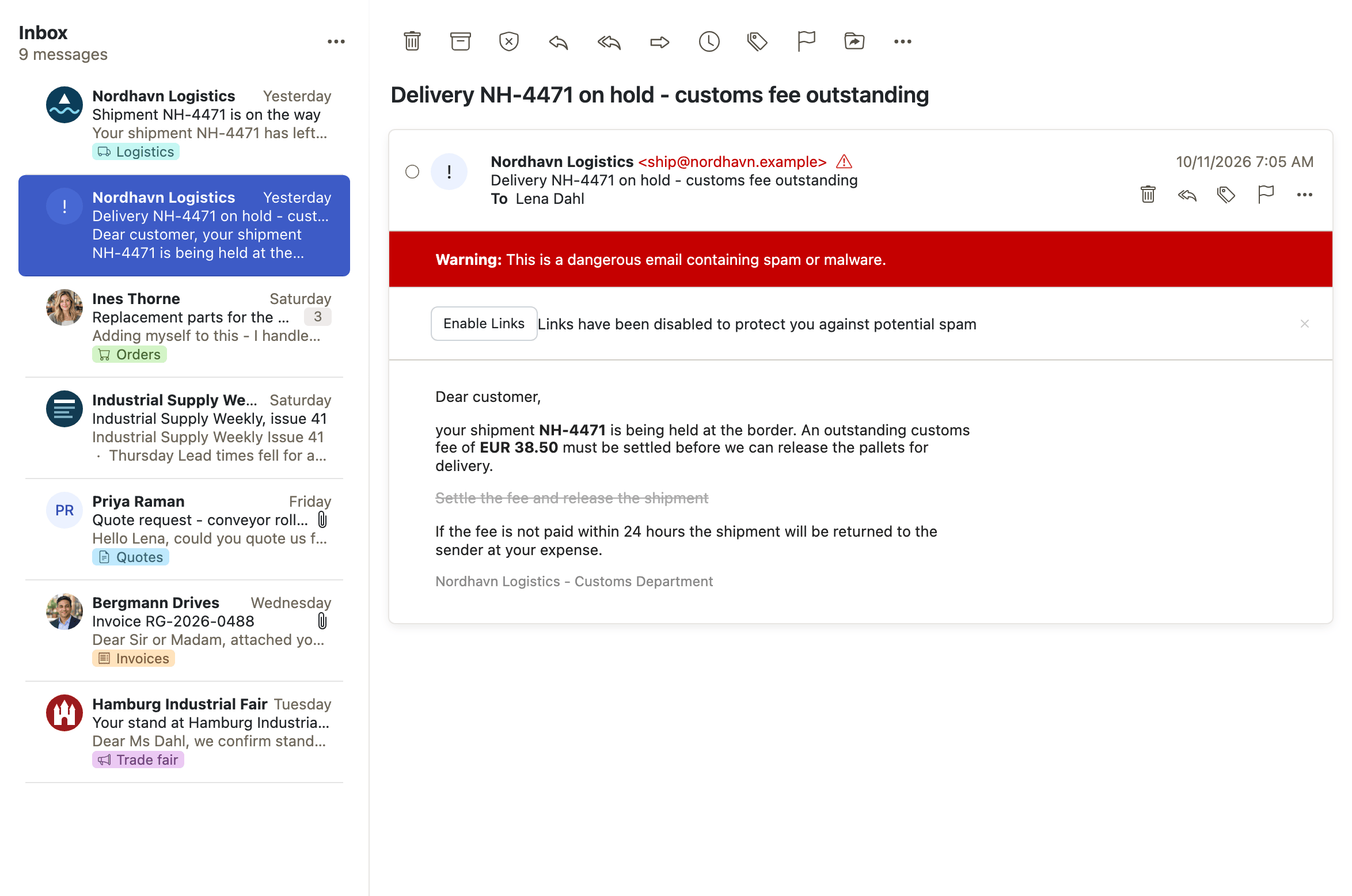
Why it matters Phishing works because a forged sender line looks like a real one, and the part a reader actually takes in — the display name — is the part the forger gets to choose. The mail server has already done the checking; this puts its verdict where the user is looking, so "is this really my bank?" is answered before anyone clicks a link. It is also the foundation the other trust features build on: brand logos are only shown for senders that pass, and links are neutralized for senders that fail.
Description
- A notice above the message body states whether the sender could be verified
- The sender name and address are colored and carry an icon according to the result
- The contact picture is replaced by an exclamation mark for suspicious and failed messages
- A Via <domain> line appears when the sending domain does not match the From domain
- On smartphones a verified sender's address is hidden behind the display name
- The full SPF, DKIM and DMARC reasons are shown in the View source dialog
Availability Since 7.10.6 or earlier. Requires webmail. How strict the display is comes from a level setting, and the Middleware must have authenticity enabled.
Message security
Summary Images hosted on the internet are not loaded until the user asks for them, and a sender can be trusted once so that their mail always displays. The same area handles the other ways a message can be hostile: links are neutralized when a message fails sender authentication, and a warning is shown when the mail server has tagged a message as phishing.
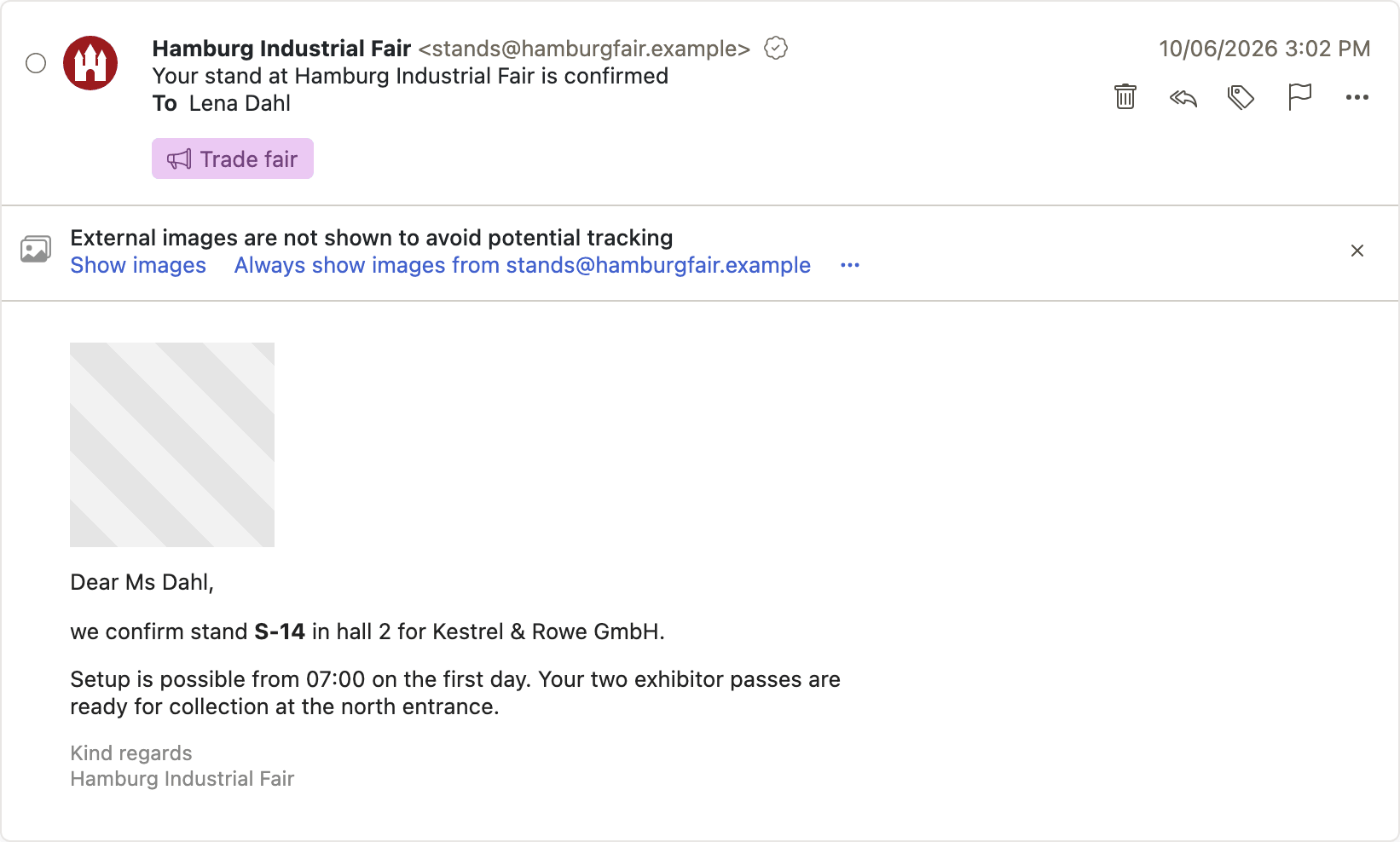
Why it matters A remote image may be a tracking pixel, and nothing in the message tells the reader which one it is. Loading it tells the sender that the message was opened, roughly when, and from which IP address — information the reader never agreed to hand over. Blocking by default means reading an email stops being an event the sender gets to observe, while the one-click reveal keeps legitimate newsletters readable. Where a privacy proxy is configured, even revealing images keeps the reader's IP address out of the sender's logs, which is what lets an organization answer how much its mail client discloses about its staff.
Description
- A notice says external images are not shown, with a Show images link
- Always show images from <sender> adds the address to a personal trusted-sender list
- Operators can maintain their own trusted-sender list, and can set images to always load
- Images are always blocked in spam and trash folders, and for messages that fail sender authentication
- Images served over plain http are upgraded to https; where that fails the message can be opened in a new tab
- Revealing images in one message also unblocks other messages from the same sender
- Where a privacy proxy is configured, revealed images are fetched by the Middleware rather than by the browser, so the sender never sees the user's IP address
- Links are neutralized in messages that fail sender authentication, and a red warning is shown when the mail server has tagged a message as phishing
Availability Since 7.10.6 or earlier. Requires webmail.
Verified brand logos (BIMI)
Summary Shows a brand's own logo beside its messages, with a badge saying how that logo was verified — either a certificate issued against a registered trademark, or a lighter confirmation that the logo is the one the domain publishes. The logo takes the place of the usual contact picture, in the message list and in the open message.
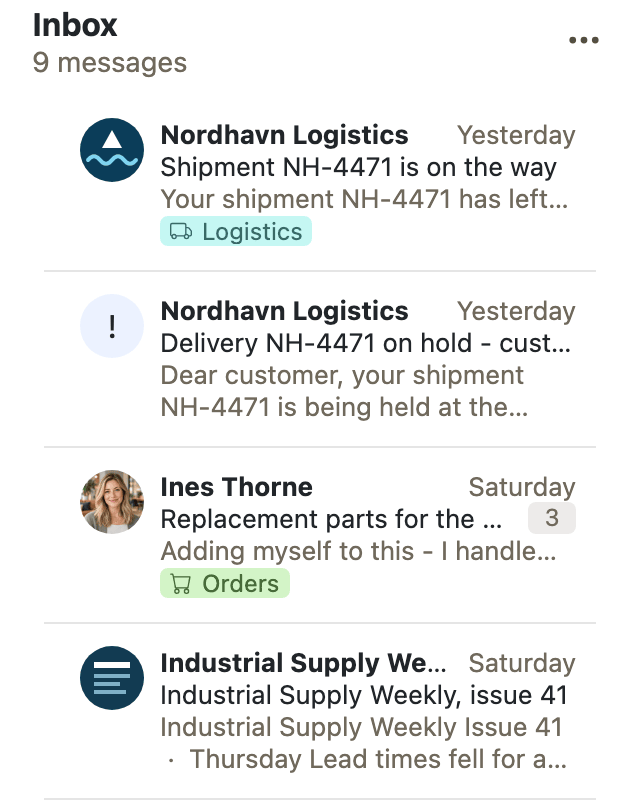
Why it matters People recognize a logo far faster than they read a domain name, and a brand's mark is the one piece of its identity that reaches the inbox at all. A genuine message from a bank or a delivery company carries its logo; a forged one cannot, because the logo is only shown when the sender passes authentication. The absence of the mark becomes the signal, which is a far easier judgment for a user to make than inspecting a sender address.
Description
- The brand logo replaces the contact picture in the list and the detail view
- A badge next to the sender says whether the logo carries a verified mark certificate (VMC) or a common mark certificate (CMC)
- Only shown for senders that pass authentication, so sender authentication must be on
- Operators can preconfigure logos, and can allow- or block-list domains
Availability Since 8.46. Requires webmail. Feature toggle bimi, off by default. Setup is described under BIMI.
Mark a message as spam, or as not spam
Summary Hands a message to the mail server's spam handler, and takes one back out of the spam folder. Both directions report the decision to the server, so the filter learns from what users correct.
Why it matters A spam filter is only as good as the corrections it receives, and corrections only happen if making them is trivial. The "not spam" direction matters most: a false positive means a message the user wanted is sitting in a folder they rarely open, and every one rescued teaches the filter not to repeat it. Keeping both one click away is what turns the filter from a fixed ruleset into something that improves for each mailbox.
Description
- Mark as spam moves the message to the spam folder and reports it
- Not spam is offered inside the spam folder and returns the message
- Both are hidden for accounts whose server has no spam handler, and for folders shared by other users
- Links in messages inside spam folders are disabled
Availability Since 7.10.6 or earlier. Requires webmail and spam.
Unsubscribe from a newsletter
Summary Mail from a newsletter or a mailing list gets a banner at the top with an Unsubscribe link. Where the sender advertises one-click unsubscribe, the server carries it out directly; otherwise the sender's own unsubscribe page opens in a new tab.
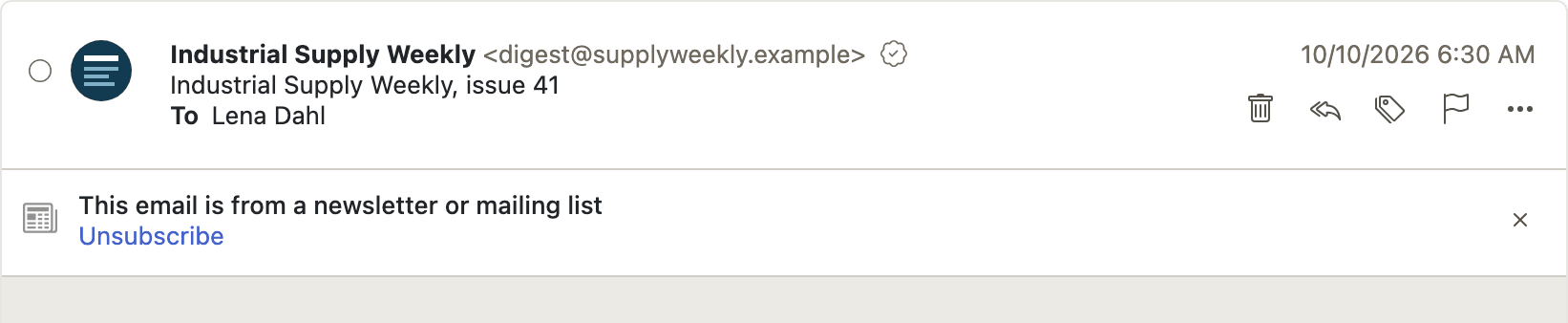
Why it matters Most of what clogs an inbox is not spam — it is mail the user once agreed to and no longer wants, where the only way out is a small link at the foot of the message. Putting it at the top turns unsubscribing into something people actually do, and every list a user leaves is one they no longer mark as spam. That matters to the deployment as well: fewer spam reports against legitimate senders keeps the filter's judgment sharper. Performing the one-click variant on the server also keeps the reader's IP address away from the sender.
Description
- A banner above the message says it is from a newsletter or mailing list, with an Unsubscribe link
- A confirmation step precedes both paths
- One-click unsubscribe is performed by the server where the sender advertises it, so the user's IP address is not exposed to the sender
- Otherwise the sender's unsubscribe page opens in a new tab
- Success and failure are reported in the banner, with the link as a fallback
- Messages whose unsubscribe header only offers a mailto address get no banner
Availability Since 8.51. Requires webmail. Feature toggle unsubscribeFromMailingList, on by default.
Read an encrypted or signed message
Summary Encrypted and signed mail is handled by OX Guard, which is delivered as a separate plugin. What this client contributes are the places that plugin attaches to and the points where other features step aside for an encrypted message: a security row in the message header, and a small number of behaviors that change when the Guard capability is present.
Why it matters Encryption is only used in practice when reading an encrypted message is no harder than reading an ordinary one, which means the mail client has to leave a place for it rather than assume every message is plain text. These hooks are that place. They also keep the rest of the client from working against encryption — an encrypted message is not offered for actions that would require reading its contents — and they let encryption be expressed as a filter rule, so a deployment can have mail encrypted on arrival instead of relying on each sender.
Description
- A security row in the message header is drawn by an extension that other code can fill
- Encrypted messages are excluded from the new mail with cloned attachments action
- Filter rules gain an Encrypt the email action and a PGP signature condition where the Guard capability is present
Availability Since 7.10.6 or earlier. Requires guard and guard-mail. The interface for reading and composing encrypted mail is delivered by the separate OX Guard plugin, not by this client.